
HubSpot LinkedIn Sales Navigator Integration
Connect LinkedIn Sales Navigator to HubSpot
Instantly connect LinkedIn Sales Navigator to HubSpot using Hublead. Effortlessly import contacts, messages, and connections, fast and seamless.


Loved by 8,000+ Users













Connect LinkedIn Sales Navigator to HubSpot while you prospect
Work in Sales Navigator and push contacts, messages, and activity into HubSpot without extra CRM admin.
Use HubSpot as a prospects tool
Power prospect management in HubSpot using LinkedIn engagement signals logged after linking.
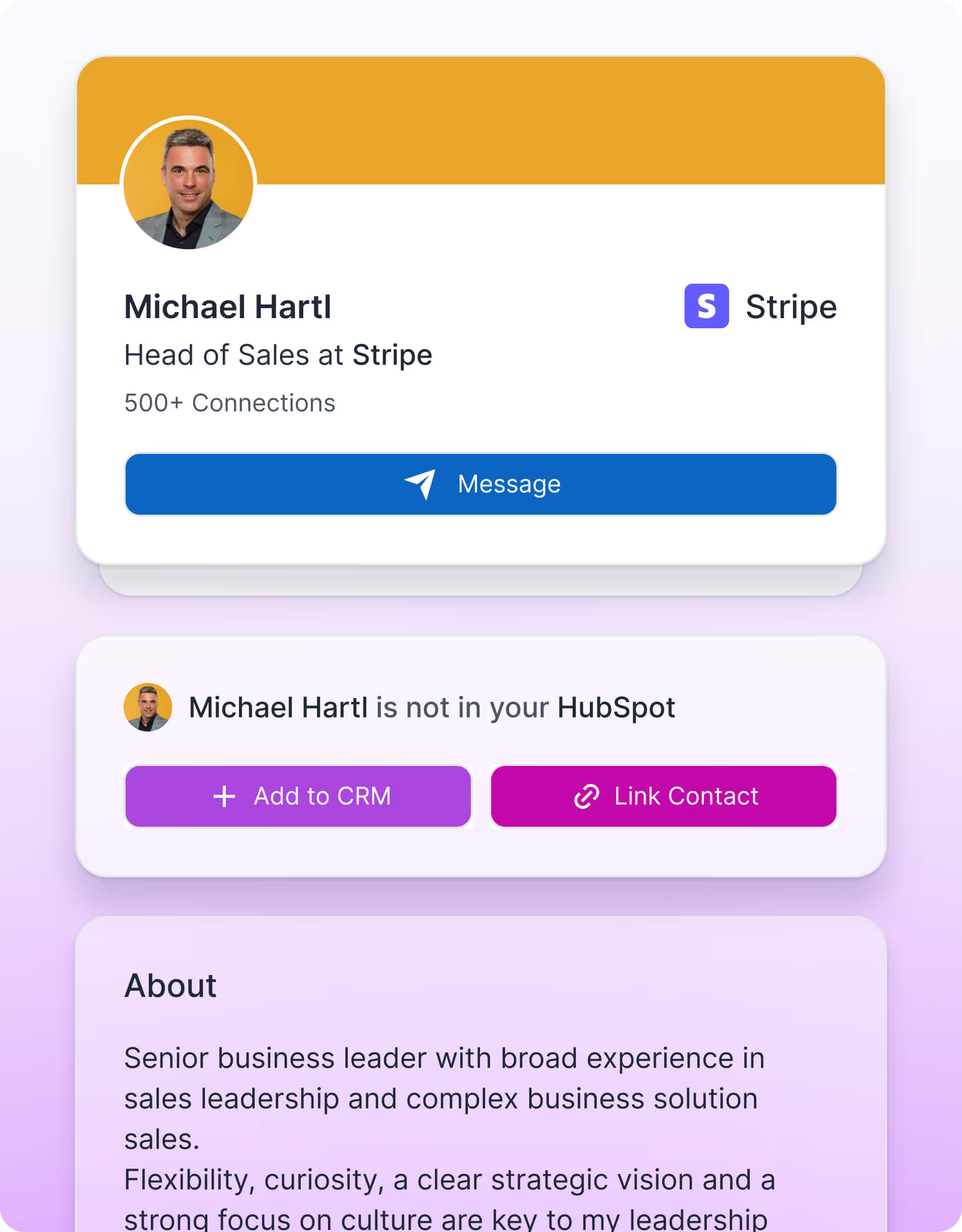

Log InMails and Sales Nav activity
Avoid manual updates by logging Sales Navigator messages and connections in HubSpot after linking.

Keep Sales Nav and HubSpot in sync
Avoid manual updates by logging Sales Navigator messages and connections in HubSpot after linking.
What HubSpot userssay about Hublead
Discover how sales professionals use Hublead to cut manual work, stay focused on LinkedIn, and turn more conversations into booked demos.
Sales Navigator connected to HubSpot
Hublead links Sales Navigator leads to HubSpot contacts so LinkedIn profile data and lead context are visible directly in the CRM. This allows reps to work Sales Navigator leads while keeping HubSpot records aligned automatically.
Try Hublead for Free
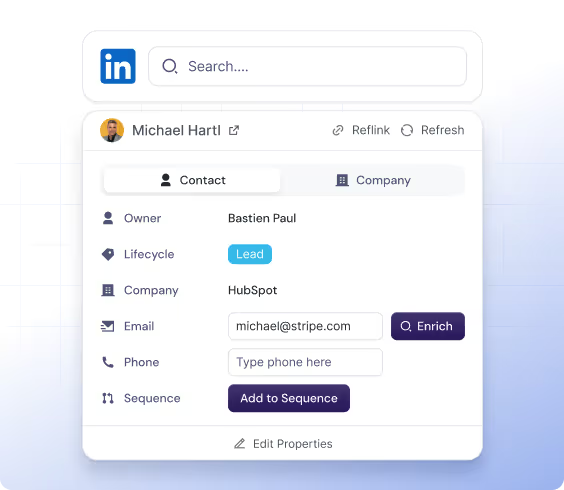
InMail and Sales Navigator activity logging
Hublead logs Sales Navigator outbound events (connection sent, connection accepted, message sent, message replied) as HubSpot timeline activities, ensuring full visibility into LinkedIn conversations.
Try Hublead for Free
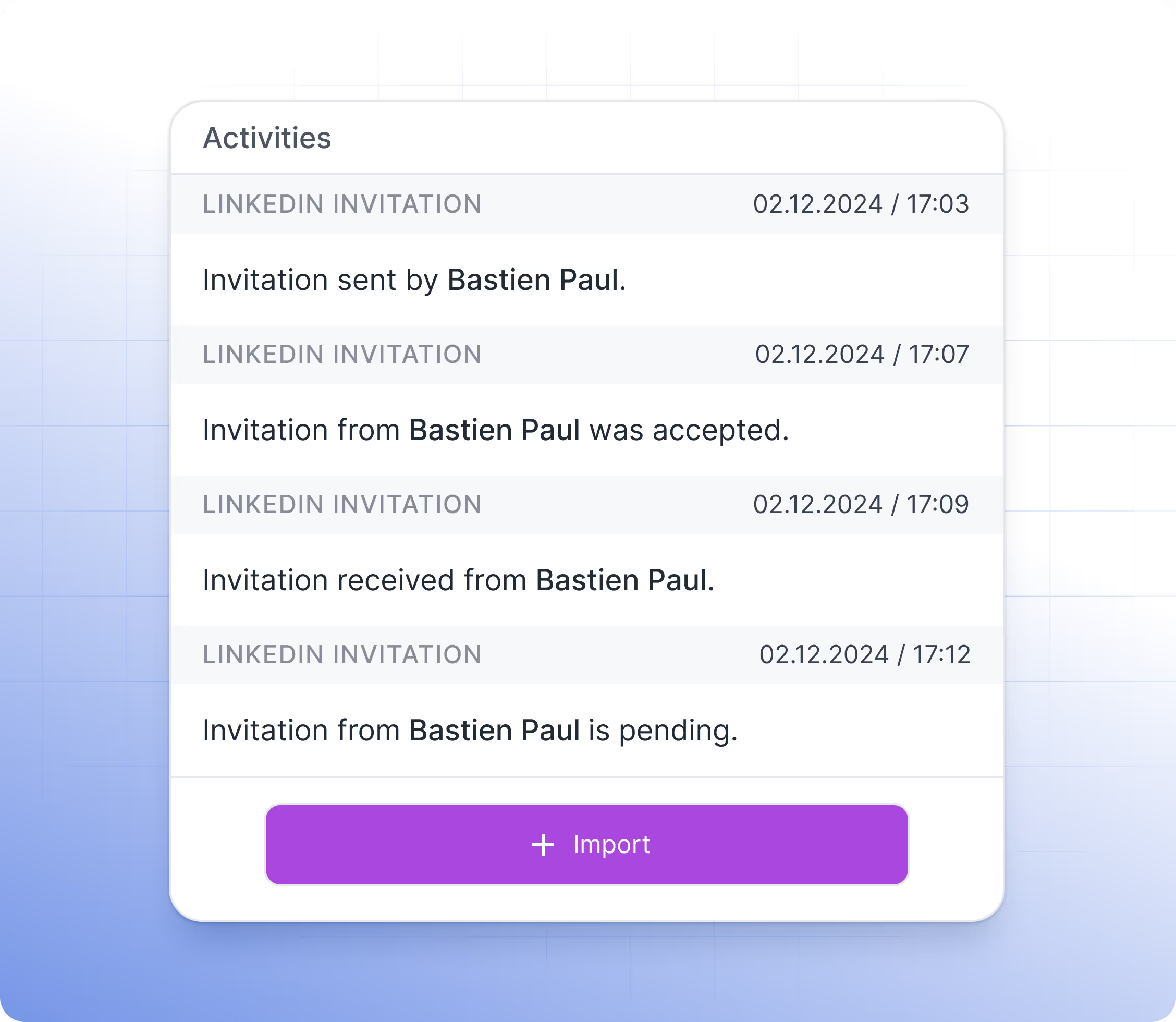
Automatic Sales Navigator sync
After connection, Hublead continuously syncs Sales Navigator engagement activity to HubSpot so CRM data reflects real outreach without manual logging.
Try Hublead for Free
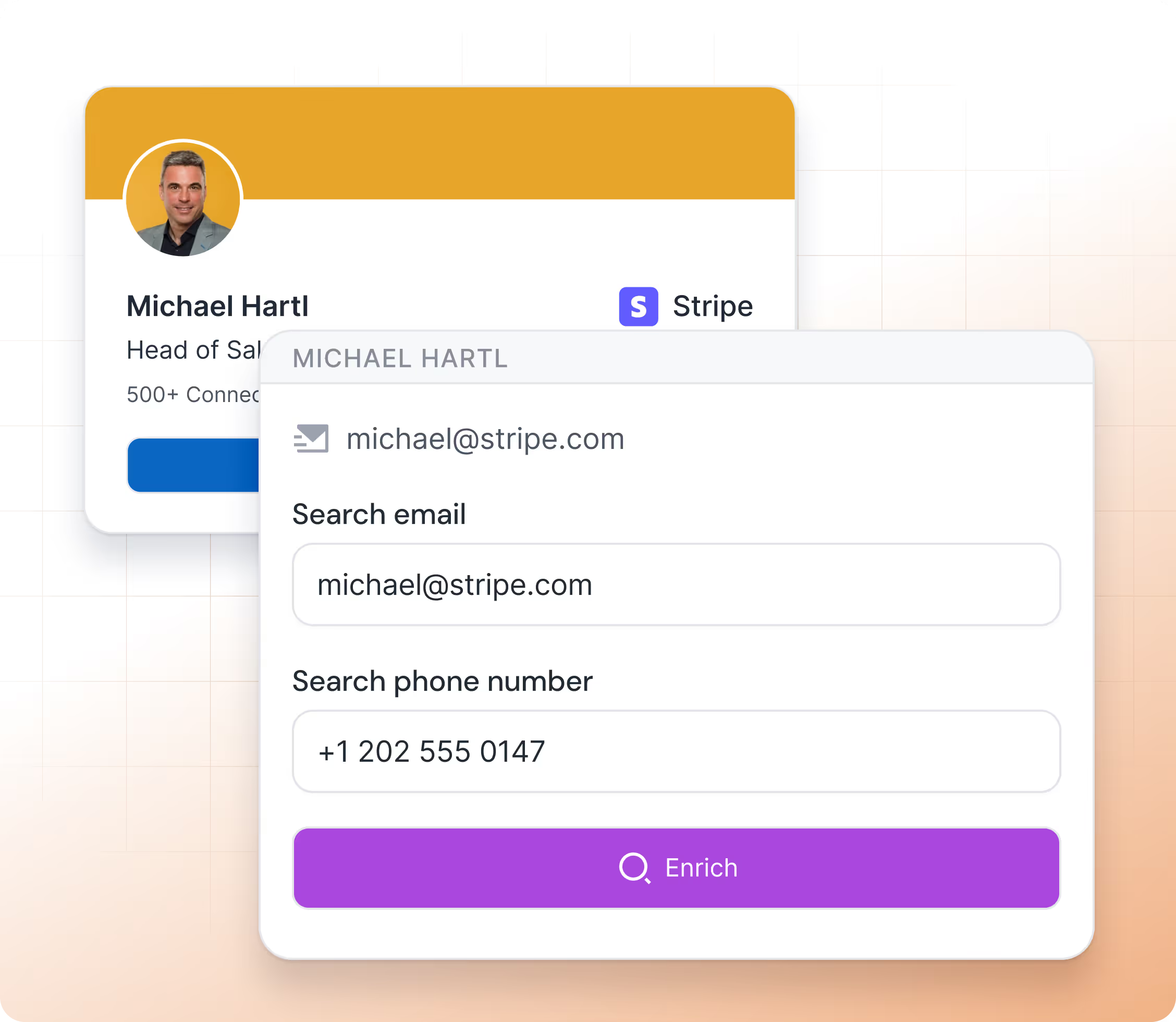
Hublead connects HubSpot to LinkedIn easily
No more guessing who you messaged last week or last month. That’s why you use a CRM to stay organized.
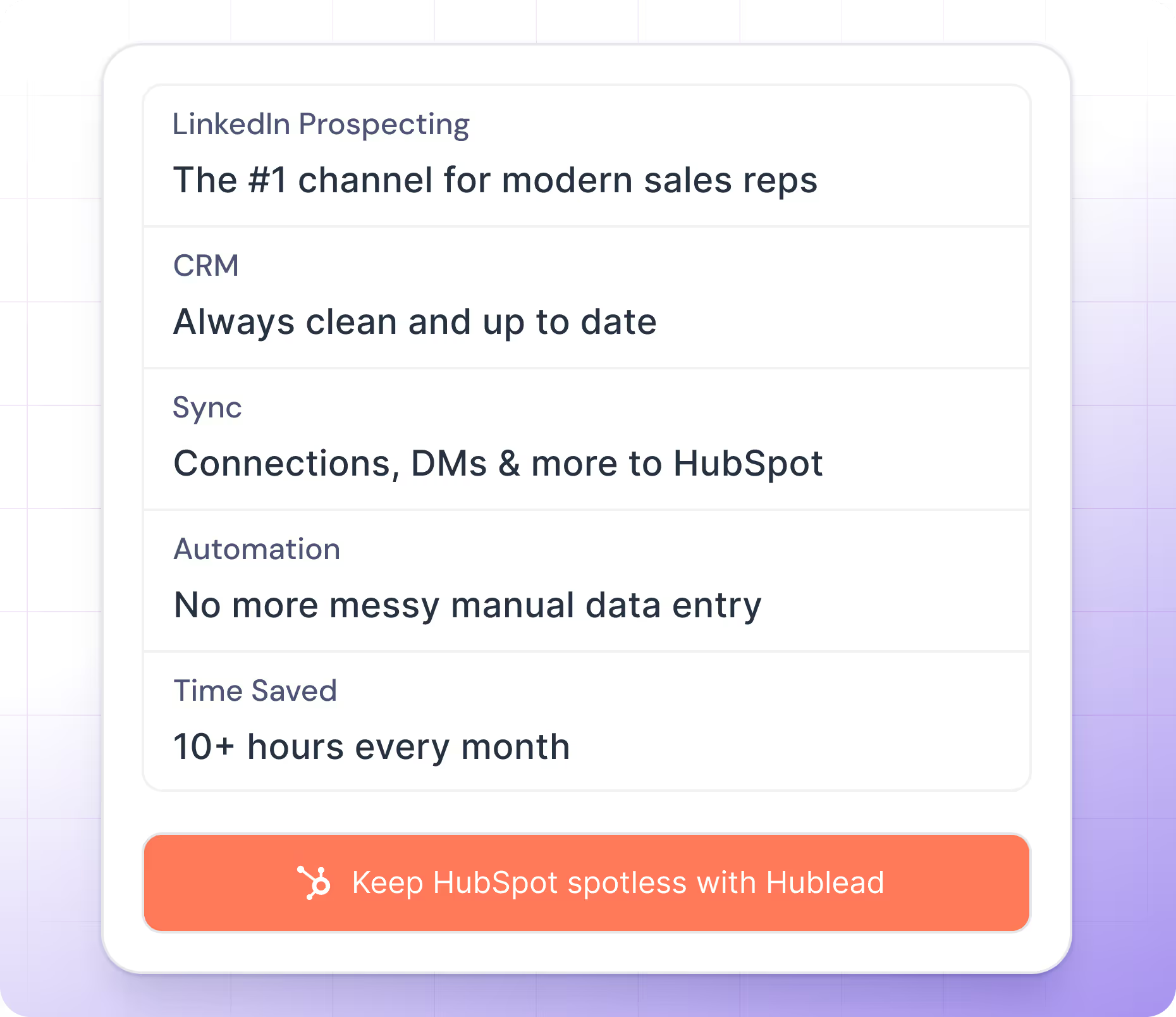
Hublead automatically imports all LinkedIn activities (messages and invitations) into HubSpot, so you can track every lead and turn conversations into revenue without losing time
Try Hublead for Free


And what our users are saying
Hublead is a Chrome extension for adding prospects, logging conversations, and enriching LinkedIn contact data. No duplicates, just pure prospecting.

"It's exactly what I was looking for to get LinkedIn connections and messages into HubSpot."

"Best HubSpot Enrichment integration I used, easy to integrate with HubSpot!"

"I can't emphasize enough the time-saving benefits of Hublead. I strongly recommend it!"

"Our inbound lists used to be a mess. Now, with Hublead enrichment, we can immediately spot the best prospects and focus on closing, not cleaning data."

We couldn't live without this plug-in.

Awesome tool. Very easy to set up and incorporate into existing apps infrastructure. Love it!Sync contacts data in CRM and LinkedIn + messages sync.

Finally! A tool which pushes LinkedIn messages to HubSpot! Easy to use, great support.

Finally. This is what I've been waiting for. Hublead finally makes LinkedIn worth the money and provides me with the information I need within HubSpot.Really simple, intuitive and bloody worth the money. My outreach has tripled!Thanks

Just starting but works well!

It's amazing. I use it for my personal job hunting and it's greatly streamlined my process.

I discovered this tool a couple of weeks ago and it's been an absolute game changer! I love how much time I'm saving adding leads from LinkedIn Sales Navigator to HubSpot. And the best thing is that I can even recommend this to people who are not using LinkedIn Sales Navigator, because it also works with the "regular LinkedIn".

Great tool for fast moving sales folks. Love the easy add for contacts. We were having some trouble linking the contacts with LinkedIn from the internal HubSpot platform and Hublead FIXED THE ISSUE and IMPROVED THE DATA linked -- Also pulls the LinkedIn profile pic to the contact in HubSpot, which is a preference of mine. Another huge perk was finding out that Hublead was a great replacement for ZoomInfo as the contact information is pulled from various sources and I've found the phone number... Show more

+ Super slick interface - the option to add / edit contact to hubspot shows up right on Linkedin page+ Cheaper than other popular options + Message sync is pretty useful as well+ Data enriching feature is great - have to evaluate use - Trial could be for a week!

At the moment very good product! You just press add contact in sales navigator and it saves you all the important information of the contact and its company in hubspot.

Amazing tool!!! Makes it so easy to log contacts from Linkedin.

As a BDR manager, I can attest to the invaluable impact that Hublead has had on our sales operations. This HubSpot LinkedIn Chrome extension has revolutionized our approach, saving countless hours and significantly enhancing visibility across the buying cycle.One of the most compelling aspects of Hublead is its ability to seamlessly sync messaging between our sales team and prospects. This feature ensures that no dialogue slips through the cracks, providing a comprehensive overview of inter... Show more

A seamless integration for LinkedIn and Hubspot - saves us hours of time!

Awesome product. We just completed a 2-day event and collected a ton of LinkedIn connections. We would be drowning in busy work without this nifty little tool.

Been loving this product to grab data and connect LI and Hubspot quickly. Works great, simple to use and saves me a ton of time. I highly recommend this product - it works great and fast!

"As a salesperson, I found that Hublead eliminates the nightmare of data entry."

Best thing since sliced bread. So much value for the money.

Big time saver - easy install and setup

easy to install, easy to use and works just like a charm. Exactly what I was looking for

Easy to manage and connect with the CRM. The help center is very fast and efficient, they assist you immediately.

Does it's job very well. Adding everyone I meet / see in LinkedIn that's a great Lead prospect into Hubspot with a single click. Highly recommend it for this purpose!

Excellent, time-saving tool for adding leads to your CRM. I use HubSpot and it's been a lifesaver for my team and I.

Easy to use and effective - i love that it is powerful, really useful and straightforward. Highly recommended if you use Linked In and Hubspot.

A really awesome plugin. Just works.

Easy to use, great to have a tool to enrich your hubspot data with all the linkedIn information + prospective messages in your CRM, no latency. 5 stars!

FINALLY, a LinkedIn/HubSpot integration that's easy to use and cost-effective. Saves us dozens of clicks per contact, and actually makes it feasible for HubSpot to be the center of our sales universe while leveraging all the strength of LinkedIn.

"I can't overstate how much of a game-changer Hublead has been for me!"

Great app for integrating LinkedIn data in HubSpot - I've not found a better solution for pushing LinkedIn messages into HubSpot. Would thoroughly recommend.

Finally! This app is a life saver. Ok.. time saver. I was really missing having a tool to import leads from LinkedIn to HubSpot CRM. Now it's a matter of one click. And all the conversations are saved too. Love this.

Game changer 🔥

Great customer service!

Great product. Made HubSpot so much more usable and streamlined huge portions of the sales and prospecting process. Incredible support as well - whenever I had a problem, it was dealt with within minutes. Highly recommend.

Great plug-in. Still lots of room for improvement but core features work really well. Great customer support, too!

Has been a massive time saver so far. Thank you for developing a great product!

Had the tool for a few days now - so far so good! Customer service has been exceptional.

Helps saves time -and- prevent typos!

Helpful Tool for our startup and incredible service.

Hublead has ben great for making the connection between HubSpot and LinkedIn as easy and simple as possible. The email contact information is VERY good and the phone contact information is a little more hit or miss but still pretty good. Overall, very pleased with Hublead and would recommend giving it a try.

Hublead is a game-changer. Importing LinkedIn messages to HubSpot in one click and automatic synchronization of new messages is brilliant. If you're a founder, you need Hublead.

Had an issue with administration of licenses within my team. Bastien solved it within seconds - awesome support!

HubLead is a fantastic tool for lead management. It saves us a lot of time and works great with HubSpot. The integration is seamless, making it easy to track and organize leads efficiently. Highly recommend

Hublead is a must-have tool for any sales professional. The ability to import contacts from LinkedIn to HubSpot in a single click has made my job a breeze. I can't imagine my workday without it.

Hublead is an awesome tool that is already saved me hours in my week with no more manual entry between LinkedIn and HubSpot. Bastien, the CEO, personally added me to LinkedIn, followed up to ensure that it setup properly, and was willing to help and answer any questions that I have. Very impressed with it so far!

How many apps out there truly encourage you to do outreach research on the daily? Hublead removes the chore of adding details manually and I use the reclaimed time for approach strategy.

Hublead is amazing.... I started using the free version a week or two ago and loved it so much that I started paying for their professional package. I love how simple it is. The integration with Hubspot is huge and saves me so much time when it comes to manual data entry. The ability to add contacts quickly and sync messages from LinkedIn is awesome. Linking contacts that I already have in my CRM is super easy too. You should definitely try it out if you used LinkedIn a lot and want to save a... Show more
Connect LinkedIn Sales Navigator to HubSpot
No need to learn a new tool, Hublead is integrated right into your LinkedIn navigation, helping you stay organized and maximize your prospecting efforts.
When clicking on our "Add to CRM" button, you directly import the LinkedIn contact to HubSpot and synchronise these information: First name, Last name, Linkedin Url, Job title, Website URL, City, Country/Region & Language.
Yes! We use by default the "LinkedIn URL" however, you can remap this field.
No we do no support this plan of LinkedIn.
Yes Hublead supports all LinkedIn Sales Navigator plans (Core, Advanced and Advanced Plus)
No you do not need LinkedIn Sales Navigator.
We can use your custom LinkedIn URL, you change that in the dashboard. By default we use a property named "LinkedIn URL".
No, at this moment it is not possible.
Yes, however the portage is handled by Safari, Hublead guarantees support only on Chrome.
No you cannot use Hublead on iPad. Chrome app on iOS does not support chrome extensions.
Our pricing plans are built for different businesses and needs, Hublead plans adapt to all business sizes.
Yes, our data is fully committed and compliant to the GDPR & CCPA requirements.
We only integrate with HubSpot for now, and we prefer to stick to that!
Yes, we do import emal & phone number in HubSpot when we found it. We only show these information when we are 100% sure it's prospect's email & phone number.
Yes, we do import emal & phone number in HubSpot when we found it. We only show these information when we are 100% sure it's prospect's email & phone number.
Whenever you open a LinkedIn contact, we search in your HubSpot if the contact exists already. We search according to a mix of these variables: First name, Last name, Job title, Company name, Website URL, Email & Phone email.
In this case, after clicking on "Add to CRM", a popup will display and you will be invited to select the right company you want to import. After selecting the company, we then search in the CRM if it exists and create the company if it does not.
If we create a company we import all necessary information in HubSpot: Company name, Domain, Website URL, City, Country/Region, Description, Linkedin company url, Number of employees, Language, Industry.
It depends, when importing contacts, we search in HubSpot if the company already exists in your CRM thanks to website URL. If it does exist, we just import the contact and associates the contact to the company, otherwise we create the company.