

Wie du E-Mail-Adressen von Leads auf LinkedIn findest
Du brauchst Kontaktdaten für deinen nächsten Lead? Wir zeigen dir die besten Tools und Taktiken, mit denen du E-Mail-Adressen und Telefonnummern für jeden Lead auf LinkedIn findest.
Du hast eine Liste mit Leads im Sales Navigator aufgebaut, Kontaktanfragen verschickt und vielleicht sogar InMails. Das war’s, oder?
Nicht ganz. Nicht mal annähernd.
Du wirst diesen Interessenten auch E-Mails schreiben, sie anrufen und ihnen Nachrichten senden müssen, wenn du über mehrere Kanäle hinweg Vertrautheit und Wiedererkennung aufbauen willst. Du brauchst dafür nur zwei Dinge: eine E-Mail-Adresse und eine Telefonnummer. Das Problem ist, dass LinkedIn diese Infos nicht immer preisgibt – und es gibt nur wenige Tools, die nativ mit LinkedIn funktionieren.
In diesem Guide teilen wir unsere liebsten Tools, um Kontaktdaten von Interessenten auf LinkedIn zu finden.
Teilt LinkedIn Kontaktdaten?
Die kurze Antwort: manchmal.
Öffne ein beliebiges Profil auf LinkedIn und du siehst direkt neben dem Namen und der Überschrift „Kontaktinfo“:
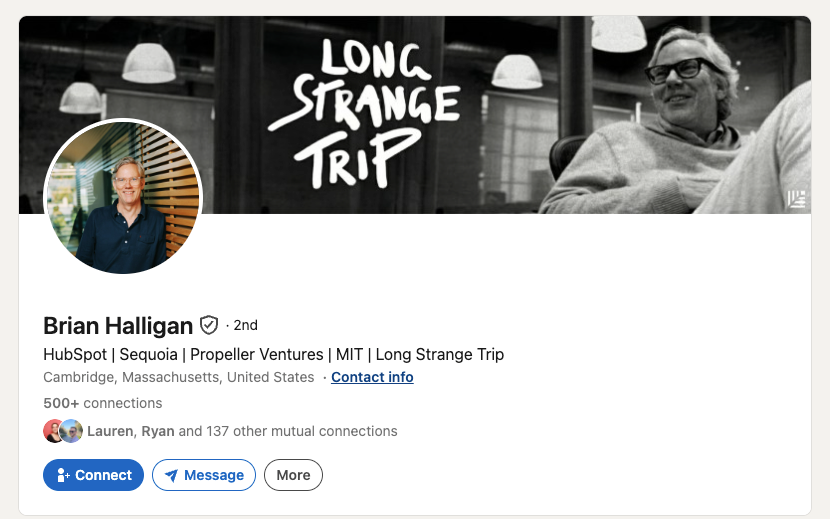
So einfach, oder?
Nicht ganz. Manche Menschen teilen ihre E-Mail-Adresse und Telefonnummer, aber nicht immer. Brian Halligan ist ein ziemlich bekannter Typ, und das weiß er auch. Also verbirgt er seine Kontaktdaten:
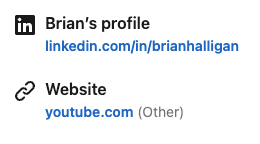
Den meisten deiner Leads ist klar geworden, dass es für die Privatsphäre vermutlich nicht ideal ist, E-Mail-Adressen und Telefonnummern öffentlich auf LinkedIn zu posten. Das bedeutet, dass du ein Drittanbieter-Tool brauchst, um Kontaktdaten deiner Interessenten zu finden – das zeigen wir dir als Nächstes.

Bereit, deinen Outbound-Prozess zu optimieren?
So nutzt du Bulk-Finder für E-Mail-Adressen und Telefonnummern auf LinkedIn
An E-Mail-Findern und Anreicherungs-Tools, aus denen du wählen kannst, herrscht kein Mangel.
Alles, was du tun musst: Entweder du exportierst eine Liste mit Leads aus dem Sales Navigator oder du notierst die Profile, die du auf LinkedIn bearbeitest, in einer Tabelle und suchst dann nach denselben Leads in Clay, Apollo oder ZoomInfo.
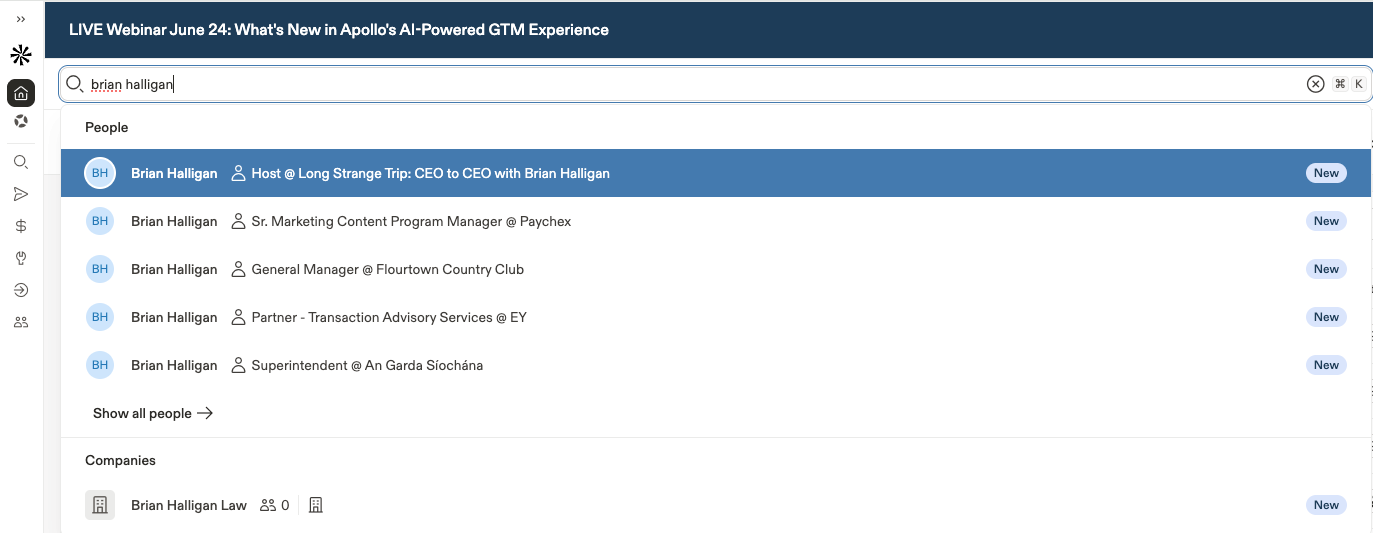
Es gibt nur ein kleines Problem: Das ist unglaublich ineffizient.
Wenn du intensiv auf LinkedIn prospektierst – egal ob im normalen LinkedIn oder im Sales Navigator –, zwingen dich diese Tools dazu, einen zweiten Tab zu öffnen und Daten entweder zu kopieren und einzufügen oder zu exportieren und zu importieren. Und das Ganze dann auch noch in dein CRM zu exportieren.
Fairerweise muss man sagen: Apollo bietet eine Chrome-Erweiterung, mit der du ein Seitenpanel öffnen kannst, um Anreicherungsdaten zu einem LinkedIn-Profil zu suchen und abzurufen. Wenn du HubSpot als CRM nutzt, lässt die native Integration einiges zu wünschen übrig und zwingt viele Vertriebler dazu, Lead-Daten trotzdem aus Apollo zu kopieren. Im gleichen Sinne bieten Clay und ZoomInfo über ihre Chrome-Erweiterungen ähnliche Funktionen, es fehlt ihnen aber die nahtlose Möglichkeit, diese Daten direkt mit HubSpot zu synchronisieren.
Wir haben noch nie einen Vertriebler getroffen, der den Luxus hat, all das manuell zu verwalten. Zum Glück gibt es Anreicherungs-Tools speziell für LinkedIn, die wir dir als Nächstes vorstellen.
Der bessere Weg, um E-Mail-Adressen und Telefonnummern von Leads auf LinkedIn zu finden
Die großen GTM-Anreicherungs-Tools harmonieren vielleicht nicht gut mit LinkedIn und HubSpot, aber es gibt viele andere Anreicherungs-Tools, die direkt in LinkedIn funktionieren und jeden Lead direkt mit deinem CRM synchronisieren können.
Wir würden dir Hublead als beste Option dafür empfehlen. Hublead ist ein Produkt, das wir entwickelt haben, um LinkedIn- und HubSpot-Daten zu synchronisieren, nach Leads zu suchen und Leads direkt in LinkedIn anzureichern.
Folge diesen Schritten, um zu sehen, wie einfach Hublead es macht, Leads in deinem CRM zu prospektieren, anzureichern und zu speichern:
- Füge Hublead zu Chrome hinzu
- Finde deine Interessenten auf LinkedIn
- Klicke auf „Enrich“
Füge Hublead zu Chrome hinzu
Zuerst das Wichtigste: Geh zum Chrome Store, um Hublead zu installieren. Du kannst Hublead kostenlos testen, um zu sehen, wie es für deinen Prospecting-Flow funktioniert, bevor du dich für einen kostenpflichtigen Plan anmeldest (der bei nur 32 $/Monat startet).
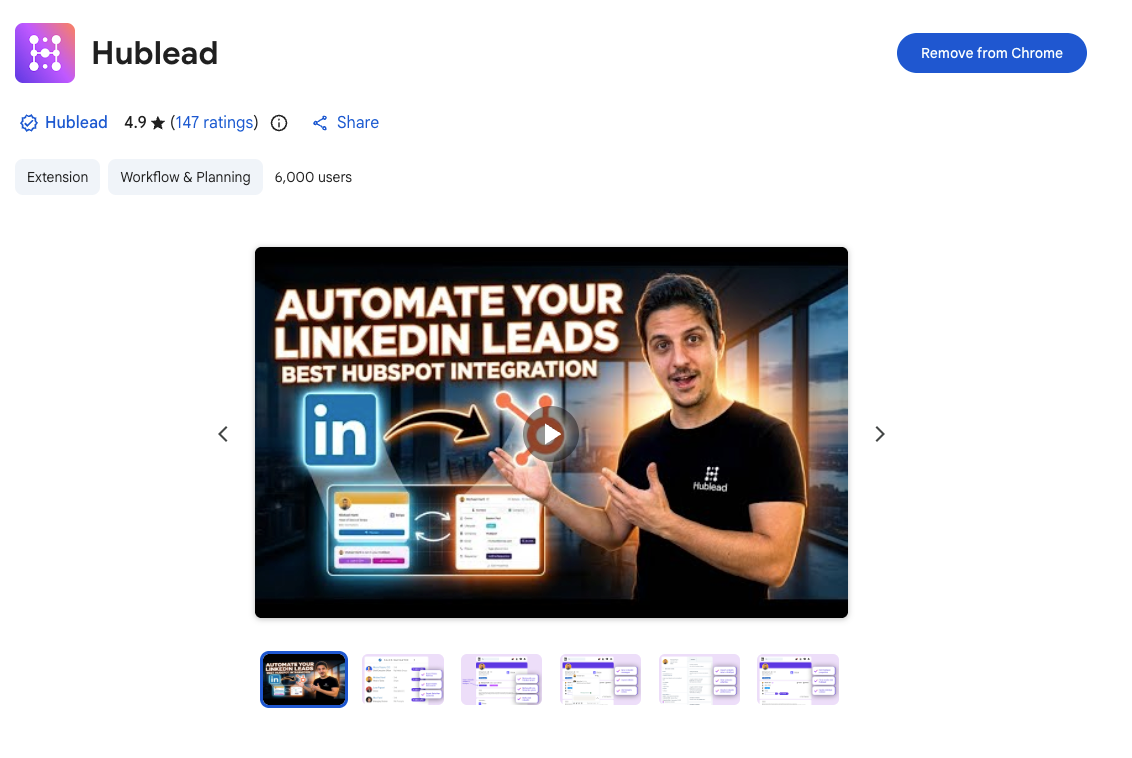
Finde deine Interessenten auf LinkedIn
Sobald du Hublead installiert und mit deinem HubSpot-Portal verbunden hast, geh zu einem beliebigen Profil, das du gerade auf LinkedIn bearbeitest. Du siehst einen neuen Bereich, der direkt unter dem Namen und der Überschrift hinzugefügt wurde:
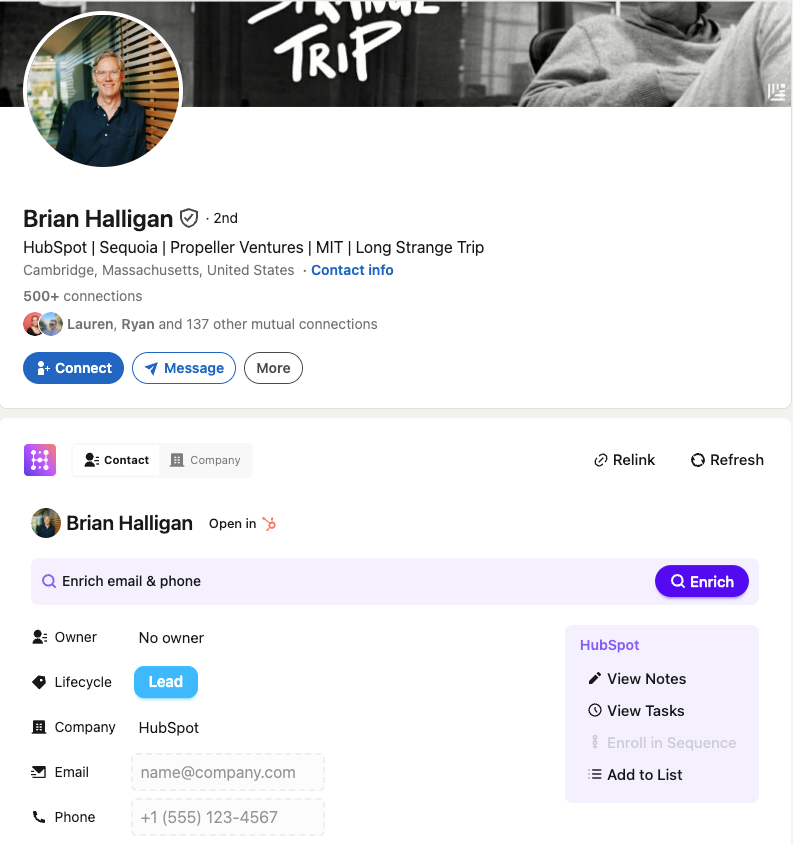
Hier passiert die Magie. Du kannst prüfen, ob ein Lead in deinem CRM existiert, und ihn in Sekunden importieren, falls nicht. Du kannst Notizen aus dem Kontaktdatensatz und offene Aufgaben einsehen, die statischen Listen verwalten, auf denen er steht, und sogar Eigenschaften ansehen und bearbeiten.
Und das alles, ohne LinkedIn verlassen zu müssen!
Klicke in seinem Profil auf „Enrich“
Schau dir das LinkedIn-Profil noch einmal an. Ich habe Brian Halligans E-Mail-Adresse oder Telefonnummer noch nicht, aber siehst du diesen lila „Enrich“-Button?
Das ist alles, was du klicken musst, um verfügbare und verifizierte E-Mail-Adressen und Telefonnummern für jeden Lead mit 95 % Genauigkeit zu finden.
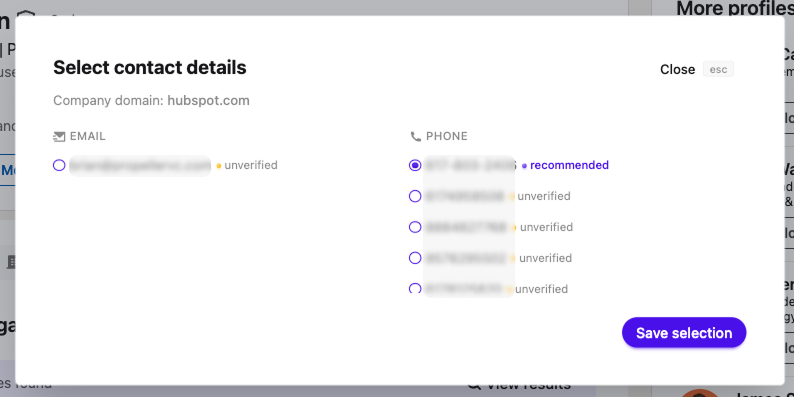
Wenn du ernsthaft viel Zeit mit Prospecting auf LinkedIn verbringst, ist Hublead das beste Tool, um sicherzustellen, dass HubSpot stets aktuell bleibt, ohne dass du dich jemals einloggen musst.
So reicherst du Leads von LinkedIn in großen Mengen an
Hublead kann mehr, als nur einen Kontakt nach dem anderen anzureichern – du kannst auch eine ganze Liste in HubSpot in großen Mengen anreichern.
Melde dich bei Hublead an und geh zum Bereich Bulk Enrichment der App, dann klicke oben rechts im Bildschirm auf den Button New Enrichment Job.
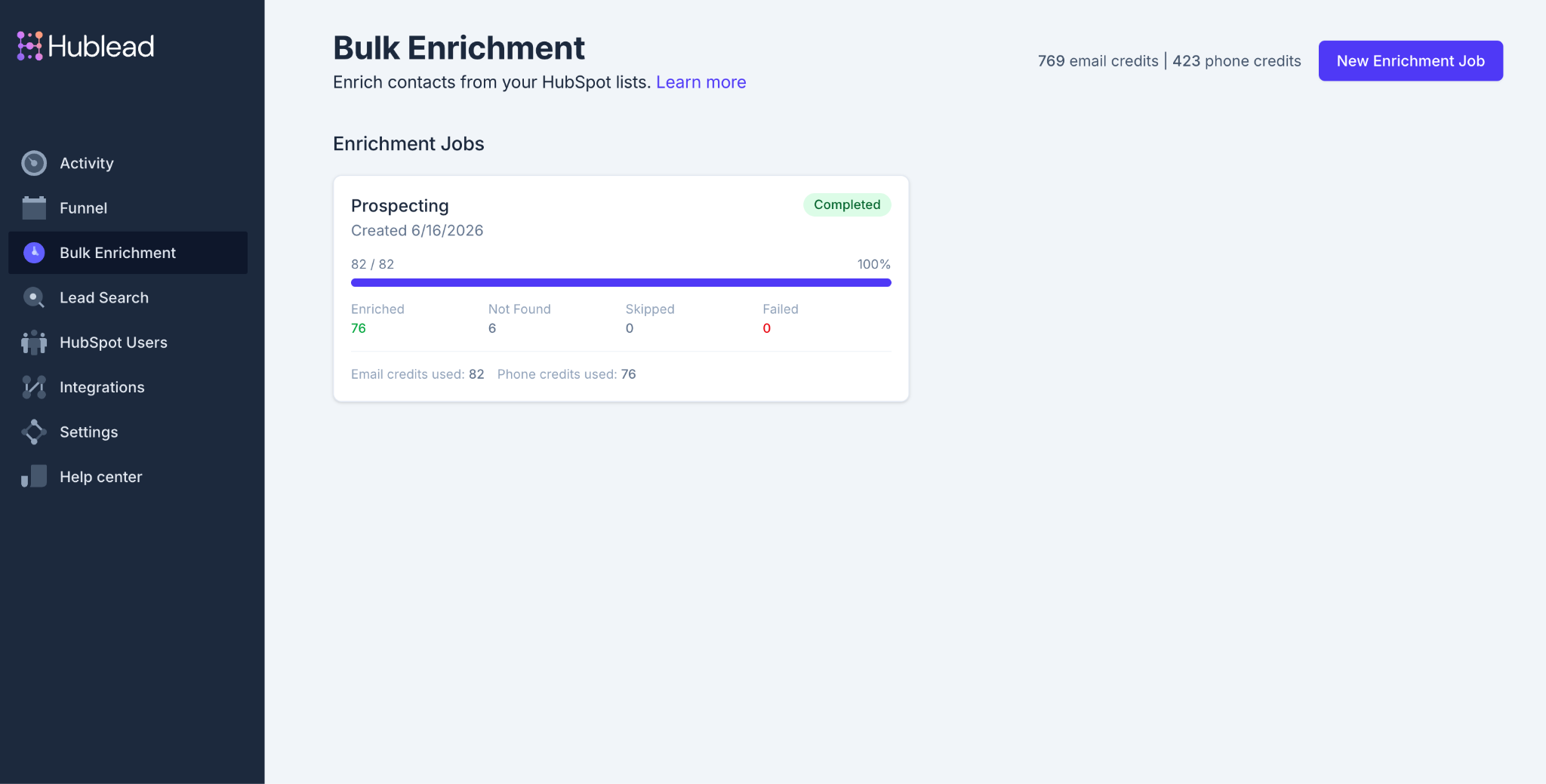
Daraufhin wirst du aufgefordert, eine HubSpot-Liste für die Anreicherung auszuwählen. Sobald du auf deine Liste klickst, reichert Hublead jeden Kontakt innerhalb von Minuten an. Dank Hubleads nahtlosem LinkedIn-Import und der Bulk-Anreicherung kannst du gezielte ICPs erschließen und ihre Kontaktdaten sammeln, um deine Outbound-Kampagnen schneller als je zuvor zu befeuern.
Speichere und reichere Kontakte von LinkedIn an – teste Hublead noch heute kostenlos
LinkedIn ist heute eine der mächtigsten Prospecting-Plattformen, aber es ist nur ein Kanal.
Social Selling ist wichtig, aber es ist nur ein Aspekt des Verkaufens. Du musst auch harte Touchpoints wie E-Mail und Telefon nutzen, um Gespräche mit Interessenten anzustoßen und deine Pipeline voll zu halten.
Wenn du häufig auf LinkedIn prospektierst, gibt es kein besseres Tool als Hublead, um Leads mit präzisen Kontaktdaten anzureichern und deine Aktivität zurück zu HubSpot zu synchronisieren.
Klicke auf den Button unten, um Hublead kostenlos zu testen und zu sehen, wie viel Zeit du sparen kannst.
Bereit, deinen Outbound-Prozess zu optimieren?
Funktionieren Apollo, ZoomInfo und Clay mit LinkedIn?
Ja, aber ihre Integrationen mit HubSpot sind nicht nahtlos. Apollo, ZoomInfo und Clay bieten alle großartige Tools zur Lead-Anreicherung, aber wenn du HubSpot als CRM nutzt, musst du Daten möglicherweise manuell kopieren oder nach dem Synchronisieren fehlerhafte Daten bereinigen.
Was ist der beste E-Mail-Finder für LinkedIn?
Wir empfehlen Hublead! Die Hublead-Anreicherung kann E-Mail-Adressen und Telefonnummern für jeden Lead auf LinkedIn mit 95 % Genauigkeit finden und diese Daten mit einem Klick mit HubSpot synchronisieren.
Wie viele Leads kann ich mit Hublead anreichern?
Das hängt von deinem Plan ab: Starter-Kunden können 600 Leads pro Monat anreichern, während Scale-Kunden 12.000 Leads pro Monat anreichern können. Hublead bietet außerdem Enterprise-Pläne mit individueller Preisgestaltung je nach den Anforderungen von dir/deinem Team.
Kann ich mit Hublead auch nach Leads suchen?
Klar! Hublead verfügt über eine Datenbank mit über 200 Mio. Leads, die du nach deinem ICP durchsuchen und filtern kannst. Du kannst die Leads auswählen, die du speichern möchtest, sie anreichern und direkt in HubSpot importieren. Es ist, als hättest du die Sales-Navigator-Suche direkt in deinem CRM!
.avif)
.avif)