

Die beste Alternative zu LinkedIn CRM Sync für HubSpot
HubSpots LinkedIn CRM Sync Integration ist schlecht – was ist also die beste Alternative? Finde es in diesem Guide heraus.
HubSpot ist eines der am einfachsten zu bedienenden und leistungsstärksten CRMs überhaupt – warum ist seine Integration mit LinkedIn also so schlecht?
LinkedIn CRM Sync klingt auf dem Papier großartig. Es synchronisiert Kontakte, InMails und andere Prospecting-Aktivitäten mit HubSpot und gibt dir in deinem CRM eine vollständige Übersicht über jeden Touchpoint auf LinkedIn.
Aber es wird schlecht bewertet und leistet bei Weitem nicht so viel, wie du denken würdest – Vertriebler müssen Daten manuell kopieren und in HubSpot einfügen, damit ihre Manager sie sehen. Hast du also Pech gehabt? Überhaupt nicht. Wir zeigen dir die besten Tools, um jeden Touchpoint auf LinkedIn zurück nach HubSpot zu synchronisieren – so bleibt mehr Zeit fürs Prospecting und viel weniger für die Pflege deines CRM.
Warum du eine Alternative zu LinkedIn CRM Sync für HubSpot suchen solltest
Wenn man nach der Marketplace-Seite geht, klingt der HubSpot LinkedIn CRM Sync, als könnte er alles:
- Er protokolliert LinkedIn-Aktivitäten
- Er ordnet Kontakte und Unternehmen automatisch deinem CRM zu
- Er misst Outbound auf LinkedIn in HubSpot-Dashboards
Klingt super, oder? Bis du die Bewertungen liest. Die meisten klingen ungefähr so:
„Enttäuschende Integration mit mehreren Funktionsausfällen trotz exzellentem Kundensupport – man braucht trotzdem noch Drittanbieter-Tools.“
Die Realität ist, dass HubSpot die Integration eher als nachträglichen Einfall behandelt denn als erstklassige Funktion der Plattform. Das Ergebnis ist eine Integration, die wenig kann und im Einsatz nicht gut funktioniert.
Ach ja, und nicht zu vergessen: Die CRM-Sync-Integration funktioniert nur mit dem Sales Navigator Advanced Plus Plan und lässt dich im Stich, wenn du normales LinkedIn oder eine niedrigere Sales-Navigator-Stufe nutzt. Für große Vertriebsteams, die für solche Integrationen zahlen, ist das kein Problem – aber Solo-Gründer oder Reps in kleinen Teams haben Pech. Keine Sorge, du hast Optionen. Die beste stellen wir dir als Nächstes vor.

Bereit, deinen Outbound-Prozess zu optimieren?
Die beste Alternative zu LinkedIn CRM Sync für HubSpot
Im Grunde ist es eine einfache Bitte: Kontakte importieren, DMs und InMails synchronisieren und Verbindungsanfragen protokollieren. Vertriebler verlangen wirklich nicht viel – nur Tools, die ihnen (und dem Prospecting) das Leben etwas leichter machen.
Du hast Glück: Es gibt ein einfaches und effektives Tool, das genau das und noch mehr kann. Du kannst Kontakte synchronisieren, DMs und InMails protokollieren – ob mit oder ohne Sales Navigator –, E-Mail-Adressen und Telefonnummern finden und sogar HubSpot-Kontakteigenschaften ansehen und bearbeiten, ohne LinkedIn zu verlassen.
Dieses Tool ist Hublead.
Wir haben Hublead entwickelt, um LinkedIn- und HubSpot-Daten zu synchronisieren, nach Leads zu suchen und Leads direkt in LinkedIn anzureichern. Und die Einrichtung dauert nicht länger als 30 Sekunden. Folge einfach diesen Schritten:
- Füge Hublead zu Chrome hinzu
- Importiere Leads aus LinkedIn
- Importiere Leads aus Sales Navigator
- Reichere deine neuen Leads an und starte mit dem Prospecting
Füge Hublead zu Chrome hinzu
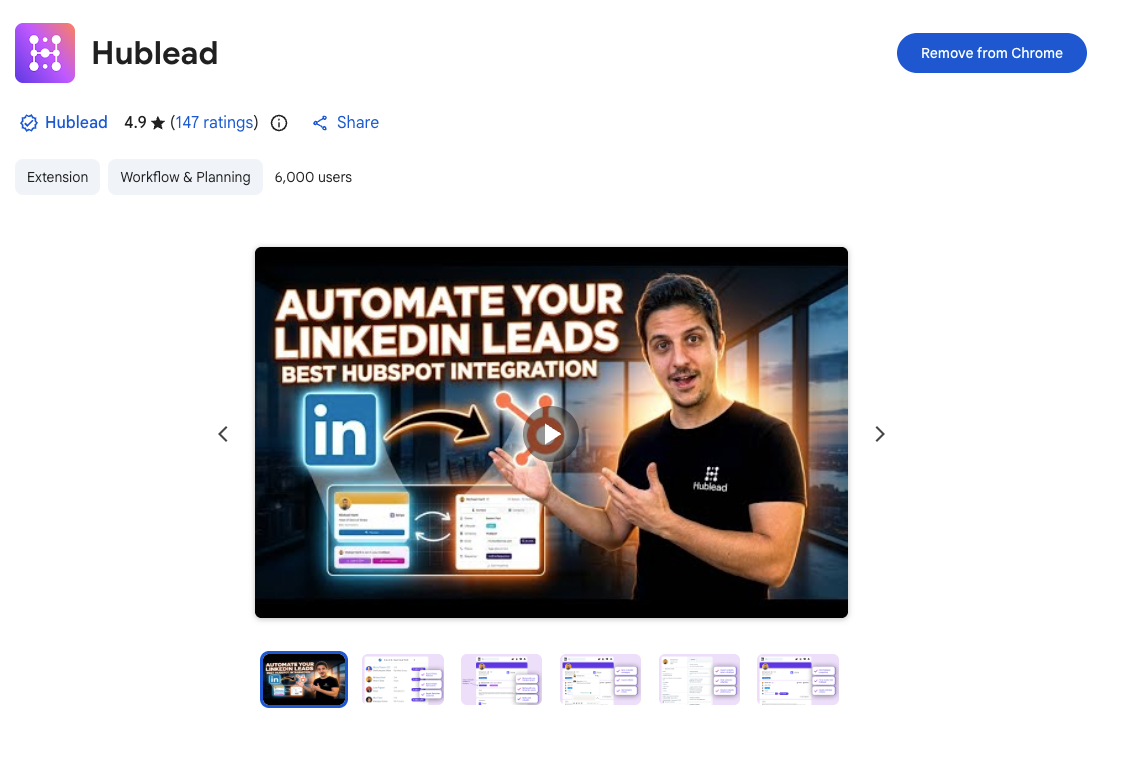
Geh zum Chrome Store, um Hublead zu installieren. Du kannst Hublead kostenlos testen, um zu sehen, wie es in deinen Prospecting-Ablauf passt, bevor du einen kostenpflichtigen Plan abschließt (der bei nur 32 $/Monat beginnt).
Importiere Leads aus LinkedIn
Sobald Hublead installiert und mit deinem Portal verbunden ist, geh zu einem beliebigen LinkedIn-Profil, das du in deinem CRM speichern möchtest. Wenn der Kontakt noch nicht mit HubSpot synchronisiert wurde, siehst du im neuen Hublead-Bereich seines Profils einen CTA, um einen neuen Kontakt zu erstellen.
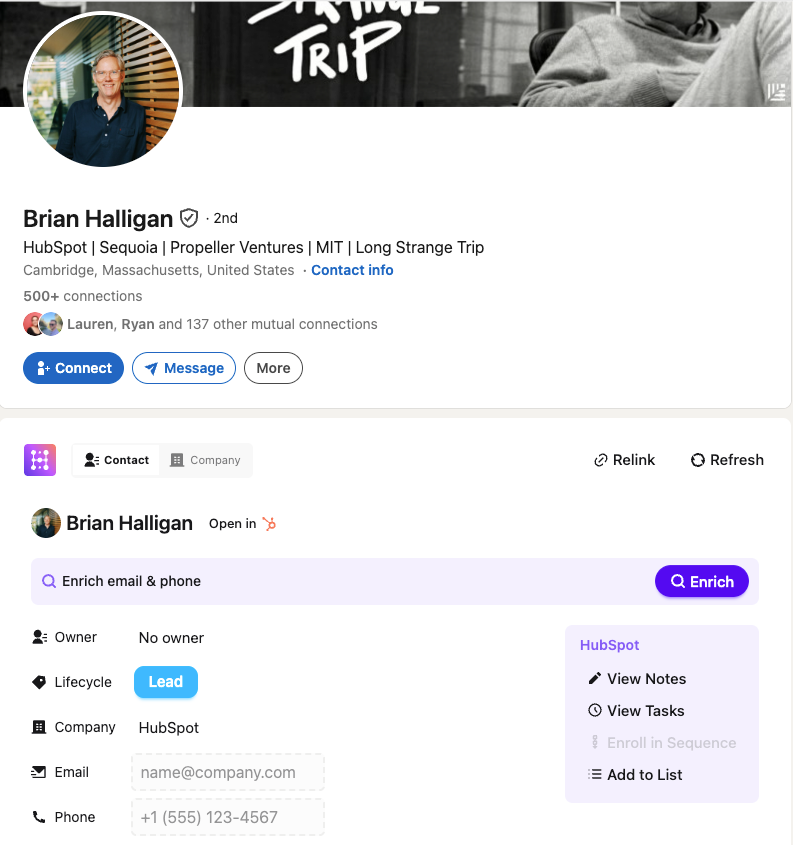
Mit einem Klick erstellt Hublead automatisch einen Kontakt in deinem HubSpot-Portal und verknüpft ihn mit seinem LinkedIn-Profil. Hublead entfernt außerdem Duplikate, sodass du dir keine Sorgen machen musst, dass dein CRM mit schlechten Daten gefüllt wird.
Importiere Leads aus Sales Navigator
Mit Sales Navigator ist das genauso einfach. Und Hublead funktioniert auch mit jeder Sales-Navigator-Stufe.
Geh zum Profil eines beliebigen Leads in Sales Navigator, und du siehst dieselben Aufforderungen, um neue Kontakte zu erstellen und mit deinem Portal zu synchronisieren. Hublead verknüpft entweder das LinkedIn-Profil mit einem bestehenden Kontakt oder erstellt einen neuen für dich.
Du kannst Leads auch in Sales Navigator anreichern, sodass du neue Interessenten in Sekunden filtern und speichern und sofort über verschiedene Kanäle mit ihnen in Kontakt treten kannst.
Reichere deine Leads an und starte mit dem Prospecting
Wenn du eine E-Mail-Adresse oder Telefonnummer für deinen Interessenten brauchst, kann Hublead auch das finden. Klick einfach auf den Button „Anreichern“, um korrekte Kontaktdaten zu erhalten.
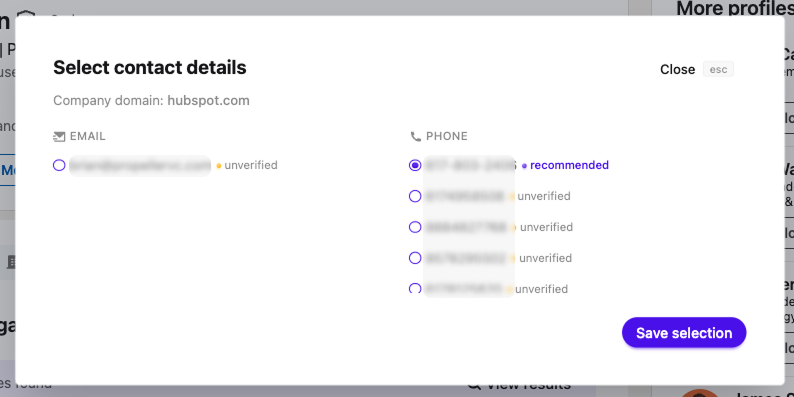
Du kannst außerdem jede HubSpot-Liste in der Hublead-Web-App in großen Mengen anreichern. Prospekte den ganzen Tag auf LinkedIn, reichere eine Liste mit Hunderten von Kontakten in Sekunden an und fülle deine Pipeline, ohne HubSpot je zu öffnen.
Synchronisiere deine Leads noch heute – teste Hublead kostenlos
LinkedIn ist heute eines der leistungsstärksten Prospecting-Tools für Vertriebler – aber wenn deine harte Arbeit auf LinkedIn nicht in HubSpot auftaucht, ist es, als wäre sie nie passiert.
Wenn sich HubSpot nur darum kümmern und der CRM-Sync-Integration Aufmerksamkeit schenken würde!
Zum Glück hast du ein Tool wie Hublead, um jeden Touchpoint von LinkedIn zurück nach HubSpot zu synchronisieren – so einfach wie nie. Jede Einladung, DM oder InMail, die du sendest, wird zu jedem HubSpot-Kontaktdatensatz zurücksynchronisiert und gibt dir und deinem Team Einblick in jeden Touchpoint auf LinkedIn.
Vertriebler sparen dank Hublead jede Woche 2 Stunden, weil sie nicht mehr alles in ihr CRM kopieren und einfügen müssen. Teste Hublead kostenlos und sieh, wie viel Zeit du sparen kannst.
Bereit, deinen Outbound-Prozess zu optimieren?
Häufig gestellte Fragen
Brauche ich Sales Navigator, um Hublead zu nutzen?
Nein! Hublead funktioniert mit jeder Stufe von Sales Navigator und mit der kostenlosen Version von LinkedIn. Es funktioniert außerdem mit jeder Stufe des HubSpot CRM.
Was ist die beste Integration zwischen LinkedIn und HubSpot?
Ohne Zweifel Hublead. Hublead wurde für Vertriebler entwickelt, die es leid sind, zwischen LinkedIn und HubSpot hin- und herzuwechseln. Hublead synchronisiert jede Verbindungsanfrage, jede DM und jede InMail zurück in dein CRM und lässt dich gleichzeitig HubSpot-Eigenschaften verwalten, Aufgaben erstellen und Notizen direkt in LinkedIn schreiben.
Bietet HubSpot native Integrationen für LinkedIn?
Ja, aber sie sind nicht perfekt. Sie funktionieren nur mit Sales Navigator Advanced Plus, und die LinkedIn CRM Sync Integration ist fehleranfällig – viele Reps müssen ihre Daten trotzdem manuell eingeben oder ein Drittanbieter-Tool wie Hublead verwenden.