Build a library of practical, high-impact Hublead use cases that help users understand exactly how to leverage Hublead inside HubSpot.
Overview
Manage your entire LinkedIn outbound directly inside HubSpot using an automated "LinkedIn Status" property powered by Hublead.
What You'll Achieve
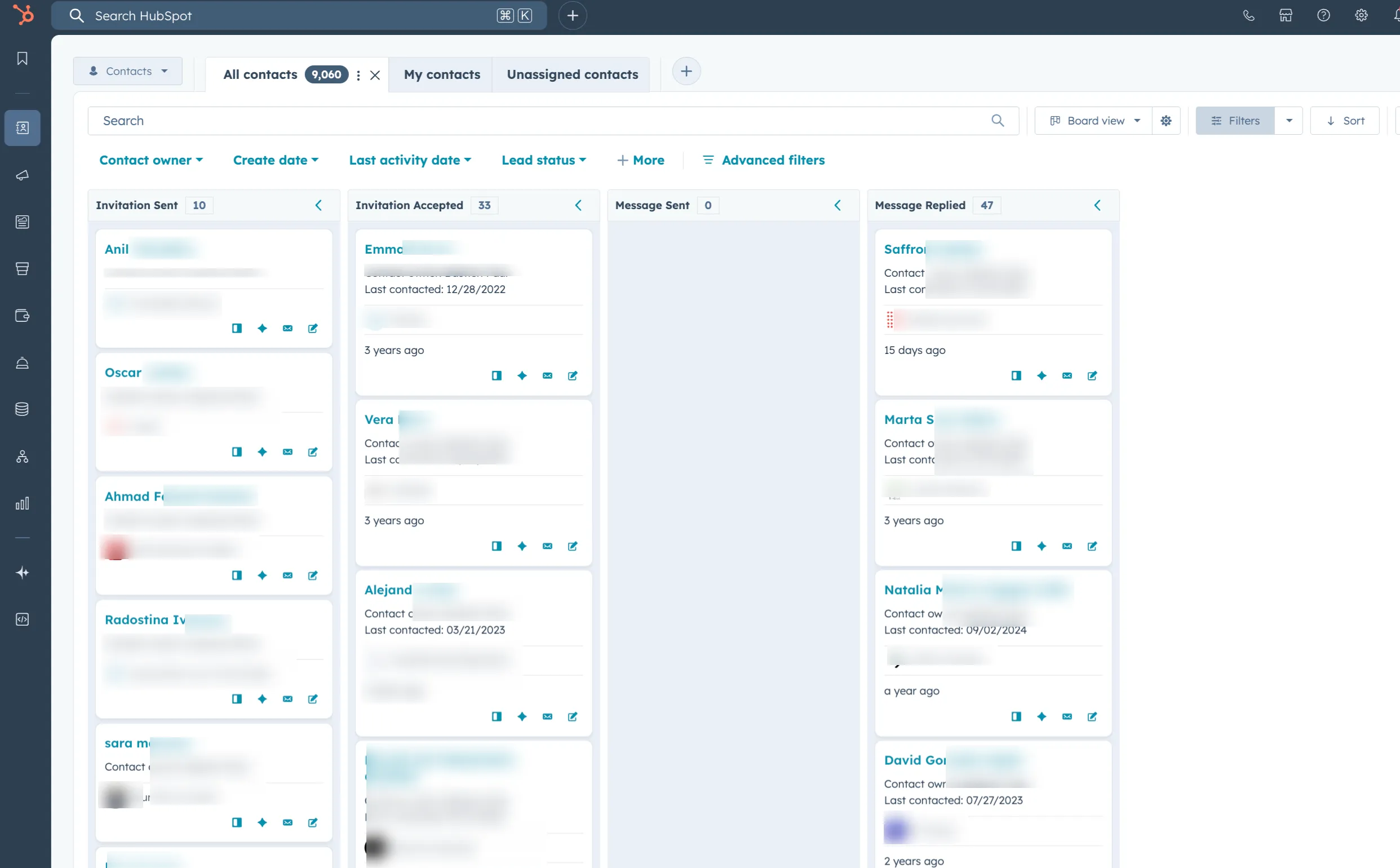
This workflow turns your Hublead actions (invitation sent, invitation accepted, message sent, message replied) into a clean Kanban board inside HubSpot. Perfect for organizing outreach, following up at the right time, and coaching your sales team.
Summary
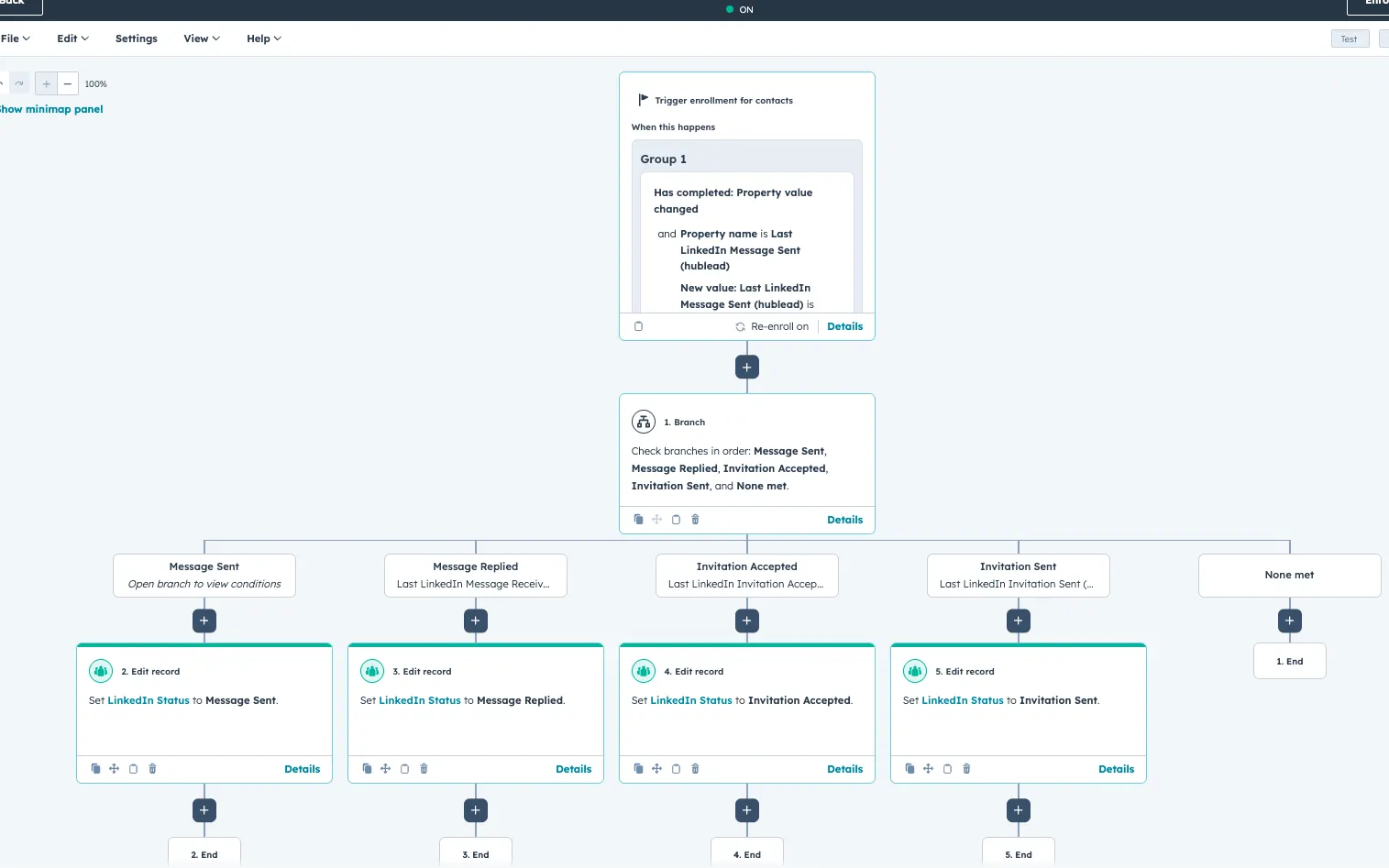
Create a "LinkedIn Status" property, update it automatically using a HubSpot workflow, and display contacts in a Kanban-style board view.
Prerequisites
Hublead (Pro, Business or Scale plans)
Hublead contact properties activated in HubSpot (Last LinkedIn Invitation Sent, Last LinkedIn Message Sent, etc.)
Access to HubSpot Workflows
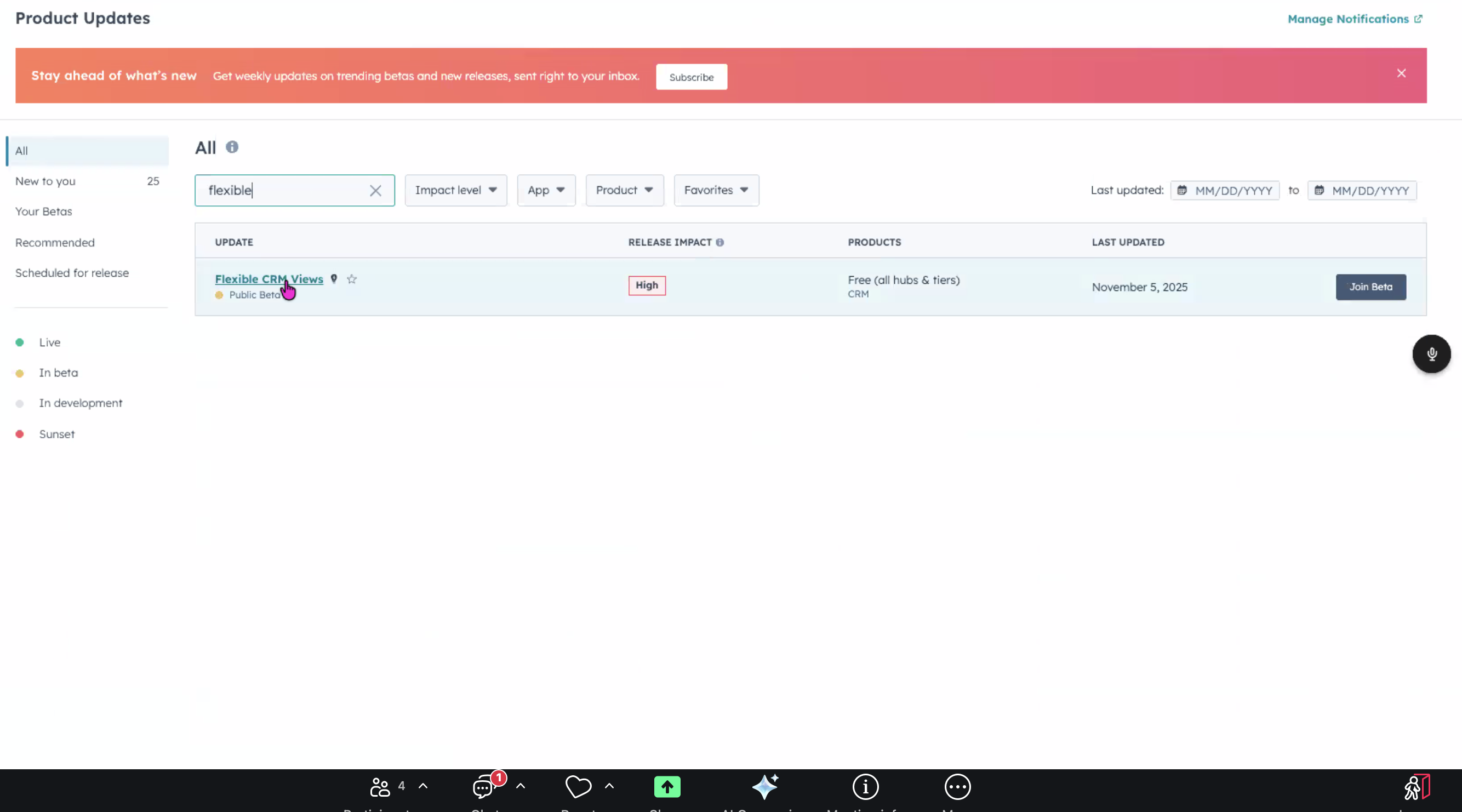
Register to the CRM Views beta
Free Guide
Get the HubSpot Outbound Handbook
Run an effective outbound campaign that keeps your pipeline full.
No. The board updates from LinkedIn events (invites, messages) that only Hublead can sync into HubSpot properties.
How does the LinkedIn Status update automatically?
A HubSpot workflow reads the Hublead timestamps (invitation sent, accepted, message sent) and updates a "LinkedIn Status" dropdown property, which drives the board columns.
Do I need a specific HubSpot plan?
You need workflows to auto-update the status. The board view itself works on standard HubSpot; the automation needs a workflow-capable tier.
Can I move contacts between columns manually?
Yes. The dropdown is editable, so reps can override the status, and the workflow keeps new LinkedIn events flowing in.
What stages should the board have?
Common stages: Invite sent, Invite accepted, Messaged, Replied, Booked. Adapt to your outbound motion.
Discover our new ebook
See HubSpot data on LinkedIn, no need to switch tabs every time you're landing on a prospect.