
Sales Navigator → HubSpot lists & sequences (via Hublead)
Export LinkedIn Sales Navigator leads in batches, import them into HubSpot with Hublead, then auto-enroll them into HubSpot lists and sequences using workflows.
 Bastien PaulAugust 21, 202612 min read
 HubSpot workflow
- WhenOriginal Source Drill Down 2 = 1451878Contacts imported with Hublead
- ThenEnroll in sequenceAfter a 1-day delay, needs Sales Enterprise
If you prospect in LinkedIn Sales Navigator but run outbound in HubSpot, the gap is always the same: getting prospects into HubSpot quickly (and cleanly) so you can actually sequence them.
This playbook shows the exact workflow to export Sales Navigator leads (batch by batch), import them into HubSpot with Hublead, then push them into HubSpot lists and sequences-automatically when possible.
Who this is for
• SDRs/BDRs who prospect in Sales Navigator and run sequences in HubSpot
• Sales Ops / RevOps who want a repeatable, auditable outbound pipeline from LinkedIn
Requirements
• LinkedIn Sales Navigator (exports are done in batches of 25 depending on plan/usage)
• HubSpot Sales Enterprise (recommended) if you want automatic sequence enrollment via workflows

Free guide
Start More Conversations With These 15 LinkedIn Openers
Get a response from prospects with these proven LinkedIn openers.
How it works (4 steps)
Step 2 Import into HubSpot with Hublead
Use Hublead to import the batch into HubSpot. Hublead creates/updates contacts so they become usable in HubSpot lists, workflows, and sequences.
-
Step 3 - Find imported contacts in HubSpot (the clean filter)
Once imported, you can reliably isolate those contacts using HubSpot source properties. The recommended filter from our KB is:
Original Source Drill Down 2 = 1451878
This gives you a stable segment you can automate from (and avoids mixing imports with other sources).
-
Step 4 - Add them to HubSpot lists and sequences
Auto-enroll vs manual enrollment
Option A - Auto-enroll via workflow (HubSpot Sales Enterprise)
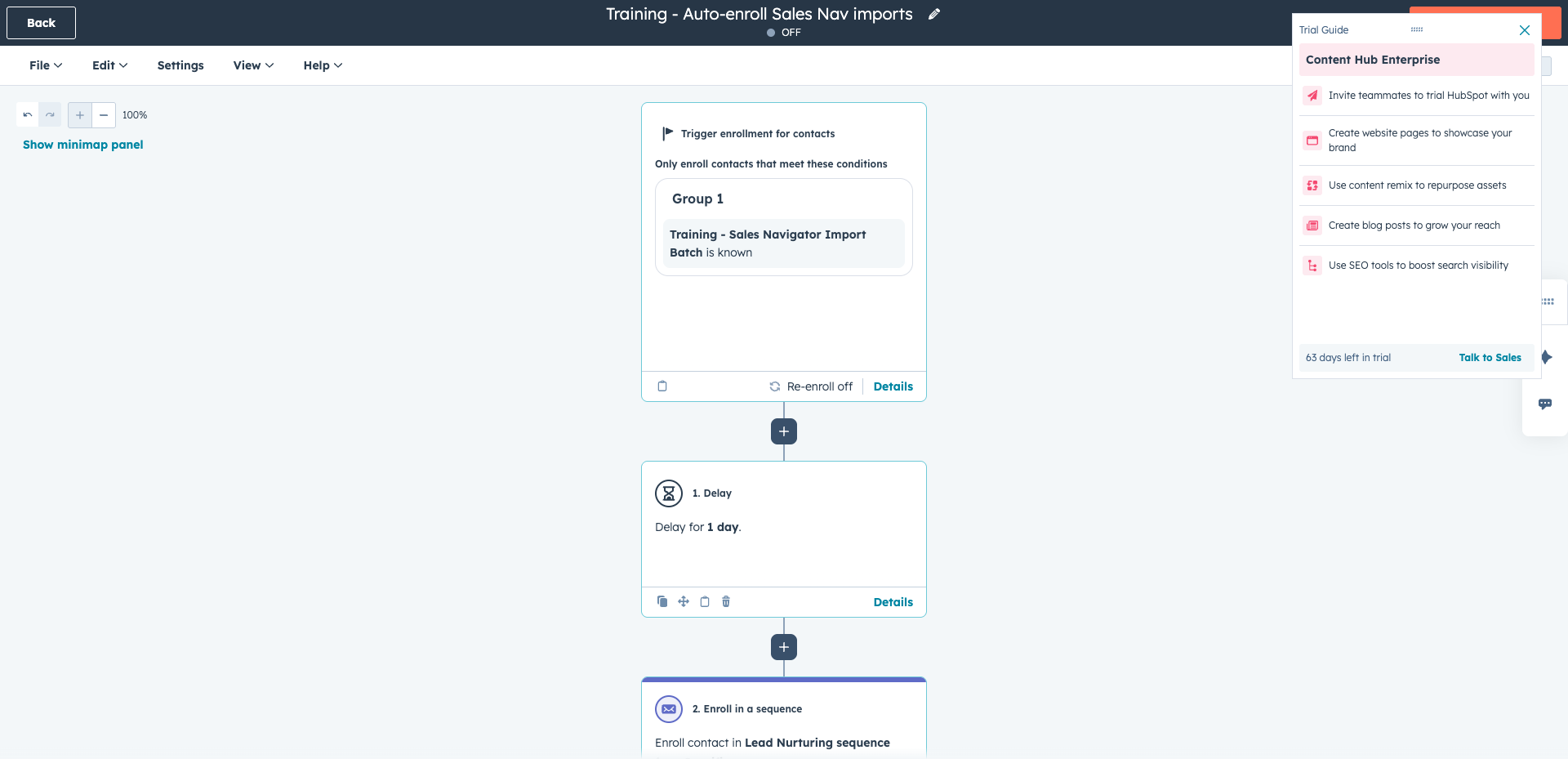
Create an active list based on Original Source Drill Down 2 = 1451878, then build a workflow that enrolls those contacts into the right sequence automatically.
Here's what a completed workflow looks like:
Option B - Manual enrollment (works on lower tiers)
If you don't have Sales Enterprise, you can still use the list as your working queue: filter who isn't enrolled yet, then enroll manually in batches (for example, 25 at a time).
Best practices
• Start with one test batch (25 leads) to validate your mapping + dedup logic before scaling.
• Keep a single, consistent filter for imports (OSD2 = 1451878) so your automations stay stable.
• Use separate sequences per ICP/persona and let Ops own the workflow rules.
Connect HubSpot to LinkedIn in seconds
Import contacts, companies and activities while prospecting on LinkedIn.
Before you publish the workflow
Why 25 by 25?
It's a Sales Navigator export constraint depending on plan/usage.
Do I need Sales Enterprise?
Only for automatic sequence enrollment via workflows. You can still import and segment contacts without it, sequence enrollment will just be manual.
How do I find Hublead-imported contacts?
Create an active list with the filter Original Source Drill Down 2 = 1451878. This gives you a stable segment you can automate from.
More workflows on LinkedIn activity
All playbooks →
HubSpot workflow
- WhenLast LinkedIn Invitation Accepted is updated
- ThenCreate task (or note)
HubSpot workflow
- WhenLast LinkedIn Message Received is known
- ThenSet Primary social source = LinkedIn
HubSpot workflow
- WhenMember of the "Engaged on LinkedIn" list
- ThenEnroll in sequence
Put this workflow live
this week.
Install the extension, connect HubSpot or Salesforce, and sync a LinkedIn conversation: it lands on the CRM record, ready for this recipe.
Free to start, no card needed.