
How to use HubSpot Calling: A guide for sales teams
Looking to get more out of HubSpot’s calling features? Here’s a comprehensive guide for sales teams and managers.
 Bastien PaulAugust 24, 20267 min read
The short answer
Click the phone number in a list or the call button on a contact record, then log the outcome and a follow-up task. Calls made from HubSpot are logged automatically. Recording and transcripts need Sales Hub Pro or Enterprise, and only a HubSpot-provided number also logs inbound calls.
Think cold calling is dead?
That’s a myth that the gurus on social media want you to believe. Data shows that cold calling is alive and well, and it works. But only if you arm yourself with the right data, and pay attention to what your prospects are telling you.
While you could pick up the phone and dial at will, I like to use HubSpot’s built-in calling feature to log calls and outcomes directly in the CRM. In this guide, I’ll show you how to make calls through HubSpot and a few hidden features I like to use in my outbound strategy.
What is HubSpot calling?
HubSpot Calling is HubSpot’s native feature for making and receiving calls directly in the CRM. You can make these calls with either a HubSpot-provided phone number, a phone number that you’ve registered for calling, or a third-party service.
Why use HubSpot calling over dialing your phone?
HubSpot provided numbers? Third-party services? Isn’t it simpler to just pick up your cell phone and dial a list of numbers?
It is, I’ll give you that. But with a bit of prep and setup, you’ll save loads of time down the road. That’s because calling from the HubSpot contact record…
- Automatically logs calls for you
- Gives you a perfect record on every contact
- Transcribes and records calls (Sales/Service Hub Pro+), giving you a transcript to reference (or get training on)
Sure, you can dial from your phone just fine. But your cell can’t do the above.
Do you need a HubSpot-provided number for calling?
When calling in HubSpot, you can use a HubSpot-provided number, connect your own number, or use a third-party service.
HubSpot-provided numbers and a connected number can do the following:
- Call directly from the CRM
- Call from your conversations inbox
- Log outbound calls to the CRM
But only a HubSpot-provided number can also log inbound calls, voicemails, and missed calls to the CRM and route to a forwarding number or voicemail.
Free guide
Get the HubSpot Outbound Handbook
Run an effective outbound campaign that keeps your pipeline full.
How to make a call in HubSpot
You have a few options for making calls through HubSpot:
- Make a call through your computer
- Make a call through the HubSpot app
How to make a call in HubSpot through your computer
You can either make a call from a view/list in HubSpot or the contact record.
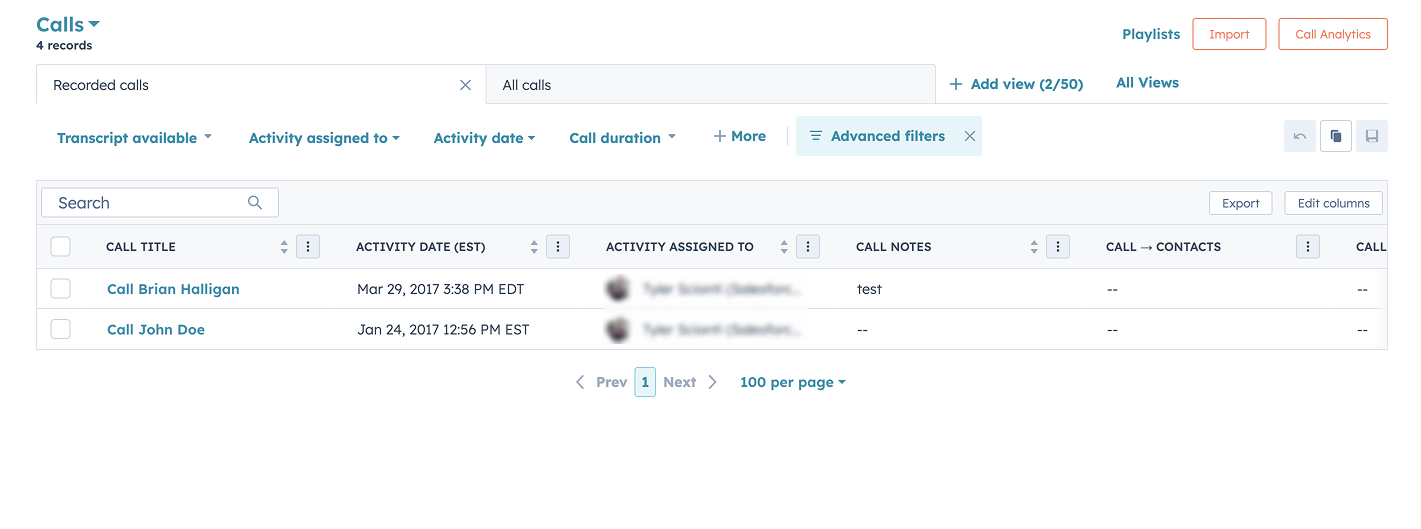
In any view/list, look for the phone number column and click the phone number that you have saved. If the phone number is properly formatted and validated, you can call that contact.

You can make a call in HubSpot directly from the contact record. All you need to do is head to the contact you wish to call, and click the “call” button in the top left corner where their name and contact information are:
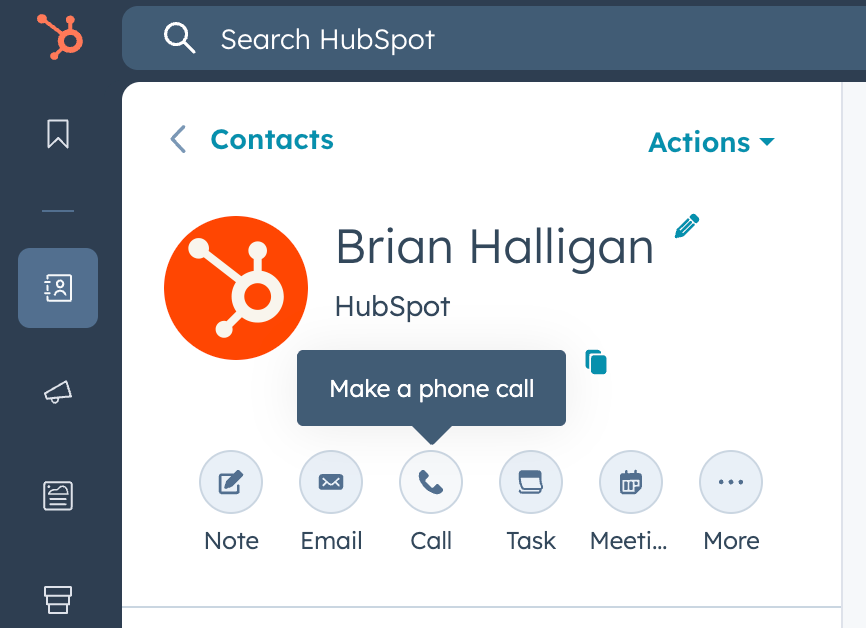
Once a call is completed, you’ll have the option to add notes, log the outcome, or schedule a follow-up task to call your prospect again or reach out on another channel (like messaging on LinkedIn!).
If you mainly work from your desktop, the above are great ways to knock out your calls without switching devices. If you primarily work on mobile, we’ll cover how to make calls through the HubSpot app next.
How to make a call through the HubSpot app
When using the HubSpot mobile app, you have two options for making calls. You can make them either through your mobile phone carrier or the HubSpot calling feature. Note, if you use your mobile phone carrier for calls, then you cannot record them.
In both instances, you have the option of making calls through:
- Tasks that you have saved
- From a record directly, similar to how you would on your desktop
- Search for a contact and tap Call for the record that is returned
At the end of your call, either through your mobile phone carrier or using the HubSpot Calling tool, you can create a call log. After hanging up, the “Log Call” dialogue box will appear. At the top of the box, you’ll see the call summary with the contact and company name, along with the length of the call.
How to receive a call in HubSpot
If you want to receive calls in HubSpot, you’ll need to do a little prep to make things work.
You can only receive calls in HubSpot in a supported browser (currently, Safari isn’t supported). First things first, you need to set up a HubSpot-provided number.
Then, you need to set things up so that you can receive notifications and take inbound calls directly from HubSpot:
- In your HubSpot account, click the settings icon in the top navigation bar.
- In the left sidebar menu, navigate to General, then click the Calling tab.
- In the Inbound calling preferences section, click the Ring preference dropdown menu, then select Ring in HubSpot browser.
Click Save, and you’re set!
How to work HubSpot calling into your sales strategy
Those are the basic how-to’s; let’s talk strategy: how do sales teams actually make this work for their outbound process?
Here are the ways I’ve gotten a bit more juice out of HubSpot’s calling feature for my cold call campaigns:
- Log custom call outcomes
- Record your calls for training
- Mix calls in with other channels
Log custom call outcomes
Done properly, cold calling works. There is no better way to get in front of decision makers and speak directly with your prospects.
And there’s no better way to get repeatable results out of cold calling than by paying attention to the outcome of each call.
I’ll grant you that dialing 50+ numbers and hitting 50+ dead ends can be miserable. But it gets easier the more successful you are, and by setting up custom outcomes for your calls in HubSpot, you can spot trends and make smarter decisions in your outbound process.
In settings, look for Call Setup in the menu and then Edit Options next to the call outcome setting. HubSpot will give you some default options:
- Busy
- Connected
- Left live message
- Left voicemail
- No answer
- Wrong number
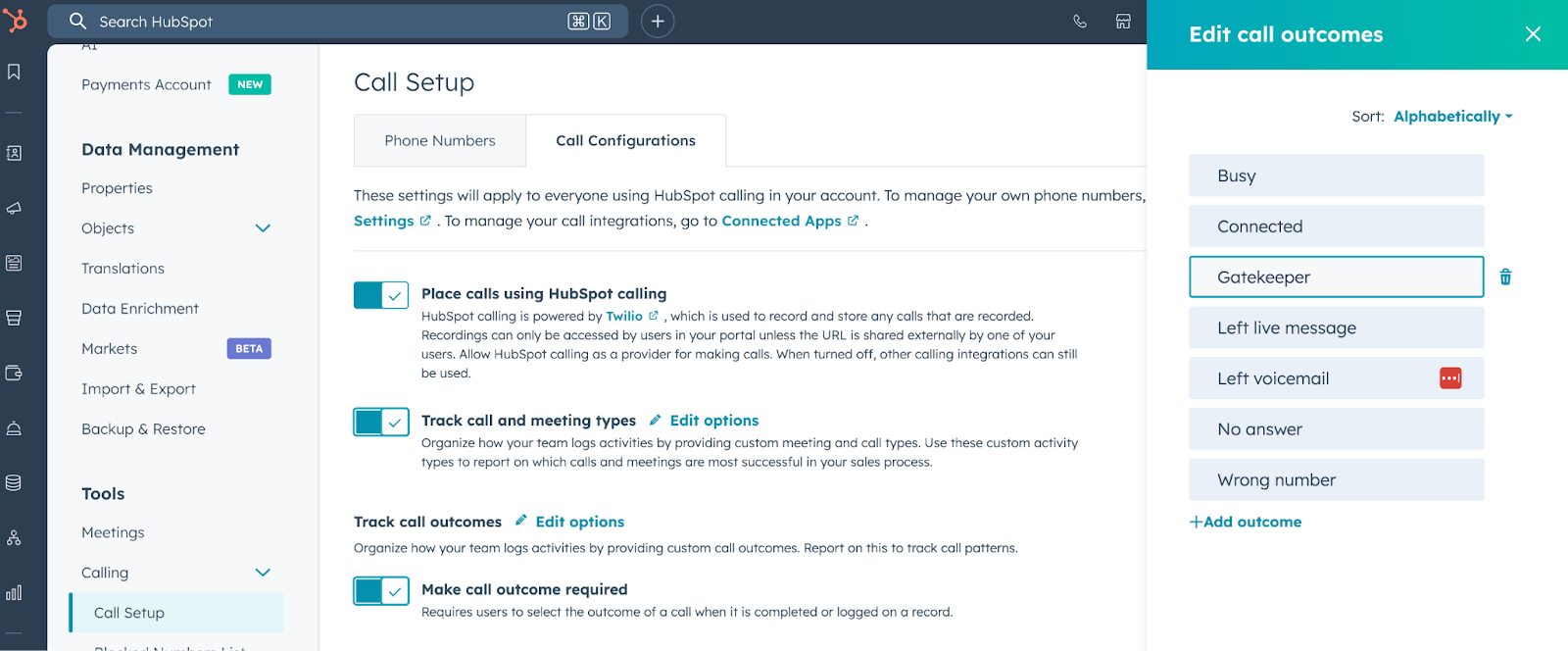
I like to add custom ones, like hitting a gatekeeper, to track my calls. For instance, if I find I’m hitting gatekeepers often, maybe I’m getting bad data on my prospects and should try different sources to find their cell phone numbers. The point is to track call outcomes and customize them to fit your sales process.
Record your calls for training
Again, cold calling can be the best way to get in front of your prospects… if you pay attention to outcomes and act on them.
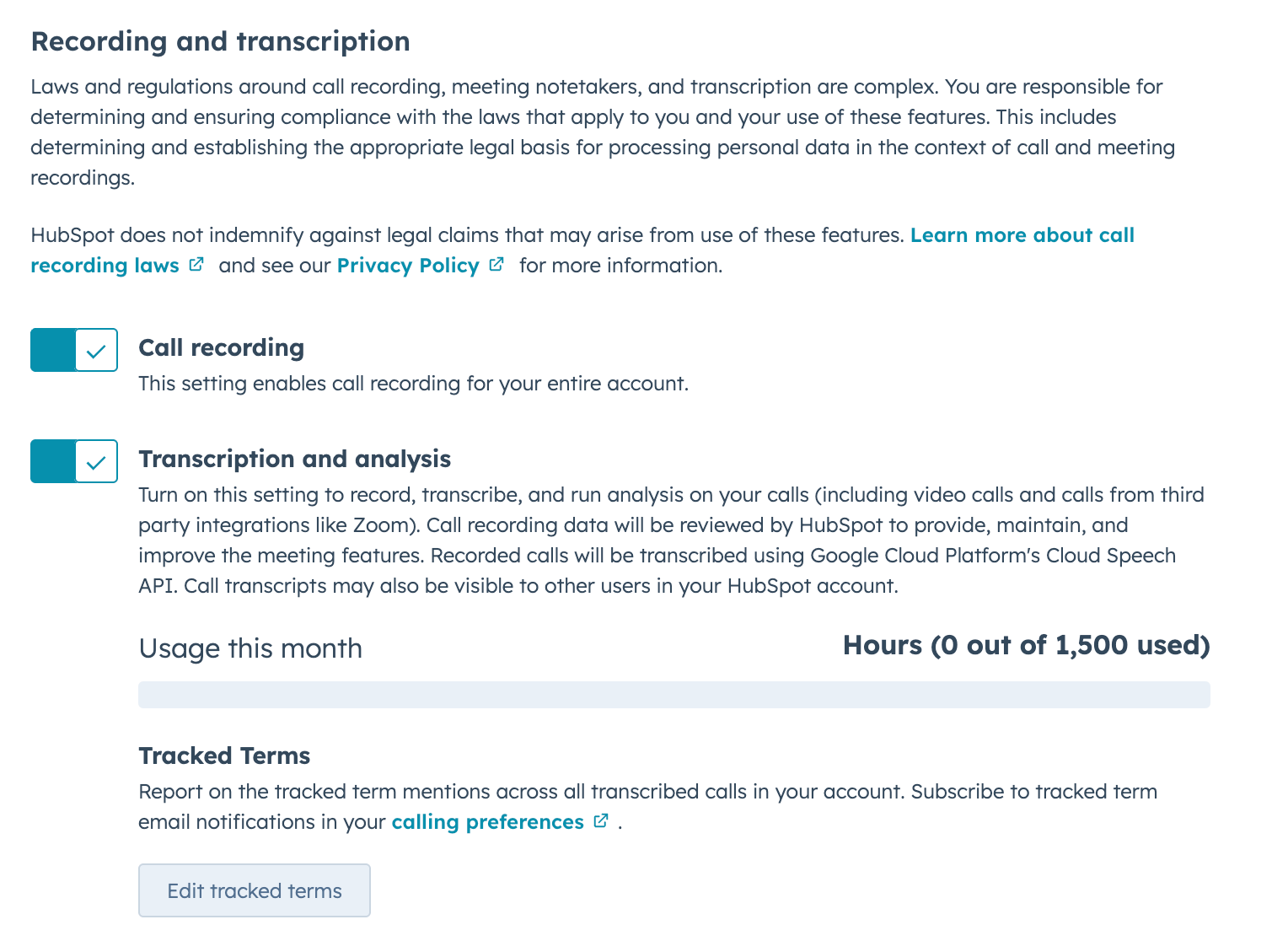
I always opt to record calls for my review or training if I’m working with a team. You can enable recording and transcription in the Call Setup settings:
But the real magic comes with HubSpot’s Coaching Playlists. By curating a list of the best calls from across your team, you can provide examples, tactics, and strategies for your reps to follow.
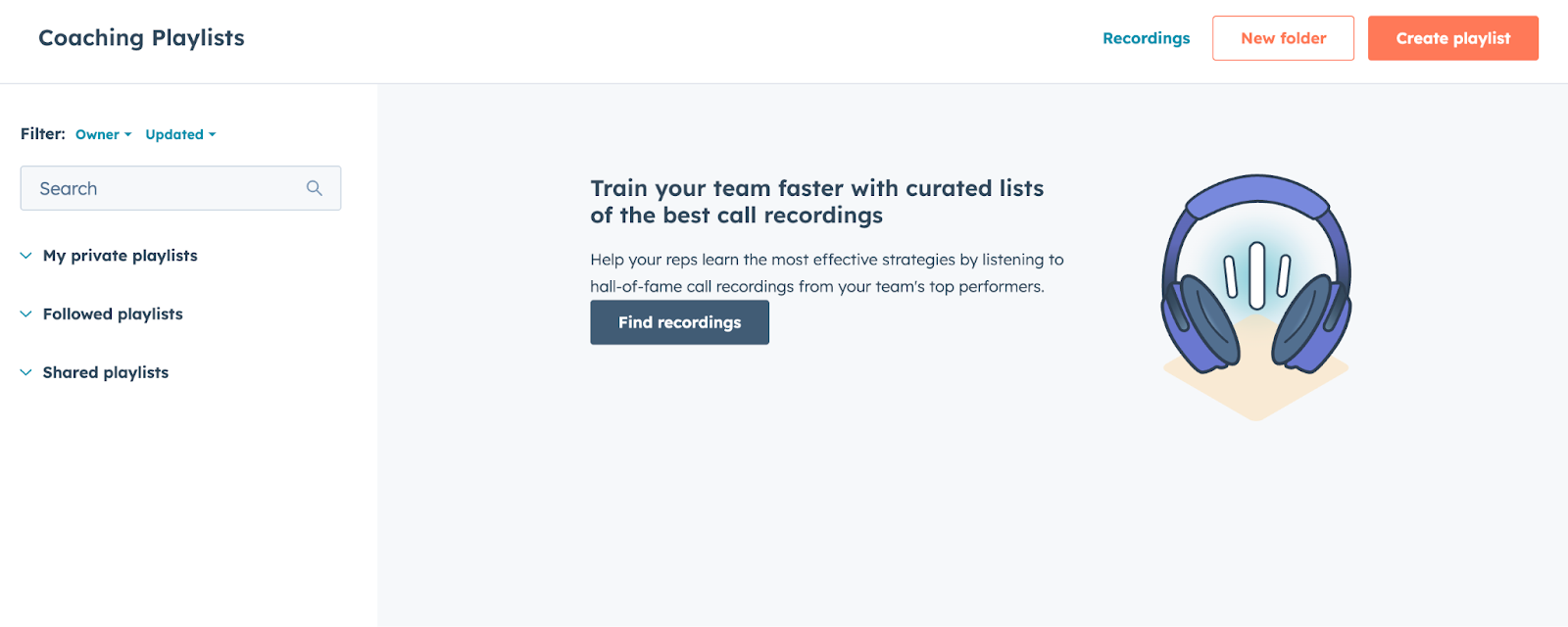
Cold calling is often treated like an “individual sport.” It’s you and a list of prospects, and not much else. But by recording and sharing successful calls, you can train your team and upskill as a team, which means better sales performance.
Mix calls in with other channels
I said cold calling is the best channel to get in front of prospects, but I need to level with you: that’s not 100% accurate.
Cold calling on its own isn’t a silver bullet. When done well and combined with multiple channels, cold calling is the best way to get prospects' attention and start conversations. When I sit down for a cold calling block, I don’t just run through the calls and leave it at that.
Instead, I mix in the following:
- Voicemails (yes, people listen to them)
- Text messages. Bonus if you can send SMS from your laptop.
- LinkedIn DMs or InMails
I love using Hublead to sync HubSpot and LinkedIn, so that my calls, emails, and LinkedIn DMs are all logged to the contact record, giving me a complete history of every touchpoint for the prospects I’m nurturing.
How to find accurate phone numbers for prospects
Beyond a good script and a thick skin, your success in dialing prospects will hinge on having good data.
To help you find accurate and reliable phone numbers for your prospects in HubSpot, you can use Hublead’s data enrichment features.
Hublead enrichment allows you to enrich any contact list in HubSpot, whether it’s a few dozen or a few thousand. With 95% data accuracy, you can rest assured that the emails and phone numbers Hublead finds are accurate, so you can spend more time dialing and less time searching.
Want to use leading tools like Apollo, Lusha, and ZoomInfo? Hublead works with them, too. Any time you import leads into HubSpot from LinkedIn with Hublead, Hublead will also request your favorite enrichment apps for email and phone number data, verifying the data collected.
Try Hublead for free here and see how much time you save this week!
Get more tips with the HubSpot Outbound Handbook
Calling is one of the most effective ways to land in front of your prospects and start a conversation. But cold calling is just one piece of an effective outbound process.
If you really want to level up your sales process in HubSpot, download the free HubSpot Outbound Handbook, our guide to building a scalable and effective outbound process in HubSpot. In this guide, we cover:
- The channels to use
- How to get the attention of your prospects
- The tools you should use to speed up sales
And more! Click the button below to get it for free and start scaling your outbound process in HubSpot.
Free guide
Get the HubSpot Outbound Handbook
Run an effective outbound campaign that keeps your pipeline full.
Before you go further
Can you make calls through HubSpot?
Sales Hub Starter, Pro, and Enterprise get access to calling, but only Pro and Enterprise get access to more advanced features like recording.
Can you receive calls through HubSpot?
Yep! You will need to set up a HubSpot-provided number to receive calls and answer them in the browser.
What is the best way to find accurate phone numbers for contacts in HubSpot?
The best and most accurate way to find prospect phone numbers in HubSpot is to use a data enrichment tool like Hublead. Hublead can enrich a list of contacts with emails and phone numbers with 95% accuracy!
Keep reading on LinkedIn and HubSpot
 Sales Tools
HubSpot Sales Email Templates: Guide & Examples
Tired of generic email templates that don't work? Here's how to create HubSpot sales templates that get responses through strategic personalization, testing, and multi-channel prospecting.
Sales Tools
HubSpot Sales Email Templates: Guide & Examples
Tired of generic email templates that don't work? Here's how to create HubSpot sales templates that get responses through strategic personalization, testing, and multi-channel prospecting.
 Sales Tools
The 5 best HubSpot SMS integrations
Looking to integrate SMS into your outbound strategy? Here are the best SMS integrations for HubSpot.
Sales Tools
The 5 best HubSpot SMS integrations
Looking to integrate SMS into your outbound strategy? Here are the best SMS integrations for HubSpot.
 Sales Tools
How to use HubSpot tasks: A guide for sales teams
Smart sales reps know that good prospecting starts with good task management. Here's your guide to using HubSpot tasks to improve your sales workflow.
Sales Tools
How to use HubSpot tasks: A guide for sales teams
Smart sales reps know that good prospecting starts with good task management. Here's your guide to using HubSpot tasks to improve your sales workflow.
See your CRM on
every LinkedIn profile.
Install the extension, connect HubSpot or Salesforce, open a profile. You see right away whether the person is in your CRM.
Free to start, no card needed.