
HubSpot Sales Email Templates: Guide & Examples
Tired of generic email templates that don't work? Here's how to create HubSpot sales templates that get responses through strategic personalization, testing, and multi-channel prospecting.
 Bastien PaulOctober 8, 202615 min read
The short answer
Create a template from Message Templates in HubSpot or from your inbox with the Chrome extension, add personalization tokens, then send it from the contact record, your inbox or a Sequence. The wording matters less than segmenting your list, testing often and mixing channels.
There are hundreds of blog posts, eBooks, courses, and YouTube videos all promising the same thing: the magic email sequence that “works.”
They all include the same generic emails, but they one-up each other with cherry-picked case studies that convince you that maybe this time is different.
It’s not different.
I’m not going to give you the magic email sequence that somehow convinces your prospects to book a meeting with you. But I am going to give you an honest guide on how to create and use email templates to your advantage, and to make them real difference-makers in your success.
If you want a nice package of templates wrapped up in a bow, this isn’t the guide for you. But if you are tired of mindlessly emailing prospects on repeat while staring at an empty inbox, this is your chance to change that.
How to create a template in HubSpot
We’ll start with the nuts and bolts of creating email templates in HubSpot, then move on to strategy.
Creating sales templates in HubSpot is super easy. There are two ways you can create an email template:
- Create directly in HubSpot
- Create from your inbox
How to create a template in HubSpot
First, log in to HubSpot. In the left-hand menu, click on the CRM icon, then select Message Templates from the menu. This will bring you to the email and WhatsApp templates section.
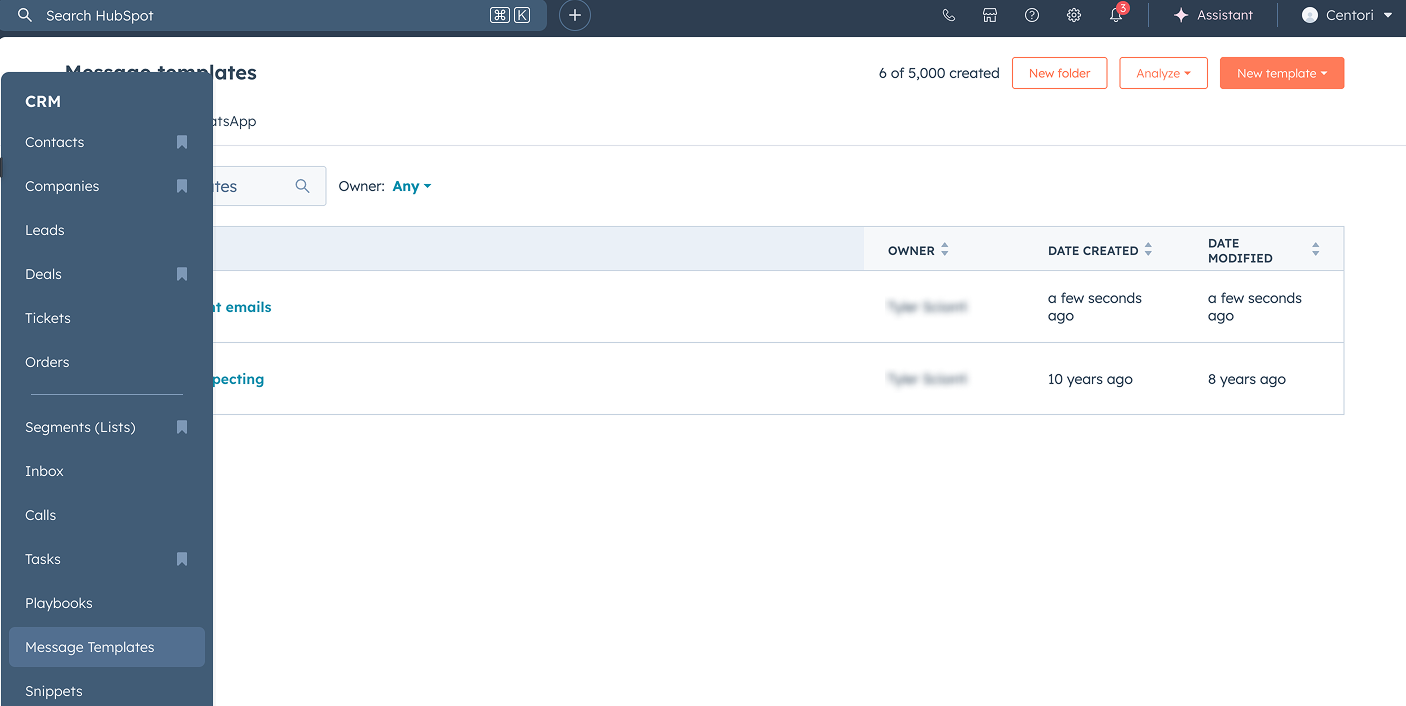
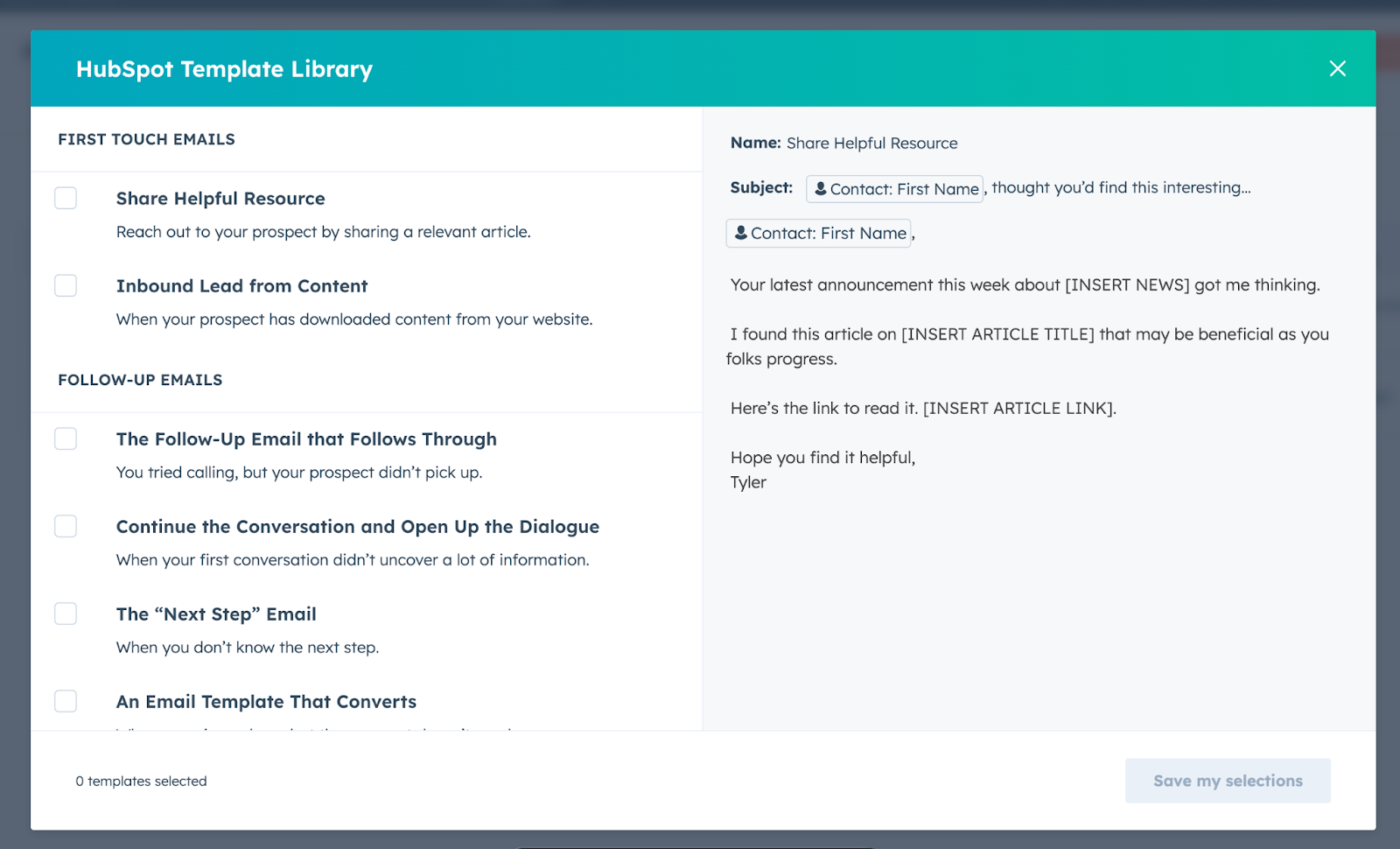
To create a new template, click the orange New Template button, and either create one from scratch or use one from HubSpot’s library.
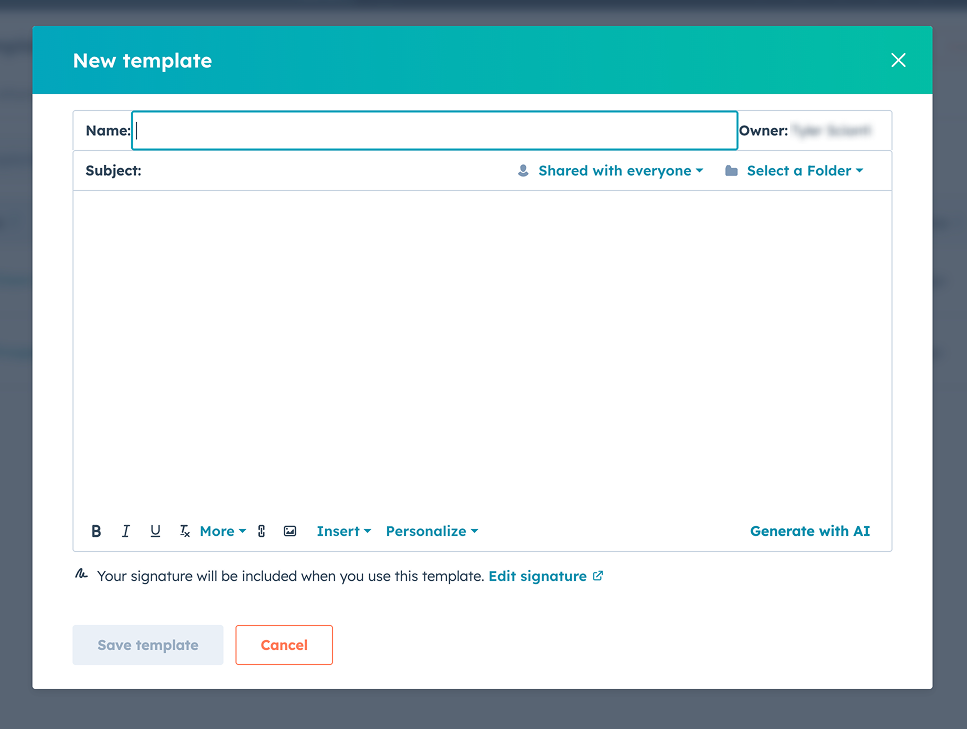
HubSpot’s pre-built ones are fine, but I’ll get to the “why” and “how” of messaging later on. Once you’ve entered the text for your template, add in personalization tokens if needed, name your template, and save it for later use.
I like to organize templates into folders so they’re easy to retrieve. That way, when you’re messaging prospects from your inbox or looking for templates to use in an email sequence, they are easy to find.
How to create a template in your inbox
The great thing about the HubSpot Chrome extension is that you don’t need to leave your inbox to create or manage sales email templates.
When writing a new email, click on the “Templates” icon in the email editor.
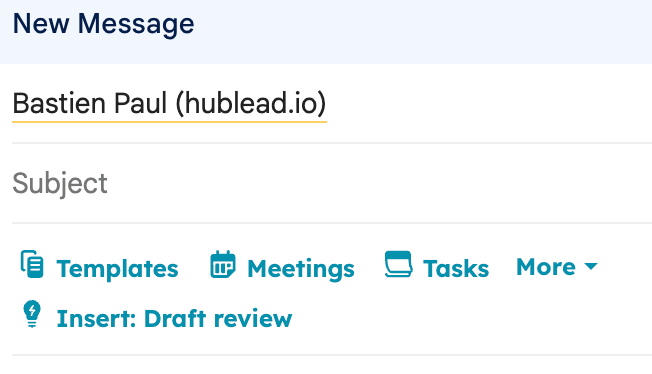
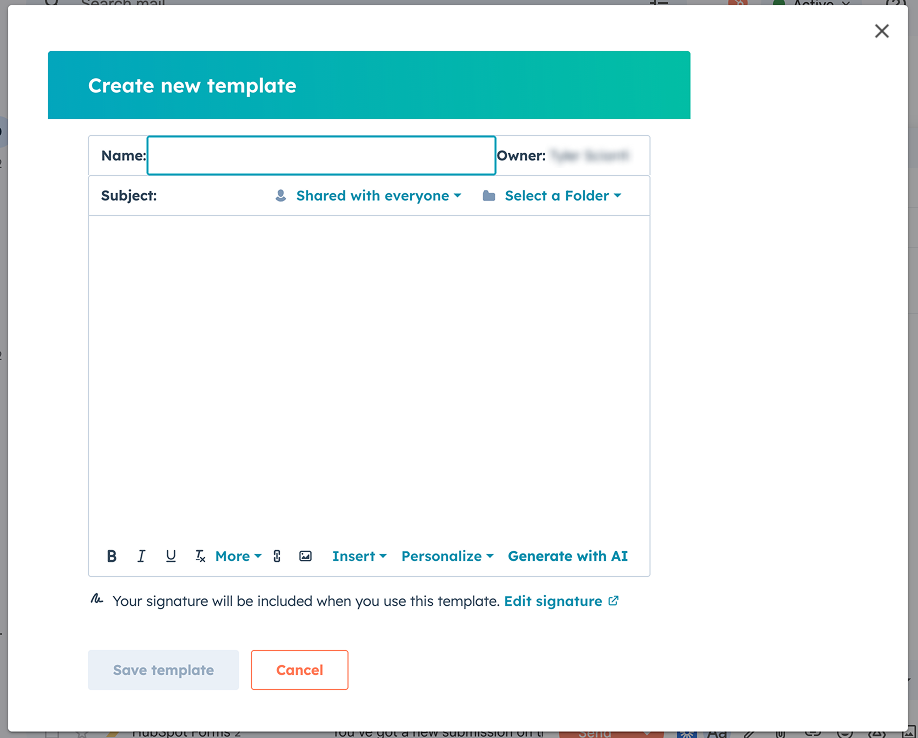
This will pop up a window to insert a template or create a new one. You can’t access HubSpot’s library this way, but if you are comfortable creating templates from scratch, then it’s an easy way to create them quickly.
Same as in-app, add in personalization tokens where needed, name your template, and save it.
Next, I’ll show you how to use and send these templates.
How to send a template in HubSpot
If you’re like most reps I know, you’ll mostly send templates while in your inbox. You have other options, though, which are worth reviewing:
- Send from the contact record
- Send from your inbox
- Send in a sequence
Send from the contact record
While I mainly send emails from my inbox, it’s worth noting that if you send an email from a contact record, you can use your templates here.
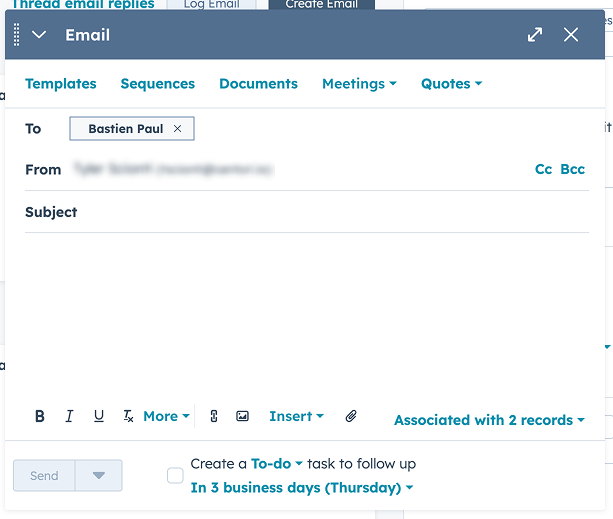
After you click the Create Email button on a contact record, click on Templates to insert a template. Unlike sending an email in your inbox, you can’t create a new template if you go this route; you can only send existing templates.
Send From Your Inbox
As shared above, you can select email templates to send from your inbox if you use the HubSpot extension. This is my preferred way of using templates, but read on later for exactly how I use templates in my sales process so you can do this as strategically as possible.
Send From a Sequence
My second-favorite way to use sales templates is in a Sequence!
Sequences are the HubSpot CRM’s automation tool designed to send emails, create tasks, and more for each prospect you enroll. Sequences allow you to drip a series of personalized emails to sales-qualified leads or cold prospects over time, automating your outreach at scale.
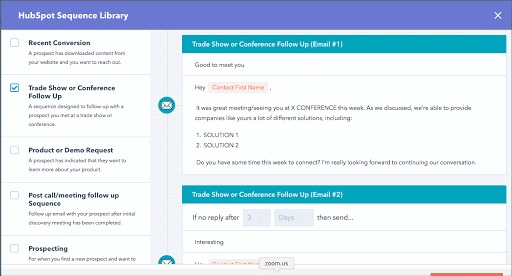
You can use sales templates in Sequences or set task reminders to automate your outbound process (at least parts of it). Check out my guide to HubSpot Sequences and my 10 favorites that you can use!
Free guide
Get the HubSpot Outbound Handbook
Run an effective outbound campaign that keeps your pipeline full.
Dos and Don’ts of using email templates in your outreach
Those are the basics for creating a HubSpot template. Let’s get strategic. If I’m being honest, the actual content of your template matters a lot less than the prep you put in before clicking “Send” and your timing.
In sales, timing is everything. Luck plays a role, too, but the more strategic and intentional you are in your sales process, the better your results will be.
Do
- Personalize. I don’t just mean personalization tokens like name and company. Try to segment your list in advance and tailor messages, angles, and hooks to your audience. You’d talk differently to the CEO than to the head of a department, so tailor your messaging accordingly.
- Pay attention to performance. Do you really think you’ll be successful by flying blind? Pay attention to open rates, the number of opens, click-throughs, and obviously, replies, to judge your messaging. Check out my favorite sales dashboards and reports here.
- Test frequently. You’re never “done.” You’re just taking steps forward to optimize and perfect your outbound process. Test subject lines, hooks, and talk tracks within segments to see what works best.
- Mix channels. Even the perfectly personalized template will result in… nothing. An open or two, but no reply. That’s common. You can improve your odds of success by mixing in channels: follow up on LinkedIn, leave a voicemail, etc. This will drastically improve your chances of being noticed, which means a much better chance of getting a response.
If LinkedIn is part of your follow-up mix, the HubSpot LinkedIn integration guide covers the main ways to connect LinkedIn and HubSpot, including syncing LinkedIn messages to HubSpot.
Don’t
- Blast generic messages. The flipside of personalization is not blasting low-effort, generic messages. Your customer is probably smart, so treat them that way. They’ll see through generic messages that sound like ChatGPT.
- Ignore your data. The best way to spend months of hard work with little to show for it is to ignore your numbers. Track every data point and test to see what can improve performance.
- Stress the message over persistence and timing. If you are offensive, bland, or generic, it will turn your prospect off… but messaging isn’t everything. Timing and persistence matter more and will be the difference between a full-pipeline and a long list of prospects you “worked” but never moved.
Let’s dive deeper into strategy next.
Should you use AI to write sales emails?
Short answer: no.

Look, I love AI… for the right things. AI can be great for analyzing data, making predictions, or editing content, but it is not good at creating content from scratch. Here’s why. AI tools like ChatGPT and Claude are trained on massive amounts of data from low-effort, generic blog posts across the web.
Ask ChatGPT to write you a sales email, and it will do its best to generate a sales email that combines elements from all the sales emails out there on the web. They typically look something like this:
Hello NAME,
If you’re like most small-business CEOs I talk to, then you experience PROBLEM
That’s why we built SOLUTION. Here’s where it can help you:
- Value proposition
- Value proposition
- Value proposition
If you’re open to it, I’d be happy to show you how other PERSONA are using SOLUTION to achieve OUTCOME.
You can see a short demo here.
Or reply, and I’ll send over a quick walkthrough.
I asked ChatGPT for the above, and as you can see, the result is terrible: No one wakes up wanting to hear from a salesperson, and no one cares what you have to say about your product or what you’d “love” for them to do.
The best sales emails are hyper-personalized, timely, and relevant, and layered in with additional channels so they stand out rather than blend in. AI can do a lot of things, but it can’t do that. Read on for the templates I recommend sending and best practices to follow.
5 sales email templates you can steal
You shouldn’t use ChatGPT to “write you a sales email,” but you can start with the following templates to give your outbound campaigns a solid foundation.
I recommend starting with the following. Each will need tweaking based on your audience, so treat them as a base. Remember from above, make them specific and relevant, and test:
- Prospecting first touch
- Send to a user/champion
- Voicemail follow-up
- Demo follow-up
- Find the blocker
Prospecting first touch
This is a basic opening sales letter that establishes who you are, who you help, and your intentions. The key is to stack this letter with other activities, such as engaging on LinkedIn or following up with a cold call.
Hi {{NAME}},
I’m reaching out to schedule a meeting. My company, {{COMPANY}}, helps {{ICP}} solve {{PROBLEM}}.
Founders tell me {{PROBLEM}}. I have helped my clients with this issue, and I’d like an opportunity to explain how. Then, I’d like to hear more about {{COMPANY}} and your situation.
My schedule is open on {{TIMES}}. Does either day work for a call?
Best,
{{YOUR NAME}}
Send to a user/champion
Let’s say you’re targeting a department head and things are going well, but fizzle out.
Target someone under that department head, maybe a manager or individual contributor, and then mention that you’ve been in contact with your original prospect and ask if they know about anything on the inside. This can be a great long-game tactic to try to get your original prospect to engage with you again.
Hi {{NAME}},
I’ve been chatting with {{ORIGINAL ICP}} for a few weeks now, and we discussed a follow-up meeting, but I haven’t heard back from them yet.
Have they been out? Or has your company already decided on a solution? I’d love to chat with {{ORIGINAL CONTACT}} again if not.
Best,
{{YOUR NAME}}
Voicemail follow-up
Leaving a voicemail? Follow it up with this message in their inbox. In my experience, this can get you a callback if the prospect is already familiar with you or the brand.
Hi {{NAME}},
I just tried your cell and left a voicemail. I have time to chat now until {{TIME}}. If you are still free, you can reach me at {{NUMBER}}.
Best,
{{YOUR NAME}}
Demo follow-up
Always follow up after a demo to reiterate what you discussed and provide a clear next step. If you reviewed pricing and got good signals on the call, direct them to sign. If you left the call with things up in the air, guide them to the next call, where you will discuss further.
Hi {{NAME}},
Thanks for your time on our call {{DAY}}.
Based on what you shared about {{CHALLENGE}}, I think {{SOLUTION}} could be a good fit for {{COMPANY}} by helping you achieve {{OUTCOME}}. If everything sounds good, then the next step is to sign your contract and get started.
If you have questions before signing, let me know.
Best,
{{YOUR NAME}}
Find the blocker
As a last-ditch effort, I like to use this campaign when a prospect is in danger of ghosting me. I’ve had good success with this in the past and even revived a deal I was sure was going into the trashbin.
Hi {{NAME}},
It's okay if the answer is "no" to us working together - just let me know, and I won't reach out again.
On the other hand, if the answer is "we're unsure" - that's also fine. The ROI conversation can be difficult. Would it make sense to bring a few more folks into our conversations to talk through it?
If it's none of the above, let me know what it is and how I can help!
Best,
{{YOUR NAME}}
How to use HubSpot templates on LinkedIn
As I shared above, stacking your email outreach with multiple channels will improve your chances of getting a response.
Emails on their own are easy to ignore. But by building familiarity with a prospect across multiple channels, like the phone and LinkedIn, you make your outreach feel more urgent and necessary.
You can’t use HubSpot sales templates on LinkedIn…if you are only using HubSpot. But if you use Hublead to connect HubSpot and LinkedIn, then you can save templates in Hublead for later use.
Just like HubSpot email templates, these message templates allow you to message prospects at scale. And with Hublead, every DM and InMail syncs straight back to HubSpot so you can see what’s working and what’s not in your sales process.
Hublead does more than that, though. You can also:
- Find prospect emails and phone numbers
- Remove admin work from your workflow
- Keep your CRM data clean and reliable
And more! Try Hublead for free here.
Outreach best practices to follow
We’ve covered a lot so far! You’ve learned how to create templates, when to use AI in your process, and got sample templates to tweak. I’ll leave you with a few best practices before we close.
- Copywriting angle
- Qualifying targets
- Segment contacts
Test your copywriting angles
Timing is everything in sales, but you can’t control timing. Relevancy is a close second, though. The samples I gave above are intentionally generic. They lack personality and relevant details that will make your emails stand out from the rest of the drivel in your prospect’s inbox.
So tweak them and test your angles. See how one style performs compared to the other. Success in sales comes from persistence and testing.
Qualifying targets
Before you even lay a finger on your keyboard, is this prospect one you should reach out to in the first place
For example, at Hublead, thousands of companies could benefit from syncing their CRMs with LinkedIn… but Hublead only integrates with HubSpot and Salesforce. A company could be a huge fan of the product, but be a bad fit if they used Pipedrive.
Or if you offer services, does the company already have a full-time hire committed to the services you provide?
These are easy questions to answer with a bit of snooping on LinkedIn or by using tools like Apollo. Make sure that your outreach list is qualified to buy your product/service before reaching out.
Segment contacts
Beyond qualifying targets, the next step to improve your odds is to segment contacts. You can segment contacts based on:
- Company size
- Role within the company
- Interest/familiarity with your product
- Whether they are using a competitor
The sky’s the limit. Segmentation will help you refine the angles you take in your messages and ensure each campaign you send is as relevant as possible.
Master outbound with the HubSpot Outbound Handbook
Creating email templates is just the starting point. Now you need to fill your pipeline with qualified leads and hot opportunities.
To do that, you need an outbound strategy.
If you really want to level up your sales process in HubSpot, download the free HubSpot Outbound Handbook, our guide to building a scalable and effective outbound process in HubSpot. In this guide, we cover:
- The channels to use
- How to get the attention of your prospects
- The tools you should use to speed up sales
And more! Click the button below to get it for free and start scaling your outbound process in HubSpot.
Free guide
Get the HubSpot Outbound Handbook
Run an effective outbound campaign that keeps your pipeline full.
Before you go further
How many sales templates can you create?
Free HubSpot accounts are limited to the three email templates, but accounts created before September 18th, 2024, can edit, access, and use the first five templates in the account. Starter, Pro, and Enterprise accounts can create 5,000 templates.
Can you use HubSpot sales templates on LinkedIn?
You can’t use HubSpot templates for LinkedIn, but Hublead allows you to create message templates that you can use for DMs and InMails! Try Hublead for free here.
Keep reading on LinkedIn and HubSpot
 Sales Tools
The 5 best HubSpot SMS integrations
Looking to integrate SMS into your outbound strategy? Here are the best SMS integrations for HubSpot.
Sales Tools
The 5 best HubSpot SMS integrations
Looking to integrate SMS into your outbound strategy? Here are the best SMS integrations for HubSpot.
 Sales Tools
How to use HubSpot Calling: A guide for sales teams
Looking to get more out of HubSpot’s calling features? Here’s a comprehensive guide for sales teams and managers.
Sales Tools
How to use HubSpot Calling: A guide for sales teams
Looking to get more out of HubSpot’s calling features? Here’s a comprehensive guide for sales teams and managers.
 Sales Tools
How to use HubSpot tasks: A guide for sales teams
Smart sales reps know that good prospecting starts with good task management. Here's your guide to using HubSpot tasks to improve your sales workflow.
Sales Tools
How to use HubSpot tasks: A guide for sales teams
Smart sales reps know that good prospecting starts with good task management. Here's your guide to using HubSpot tasks to improve your sales workflow.
See your CRM on
every LinkedIn profile.
Install the extension, connect HubSpot or Salesforce, open a profile. You see right away whether the person is in your CRM.
Free to start, no card needed.