
How to create and save message templates for LinkedIn
Tired of copying and pasting the same LinkedIn messages? Learn how to create reusable message templates for LinkedIn outreach.
 Bastien PaulAugust 24, 20265 min read
The short answer
LinkedIn has no native message templates, and HubSpot sales templates only work for email, so you need a third-party tool. With Hublead, open a LinkedIn chat, click to use a template, create a new one, and insert LinkedIn and HubSpot personalization tokens.
If you prospect regularly on LinkedIn, chances are good that you’re sending the same (or at least similar) message over and over again to prospects.
What’s your solution? Copying and pasting from a Google Doc?
HubSpot allows you to create templates for sales campaigns, so why not LinkedIn? In this guide, I’ll share the best ways to create and save LinkedIn message templates to speed up your outreach.
Can you create message templates for LinkedIn?
No, at least not natively in LinkedIn.
LinkedIn is first and foremost a social networking tool and a sales intelligence tool. Not a messaging platform for scale. For that reason, LinkedIn doesn’t allow you to create and save message templates, even with a Sales Navigator subscription.
No problem, HubSpot has a LinkedIn integration, and HubSpot allows you to create and save templates for sales emails. Surely HubSpot would bake this into the LinkedIn integration, right?
Nope. Sales templates can only be used for sales emails (either sent via HubSpot or accessed by the HubSpot extension in your inbox.
That doesn’t mean sales reps are left to copy and paste the same message over and over on LinkedIn. There are third-party tools that you can use to create, save, and send templates in DMs and InMails.
Free guide
Start More Conversations With These 15 LinkedIn Openers
Get a response from prospects with these proven LinkedIn openers.
The best tools to create message templates on LinkedIn
So HubSpot doesn’t offer a native way to create message templates for LinkedIn; fortunately, there are plenty of other tools that do.
And I don’t just mean saving them in a shared Google Doc. You’re going to need a third-party tool that integrates with LinkedIn; some of the best ones are:
- Hublead: A tool that seamlessly syncs HubSpot and LinkedIn
- LinkedHelper: A LinkedIn automation tool for outreach
- Surfe: A sales automation tool that also integrates with LinkedIn
- BotDog: An AI-powered LinkedIn automation tool for sending invitations.
Which of these should you choose?
All four are solid options, but they serve slightly different purposes. For example, BotDog can automate invitations and messaging sequences, but only for Sales Navigator. Surfe syncs LinkedIn and HubSpot, but it doesn’t allow for more advanced messaging automation.
We built Hublead to fill this exact gap.
Hublead is a Chrome extension that seamlessly syncs LinkedIn with HubSpot, allowing you to import contacts with one click, enrich them with accurate information, and, yes, create and send message templates to prospects.
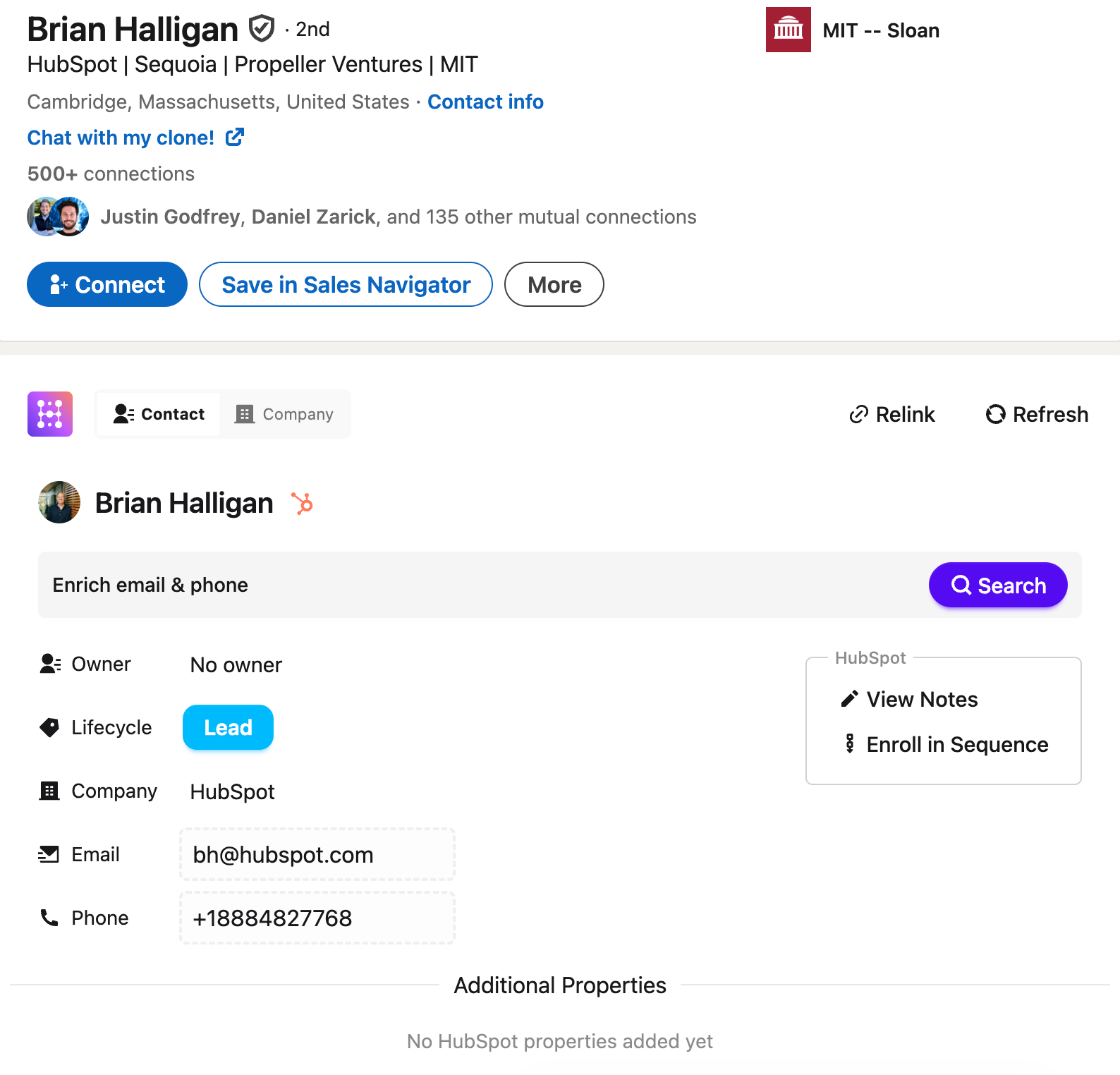
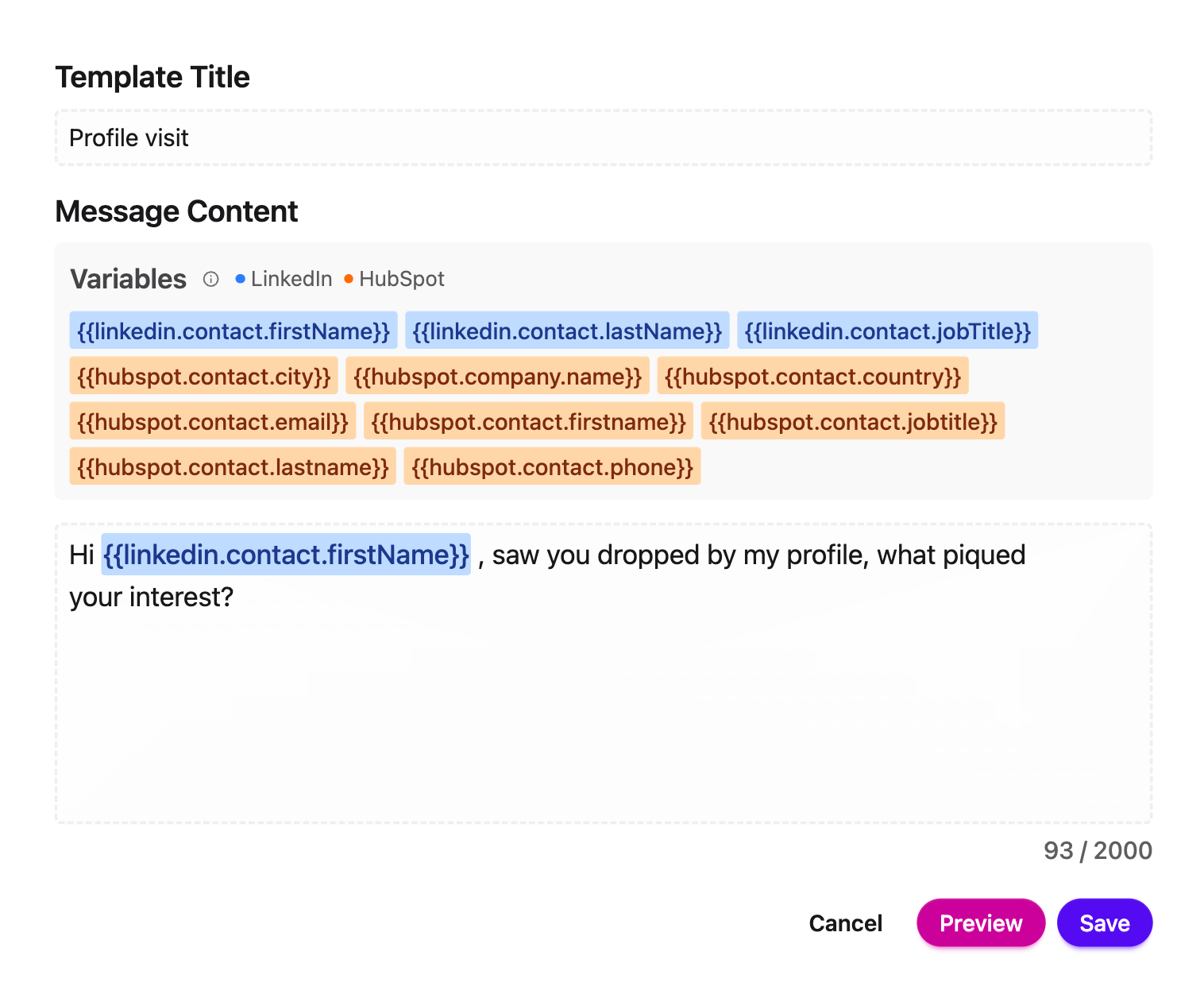
The best thing about Hublead’s message templates isn’t just that they save you loads of time (they do), but because Hublead syncs to your HubSpot portal, you can personalize your templates using the same personalization tokens you would in a HubSpot email template:
How to use LinkedIn message templates with Hublead
As you saw above, creating LinkedIn message templates with Hublead is a snap.
All you need to do is open LinkedIn, go to your messages, and search for the prospect you wish to message, or open their profile and click the Message button. With Hublead installed, you’ll see “Write a message or use a template” in the typing area.
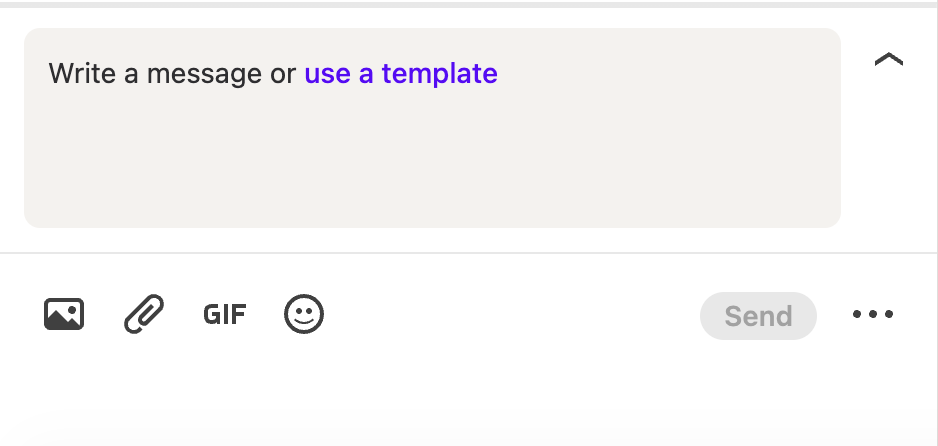
Click the link to use a template, and then click the “+Create new template” button. This will open the template creation window, where you can create your template and even insert LinkedIn and HubSpot personalization tokens!
Once saved, your templates will appear every time you open the template window.
Best practices when creating message templates
Now, before you blast those templates like there’s no tomorrow, here are a few best practices I recommend following to improve your odds of getting a response:
- Choose your targets carefully: LinkedIn outreach lives and dies by relevance, and relevance starts with who you're reaching out to. Before you send a single message, make sure you're talking to someone who actually fits your ICP. That means the right role, the right company size, the right industry, and ideally, some trigger that tells you the timing is right.
- Keep it short: If your message requires scrolling, it's too long. Aim for 3-4 sentences max. Your prospect is reading this on a phone, between meetings, with half their attention elsewhere. Respect that. A short message that gets read beats a long message that gets skipped every time.
- Make it relevant: Generic is invisible. The more your message feels like it could have been sent to anyone, the more likely it will be ignored by everyone. Reference something specific: a post they wrote, a company milestone, a problem you know they're dealing with.
- End with a clear ask: Every message should have one job. Not two, not three. Just one. Whether that's asking if they'd be open to a call, sharing a resource, or just asking a question to start a conversation, be clear about what you want them to do next. Ambiguous messages get ambiguous responses, which is usually no response at all.
Check out my guide to the best LinkedIn sales templates to use to improve your chances of getting a response.
Things to avoid when messaging on LinkedIn
Because I don’t know you, your product, or your ICP, any advice I can give on what to do will intentionally be high-level, because the best sales advice instructs you rather than gives you something to copy and paste.
I can tell you what never to do, though.
Don’t…
- Pitchslap a cold prospect immediately after connecting with them
- Write more than one paragraph for an opening message
- Use a vague phrase like “would love to connect” in your connection message
- For that matter, I’d just avoid the connection message entirely unless you know the person
- Argue with a prospect when they don’t respond or are not interested (it’s happened to me, and it always boggles my mind)
Avoid those, and you’ll limit the “spam flags” you raise. It won’t guarantee a response, but it will improve your chances.
Create your templates today: Try Hublead for free
Your native options for creating message templates for LinkedIn may be limited, but custom integrations and third-party tools can help ensure that your CRM stays accurate and up to date.
LinkedIn is the #1 prospecting channel for social selling today, so your reps need every advantage they can get to optimize LinkedIn as an outbound channel and demonstrate their effectiveness to their team.
For that, there’s no better tool than Hublead. Hublead allows you to sync every connection request, DM, and InMail straight to HubSpot and can even enrich contacts with accurate email addresses and phone numbers to fuel your outreach. Sales reps save 2+ hours every week thanks to Hublead. Try Hublead for free here to supercharge your prospecting workflow.
Free guide
Start More Conversations With These 15 LinkedIn Openers
Get a response from prospects with these proven LinkedIn openers.
Before you go further
Can you save message templates natively on LinkedIn?
No. LinkedIn doesn't offer the ability to create message templates, even with a Sales Navigator or Premium subscription. To save and reuse messages, you'll need a third-party tool like Hublead that integrates with LinkedIn's messaging tools.
Can I personalize a LinkedIn message template?
Yes, and you should. Tools that integrate with your CRM let you insert personalization tokens (first name, company, job title, etc.) that auto-populate when you open the template.
How many LinkedIn message templates should I create?
Most sales reps do well with 4–6 core templates: a connection request (if you use one), a first touch, a follow-up, a value-add touch (case study, resource share), a breakup message, and maybe one event- or trigger-based template. More than that, and you'll waste time choosing.
Can I sync LinkedIn messages back to HubSpot?
Only if you're using a tool built for that, Hublead logs LinkedIn DMs and InMails to the corresponding HubSpot contact record, so your CRM stays accurate without manual entry. Without a sync tool, LinkedIn activity lives in LinkedIn and never makes it into HubSpot reporting.
Keep reading on LinkedIn and HubSpot
 Sales Tools
How to Optimize Your LinkedIn Profile for Sales
You don’t need to be a guru to turn LinkedIn into a sales channel. Here’s your complete guide for optimizing your LinkedIn profile to sell.
Sales Tools
How to Optimize Your LinkedIn Profile for Sales
You don’t need to be a guru to turn LinkedIn into a sales channel. Here’s your complete guide for optimizing your LinkedIn profile to sell.
 Sales Tools
HubSpot Onboarding Checklist: Week-by-Week for Sales Teams
The HubSpot onboarding checklist built for sales teams: pipelines, sequences, Sales Workspace, week by week. Skip the setup mistakes most teams make.
Sales Tools
HubSpot Onboarding Checklist: Week-by-Week for Sales Teams
The HubSpot onboarding checklist built for sales teams: pipelines, sequences, Sales Workspace, week by week. Skip the setup mistakes most teams make.
 Sales Tools
13 must-have integrations for HubSpot Sales Hub
HubSpot is a great CRM, but with the right integrations, you can level up your outbound process. In this guide, we share our 13 favorite HubSpot integrations.
Sales Tools
13 must-have integrations for HubSpot Sales Hub
HubSpot is a great CRM, but with the right integrations, you can level up your outbound process. In this guide, we share our 13 favorite HubSpot integrations.
See your CRM on
every LinkedIn profile.
Install the extension, connect HubSpot or Salesforce, open a profile. You see right away whether the person is in your CRM.
Free to start, no card needed.