How to track LinkedIn prospecting activities in HubSpot
Learn how to sync every LinkedIn prospecting activity — messages, invites, InMails — into HubSpot so your outreach stays tracked, measurable, and reportable.
There’s no doubt in my mind that LinkedIn is the best prospecting channel, period. There’s just one small problem: how do you make sure that all those hours of time spent researching, connecting, and messaging prospects make their way back to your CRM?
When most sales managers hop into HubSpot to check outbound activity like emails logged and calls made, that hard work you’re doing on LinkedIn won’t show up, and that’s a big problem for sales reps trying to meet quota.
You don’t have to manually copy and paste everything into your CRM, though. In this guide, I’ll show you how to sync your prospecting activities back to HubSpot, so you have a complete record of your hard work.
Why you need to sync HubSpot and LinkedIn
HubSpot tracks what happens inside HubSpot. LinkedIn happens somewhere else entirely, and unless there's a deliberate system to bridge the two, that activity disappears.
If your LinkedIn outreach is generating replies but those conversations aren't tracked, you have no way to attribute pipeline to that channel, no way to identify what messaging is working, and no way to hold reps accountable for LinkedIn activity goals.
The good news is that this is a solvable problem. Read on for the best integrations and tools available.
What LinkedIn activities to track in HubSpot
Before you build any system, get clear on which actions actually tie to pipeline outcomes, and which ones are noise.
Here are the five categories that come up most often:
- Connection requests sent and accepted: Sent volume is a baseline metric of activity. Accepted rate is more meaningful because it tells you whether your rep's profile, positioning, and target list are working.
- LinkedIn messages (DMs): This is the highest-signal activity on the list. Message reply rate is the closest LinkedIn equivalent to email reply rate. If you track nothing else, track this.
- InMails: For teams using Sales Navigator, InMails function like cold outreach to prospects you're not connected to. Volume and reply rate matter. Log them the same way you'd log a cold email.
- Profile views: You can track when reps view profiles, but this rarely correlates with outcomes and is easy to game.
- Post engagement (likes, comments): Social selling activity matters for brand building, but it's a vanity metric for pipeline reporting. Exclude it from your SDR dashboards.
The three you actually need are connection requests (accepted), DM reply rates, and InMail reply rates. These are the signals that tell you whether LinkedIn prospecting is generating conversations.
All great in theory, but how do you make this happen in HubSpot? I’ll share that next.

Ready to fix your outbound process?
What HubSpot’s native LinkedIn integration can and can’t do
HubSpot has a native integration with LinkedIn Sales Navigator, and while it works decently well for most teams, it only solves about 20% of the problem.
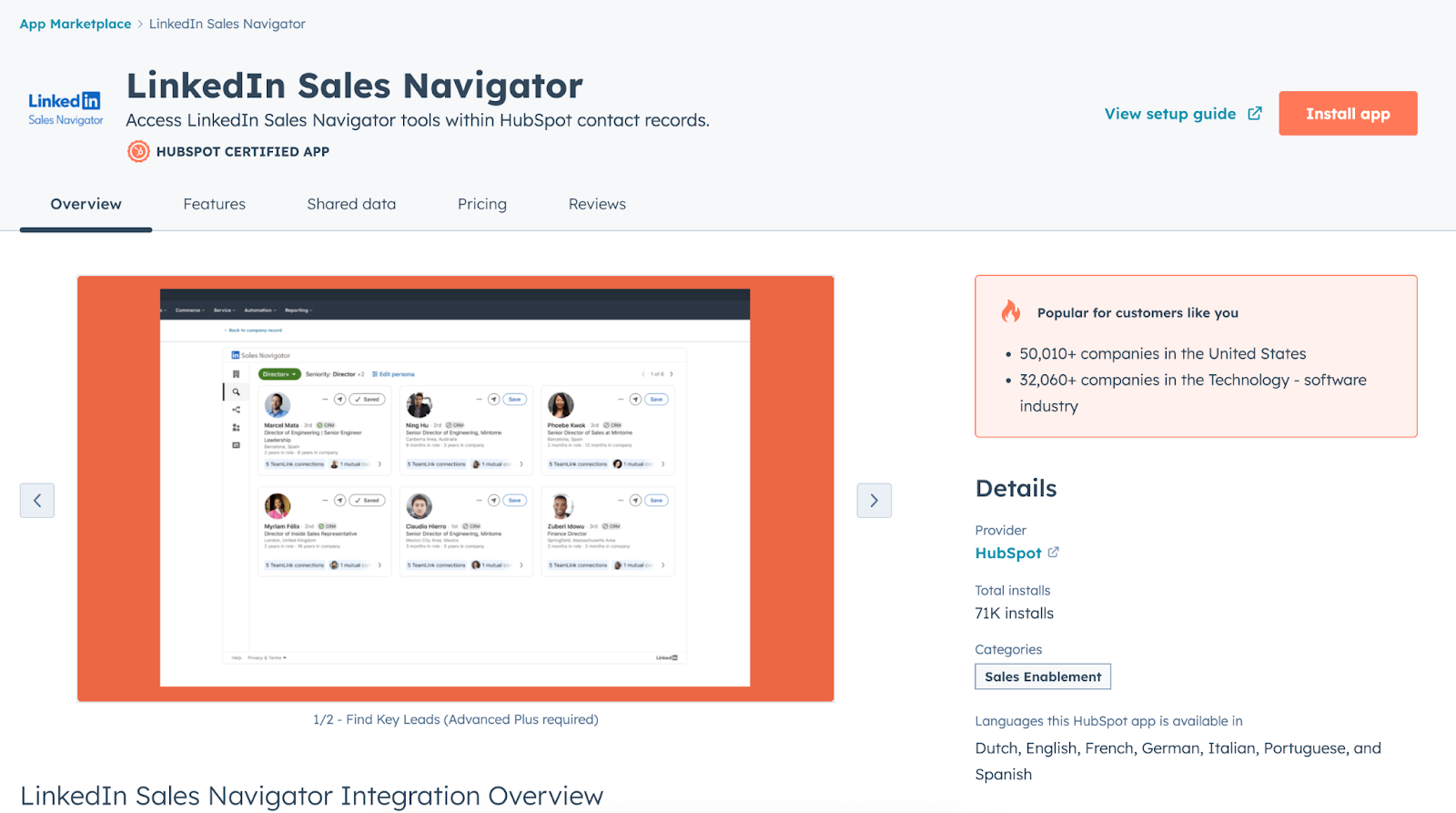
Here's what the native integration gives you:
- View LinkedIn profile data from HubSpot contact records: name, title, company, and connections you share.
- Send InMails directly from a HubSpot contact record without switching tabs.
- See a prospect's recent LinkedIn activity (posts, job changes) in the contact timeline.
- Sync basic profile data (company, role) to HubSpot contact properties.
But here’s what the native integration doesn't do:
- It does not automatically log LinkedIn messages or InMails as activities in HubSpot.
- It does not track the volume of connection requests or acceptance rates.
- It does not give you per-rep LinkedIn activity metrics in HubSpot reports.
- It does not sync DM conversations to the contact timeline.
The core limitation is that the native integration is built for profile visibility, not activity tracking. It helps you view LinkedIn data without leaving HubSpot, but it doesn't close the loop in the other direction: getting LinkedIn activity back into HubSpot so you can report on it.
Plus, the integration is limited to the highest Sales Navigator tiers, making it inaccessible to smaller sales teams just getting started with building an outbound sales motion on LinkedIn.
Fortunately, there are third-party tools that fill these gaps.
The best tools to sync LinkedIn prospecting data into HubSpot
The native LinkedIn integration is a decent start, but it leaves a lot to be desired for sales reps. To fill those gaps, try one of the following third-party options:
- Set up API-based automations
- Use a purpose-built tool
API-based automation (e.g., n8n, Zapier)
It's possible to build your own LinkedIn-to-HubSpot automation using tools like n8n.
A quick tour of Reddit or the HubSpot Community will reveal creative ways that sales reps have solved this. The obvious upside of this route over the Sales Navigator integration is that you have full flexibility to set things up the way you want. The downside is that LinkedIn's API access for DMs and InMails is restricted, and building a reliable pipeline requires meaningful technical investment on your part.
If you have a developer on hand to build things for you, this can work. Otherwise, try the next option.
Purpose-built Chrome extensions
I’ve run into this exact problem myself when I worked as a marketing and GTM leader, which is why we built Hublead, a Chrome Extension that seamlessly integrates LinkedIn with HubSpot.
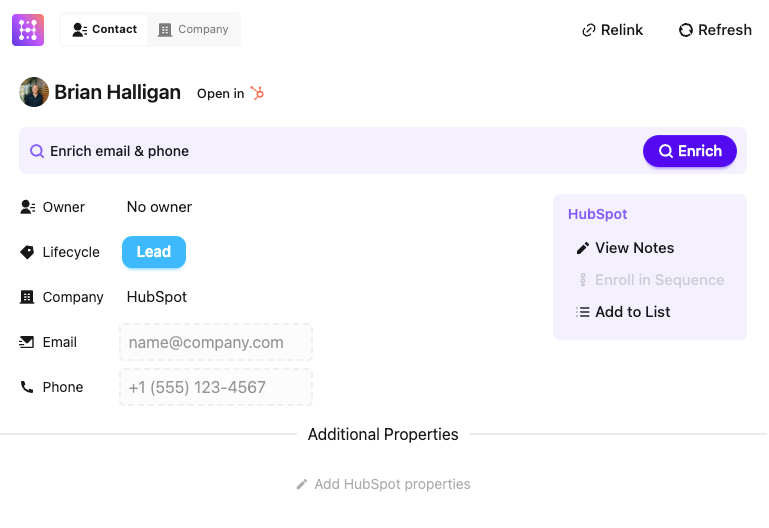
All you need to do is add Hublead to your Chrome browser and connect your HubSpot portal, and voila, you are all set.
Here’s a taste of what you can do with Hublead:
- View prospect data from HubSpot in LinkedIn without switching tabs back to your portal.
- Import a prospect from LinkedIn into HubSpot with one click.
- Enrich prospects with accurate email addresses and phone numbers.
- Create and save message templates for LinkedIn.
- Sync DMs and InMails.
- Filter out prospects you’ve already saved when searching for leads with Sales Navigator
- Track connection requests and acceptances in HubSpot
- Trigger workflows based on prospect activity on LinkedIn
And so much more.
No more copy and pasting. No more de-duplicating contacts and cleaning up records. You can prospect on LinkedIn and trust that every connection, DM, and InMail will find its way back to HubSpot.
Sales reps agree that Hublead is a life-saver:
“Hublead is super easy to use. You just continue to work on LinkedIn as you normally do, but you can share info to your CRM at the same time!”
How to build a LinkedIn prospecting dashboard in HubSpot
Once LinkedIn activity is syncing into HubSpot with Hublead or another method, you have the building blocks for meaningful sales reporting.
The key is keeping it focused; set up these four reports once you’ve piped LinkedIn data into your CRM:
- Activity by rep: LinkedIn messages vs. emails vs. calls. This shows whether reps are hitting activity targets and how LinkedIn compares to other outreach channels.
- LinkedIn outreach-to-reply ratio: Messages or InMails sent divided by replies received, per rep. A rep with high volume and low reply rates has a messaging problem. A rep with lower volume but strong reply rates is finding the right people with the right message.
- Connection acceptance rate by rep: Useful for diagnosing early-funnel issues; if one rep's requests aren't being accepted, it's a targeting or profile problem worth coaching.
- Pipeline sourced from LinkedIn: This requires tagging contacts or deals with a LinkedIn source at the point of import. If you're using Hublead's one-click contact import, you can standardize the original source property so this report is accurate.
Check out my favorite HubSpot Sales dashboards for more reporting examples.
How to use LinkedIn prospecting data for lead scoring
Most teams score leads based on email opens and page views. Meanwhile, the strongest buying signals are sitting in their LinkedIn DMs, completely untracked.
Once LinkedIn activity is flowing into HubSpot as contact properties and timeline events, you can use it as an input in HubSpot's lead scoring models.
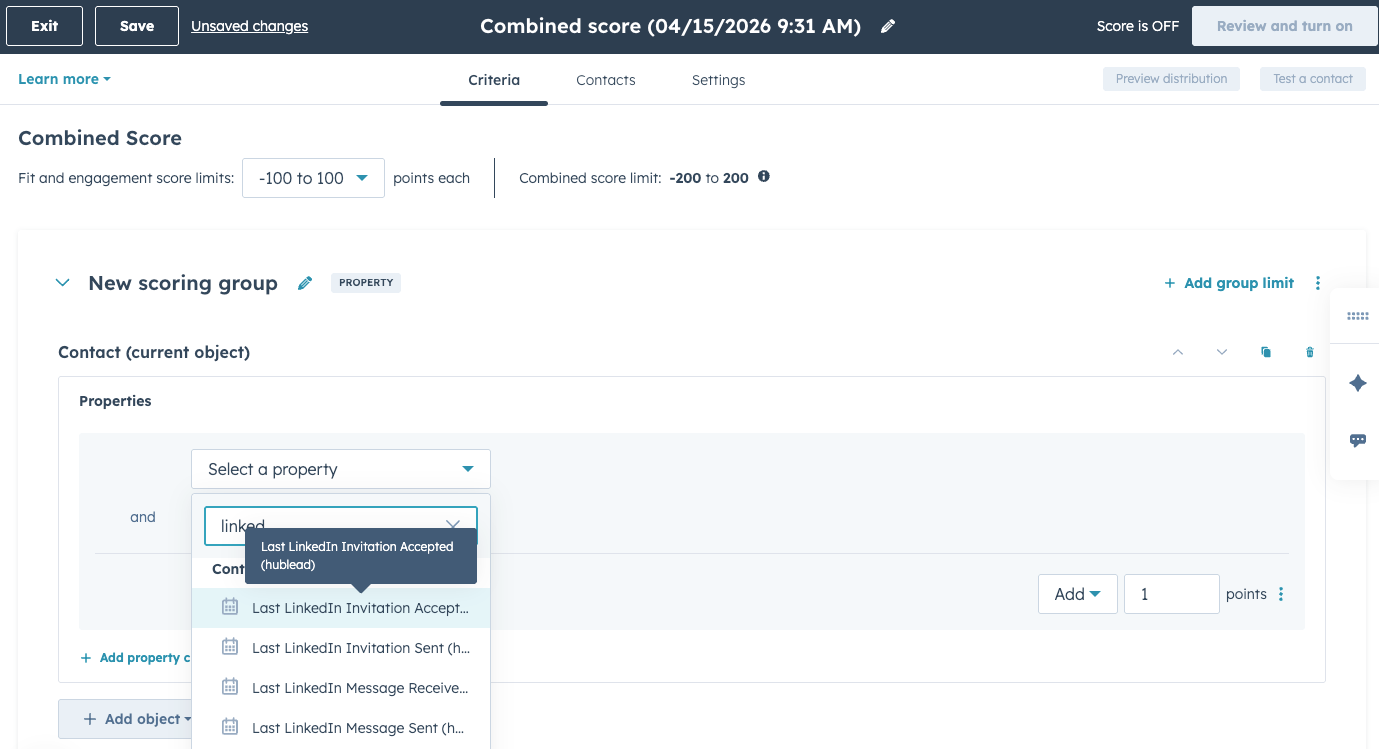
In my experience, LinkedIn engagement signals exist on a spectrum of intent:
- Accepted connection request: Accepting your connection request is a solid start, but it’s a moderate intent signal. Now the work begins: getting them to talk.
- Replied to a DM within 48 hours: Replying to your DMs shows high intent. They're paying attention and are willing to engage, so this could signal the buying window is open.
- Replied to an InMail and asked a question: Like the above, responding to an InMail shows very high intent. This person is interested, so fag them for immediate follow-up.
Keep the initial setup simple. Don't try to build a 15-factor scoring model; the goal is to surface the LinkedIn-engaged contacts at the top of a rep's call list so they're not left sitting at the bottom of a spreadsheet.
For a full walkthrough, check out our HubSpot lead scoring guide.
Try Hublead for free and see how much time it can save you this week
Your native options for syncing LinkedIn prospecting activities back to HubSpot may be limited, but custom integrations and third-party tools can help ensure that your CRM stays accurate and up to date.
LinkedIn is the #1 prospecting channel for social selling today, so your reps need every advantage they can get to optimize LinkedIn as an outbound channel and demonstrate their effectiveness to their team.
For that, there’s no better tool than Hublead. Hublead allows you to sync every connection request, DM, and InMail straight to HubSpot and can even enrich contacts with accurate email addresses and phone numbers to fuel your outreach. Sales reps save 2+ hours every week thanks to Hublead. Try Hublead for free here to supercharge your prospecting workflow.
Ready to fix your outbound process?
Frequently asked questions
Does HubSpot have LinkedIn integration?
There is no direct LinkedIn-to-HubSpot integration, but tools make it easy to copy data from LinkedIn into your HubSpot CRM database, saving time and frustration.
How do I import LinkedIn connections to HubSpot?
You can import LinkedIn connections to HubSpot by exporting your LinkedIn connections as a CSV file or by using a Chrome extension like Hublead, which helps you directly import your LinkedIn connections and update your HubSpot contact list automatically.
Can I customize the data that is synced between LinkedIn and HubSpot?
Yes, you can customize the data that is synced between LinkedIn and HubSpot by mapping fields. You can choose which LinkedIn fields are mapped to which HubSpot fields, allowing you to control the data that is synced.
How do I integrate LinkedIn with HubSpot?
Install the Hublead Chrome extension. Navigate to LinkedIn and start importing contacts with a single click using the Hublead button. Sync LinkedIn messages to HubSpot, and Hublead will automatically synchronize new messages. Hublead's AI-powered algorithm can help find emails & phone numbers, and it checks in real-time if a LinkedIn contact already exists in HubSpot to avoid duplicates.