

How to use HubSpot Sales: The ultimate guide for sales teams
HubSpot won't magically fill your pipeline, but using it right will. Learn how to set up Sales Hub, run multi-channel outbound campaigns, and automate your sales process.
The problem with how most sales teams use HubSpot is that they treat each channel as a separate tool.
Email, phone, SMS, and LinkedIn are all important channels to use in your outbound campaigns, but they’re not nearly as effective on their own as they are when you use them together. That’s the real magic of HubSpot: HubSpot brings all of your data and activities in one place.
As great a CRM as HubSpot is, it’s not a silver bullet.
HubSpot won’t magically make you more effective than you were with Salesforce or Pipedrive, but with the right know-how, you can get the most out of HubSpot to run effective sales campaigns that fill your pipeline.
This isn’t a step-by-step on the fine details of Sales Hub; it’s a practical guide on how you can use HubSpot to manage, measure, and optimize effective outbound campaigns.
Setting up HubSpot Sales Hub
Sure, you should do the basics like “add users” and “set up your signature,” but there are the higher priority things I like to set up in my HubSpot portal:
- Set up the HubSpot Chrome Extension: This is your lifesaver. The Chrome extension logs and tracks emails, allows you to send templates, syncs your calendar, and can even give you data on a prospect’s website. Set this up.
- Set up your sales pipeline: HubSpot provides a default pipeline, which is fine, but I recommend reviewing and customizing it. Set up sales stages and probabilities that match your actual process, and start filling your pipeline with leads.
- Set up custom call outcomes: Not many people know this, but you can set up custom call outcomes for reps who log calls. This gives you better data and insights into your strategy's performance.
- Sync LinkedIn with Hublead: If you’re using LinkedIn as a channel, you absolutely need to add Hublead to your stack. Hublead is a Chrome extension that syncs LinkedIn contacts, DMs, and InMails straight to HubSpot.
I highly recommend doing the above before sending emails or making calls. It will make things much easier for you down the line.
Segmentation: What to do before you message
There’s one other thing you need to do before you start reaching out to prospects: segment them.
A list from Apollo, Clay, or Sales Navigator is not a lead list. It’s a list of people who fit your ICP (as you defined it, at least), but you have one more step to do. You need to qualify your prospects.
For example, at Hublead, thousands of companies could benefit from syncing their CRMs with LinkedIn… but Hublead only integrates with HubSpot. A company could be a huge fan of the product, but a poor fit if they use Salesforce or Pipedrive.
Or, if you offer services, does the company already have a full-time employee dedicated to those services?
These are easy questions to answer with a bit of snooping on LinkedIn or by using tools like Apollo. Make sure that your outreach list is qualified to buy your product/service before reaching out.
How to do cold outbound in HubSpot
Now that your portal is set up, let’s run an outbound campaign.
HubSpot supports the following channels natively for outbound messaging:
- Calls
The following channels will require integration. Technically, HubSpot offers some native support for them, but the native features aren’t fully fleshed out for the needs of sales reps:
- SMS
I’ll walk you through each channel, showing you how to set it up and run campaigns in HubSpot.
How to send cold emails in HubSpot
HubSpot makes it super easy to send cold emails at scale.
You can send them straight from the contact record:
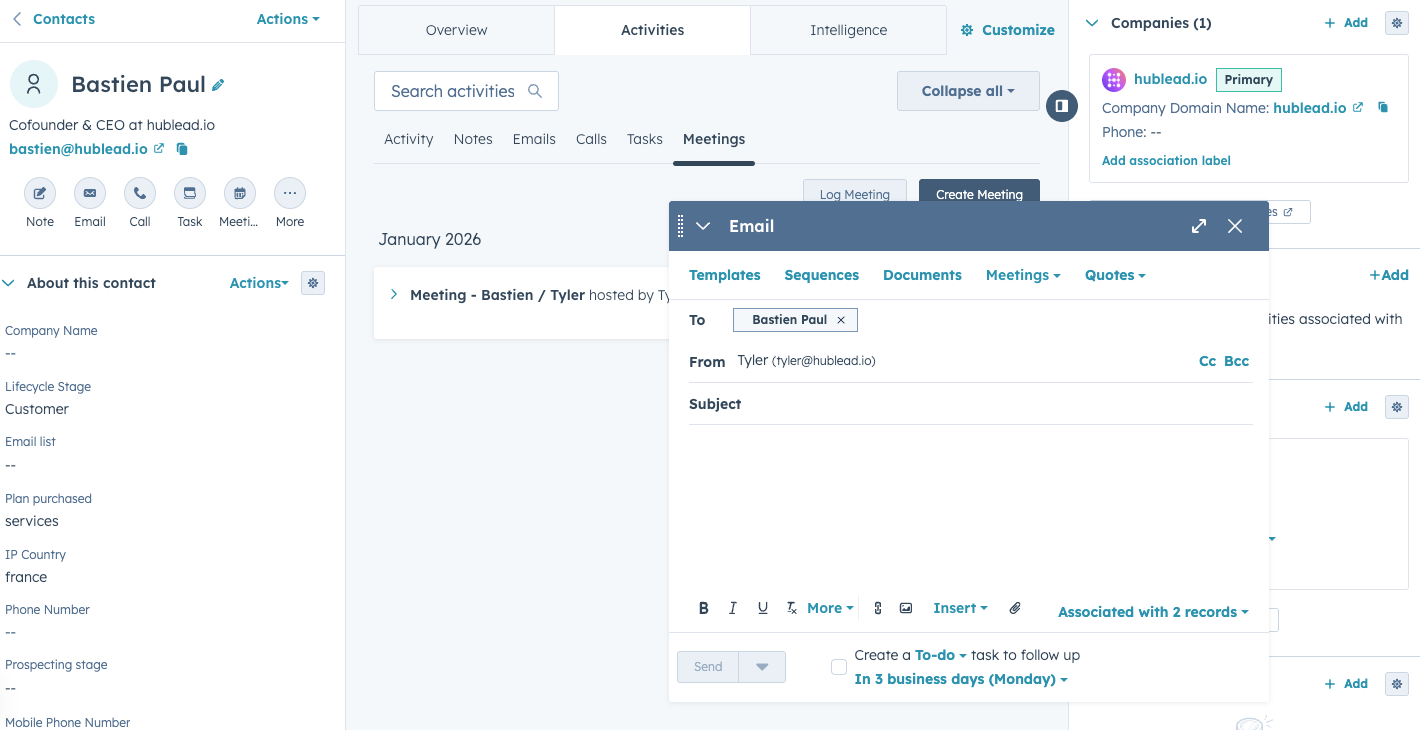
You can also queue them up in a Sequence (more on these later) or write your scripts in advance and save them as templates.
Here’s the secret to success in cold email: email is most effective when you mix it with other channels. Unless you’re incredibly lucky, chances are your first, second, or even third email will go unanswered. But when you mix email with the channels I share below, well, that’s when the magic happens.
I usually send cold emails from my inbox (while logging and tracking with the HubSpot Chrome extension). Most of the time, I’ll create a template for this and either send it manually or enroll a contact in a Sequence to begin nurturing them.
I include a sample cold email template in my guide to HubSpot sales templates here. Check it out!
How to make cold calls in HubSpot
Think cold calling is dead? That’s a myth that the gurus on social media want you to believe.
Cold calling is alive and well, and it works. But only if you arm yourself with the right data, and pay attention to what your prospects are telling you.
You have a few options for making calls through HubSpot:
- Make a call from your computer: You can either make a call from a view/list in HubSpot or from a contact record. In any view/list, look for the phone number column and click the phone number that you have saved. If the phone number is properly formatted and validated, you can call that contact. Or head to a contact and tap the phone icon next to their name.
- Make a call through the HubSpot app: When using the HubSpot mobile app, you have two options for making calls. You can make them either through your mobile phone carrier or the HubSpot calling feature. Note that if you use your mobile phone carrier for calls, you cannot record them.
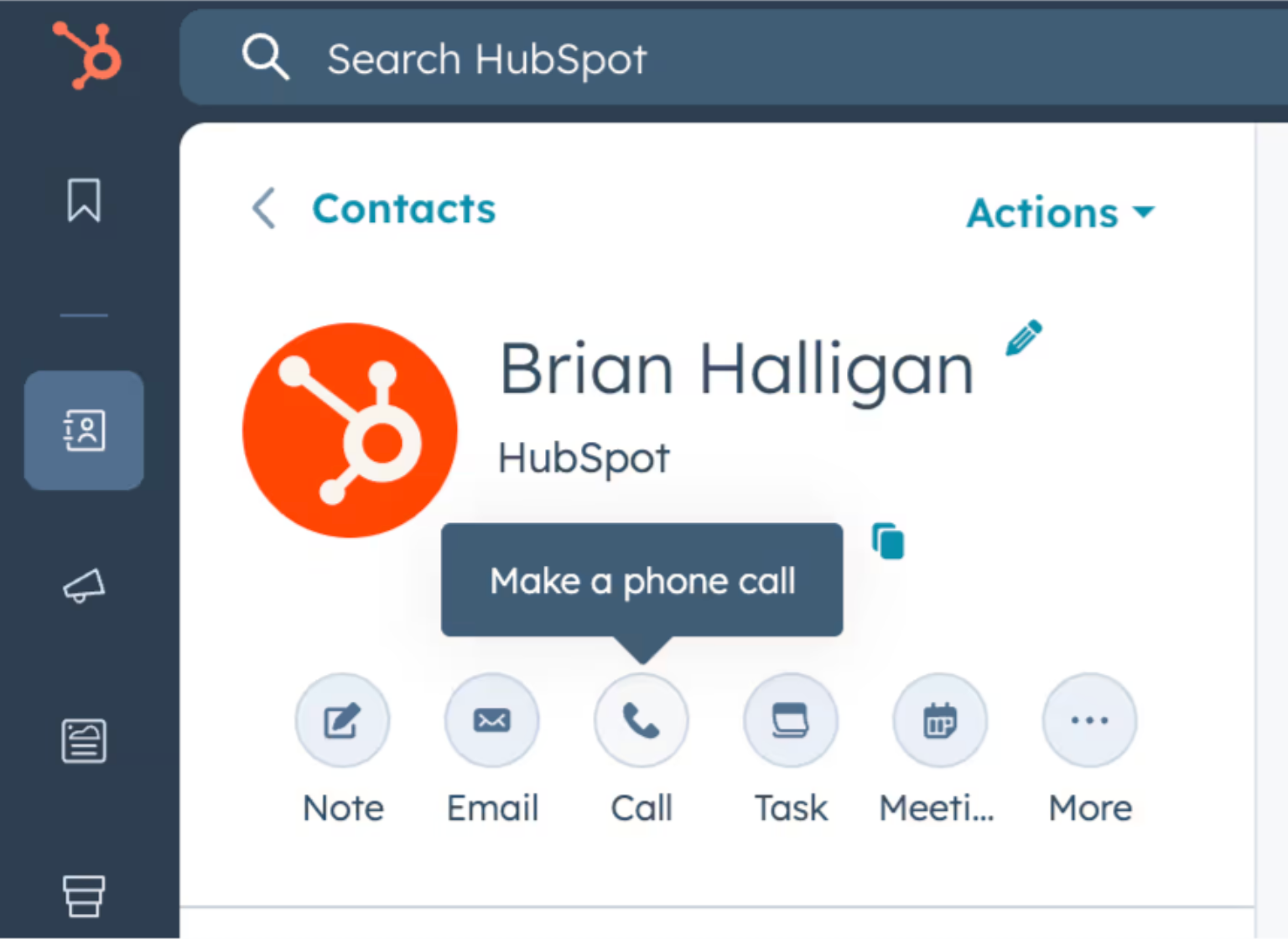
Here’s another tip to make your team’s calls even more effective: set custom call outcomes. In settings, look for Call Setup in the menu and then Edit Options next to the call outcome setting. HubSpot will give you some default options:
- Busy
- Connected
- Left live message
- Left voicemail
- No answer
- Wrong number
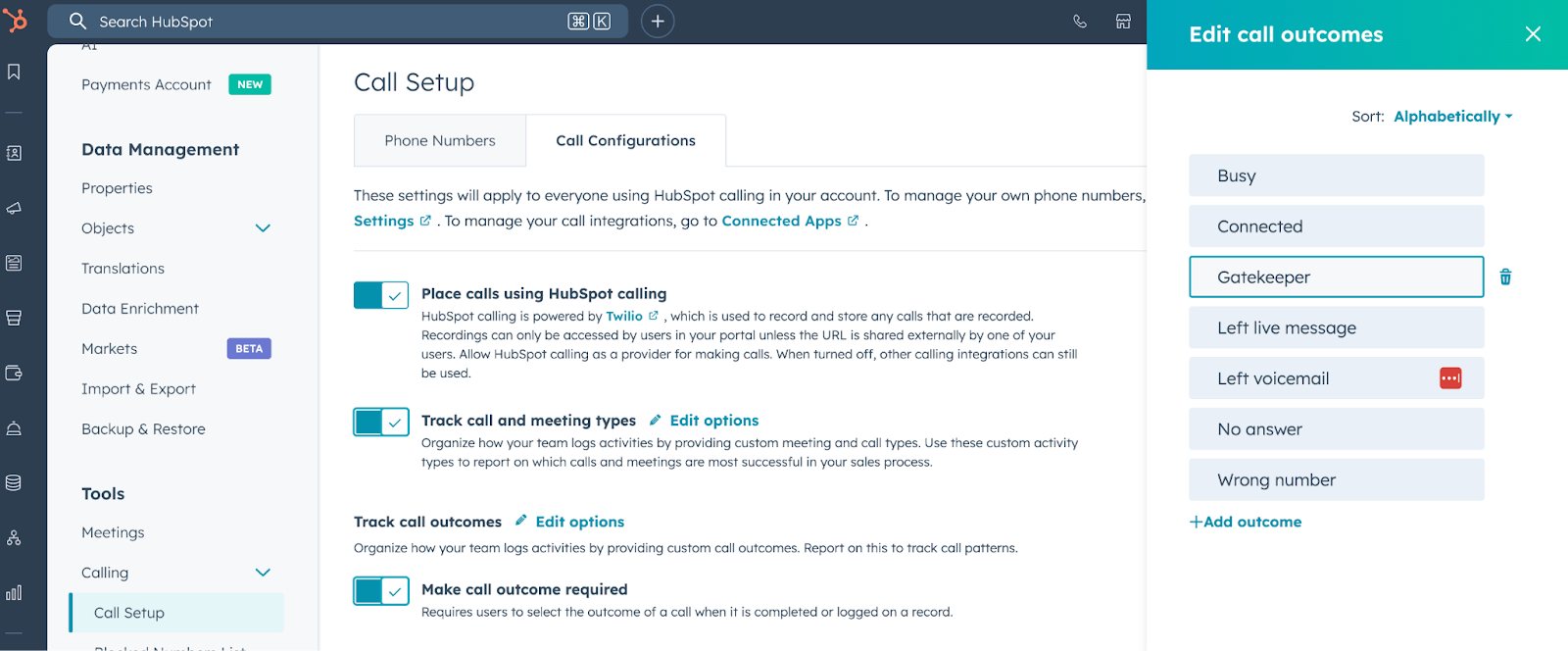
I like to add custom ones, like hitting a gatekeeper, to track my calls. For instance, if I find I’m hitting gatekeepers often, maybe I’m getting bad data on my prospects and should try different sources to find their cell phone numbers.
Check out my guide to using HubSpot calling for a deeper dive!

Ready to fix your outbound process?
How to send SMS in HubSpot
If I want a record of the texts I send to prospects in my CRM (which should be the case every time), I log it in HubSpot. The problem is, HubSpot’s native SMS integration is built for marketing, and its WhatsApp integration is… not great.
I prefer the following for linking SMS to HubSpot:
- Salesmsg
- Heymarket
- Sakari SMS
- TrueDialog
- Aircall
Browse my reviews for these HubSpot SMS integrations here.
How to prospect on LinkedIn from HubSpot
LinkedIn is hands-down my favorite channel for sales. And I’m not saying that because we built a tool that syncs LinkedIn with HubSpot.
If you’re ignoring LinkedIn in your outreach strategy, then you are missing out on the ability to:
- Demonstrate social proof to buyers
- Demonstrate expertise and authority
- Engage meaningfully with prospects
- Identify triggers that could lead to a conversation or sale
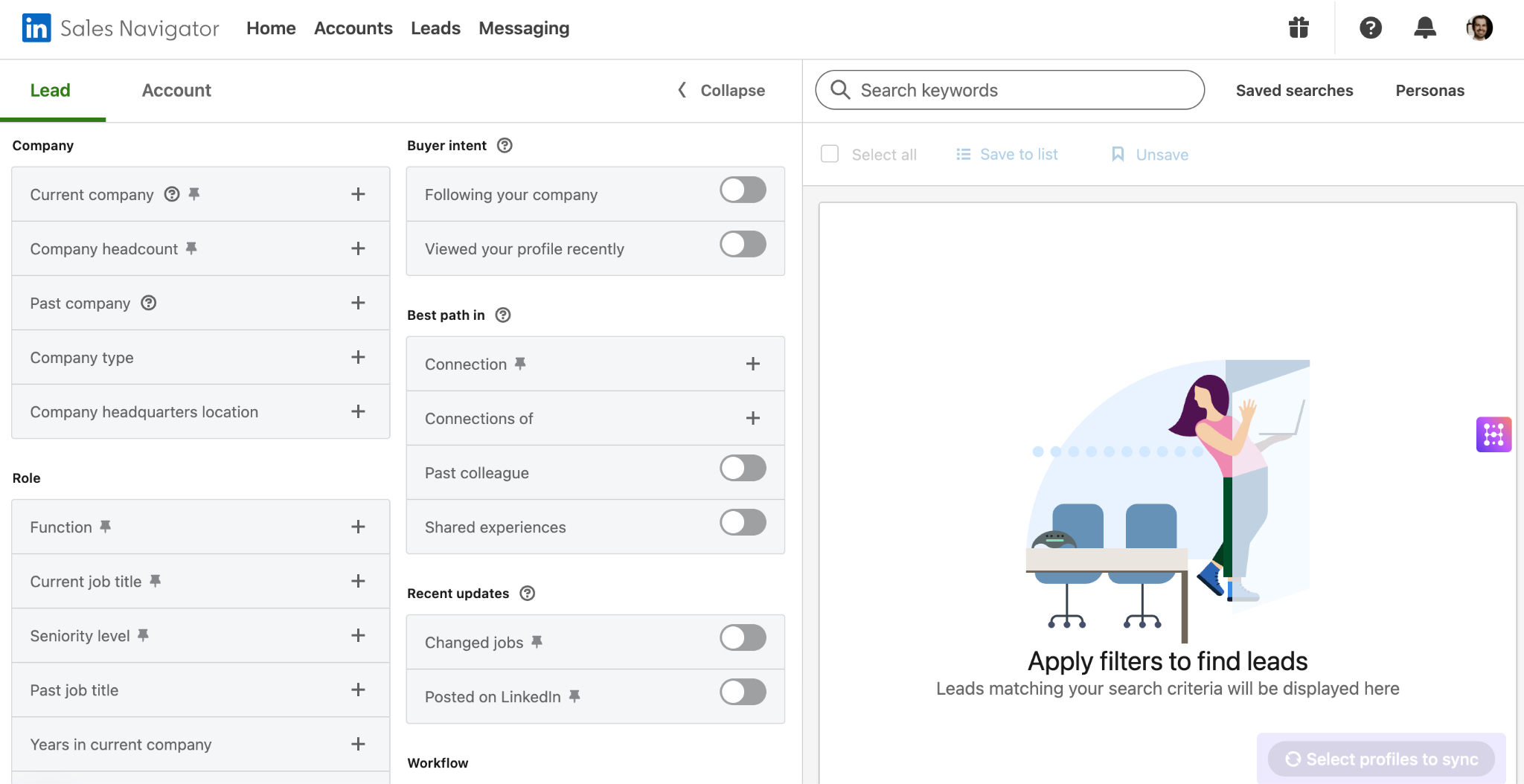
I like to use LinkedIn in a few ways in my sales strategy:
- Find prospects: Sales Navigator lets you filter for contacts who exactly match your ICP, making it easy to identify and connect with them.
- Engage and build familiarity: Connecting, liking, commenting, and DMing are all effective ways to get on your prospects’ radar. Emails can easily be ignored, but putting a face (and work experience) to your outreach can help it land.
- Watch for signals: Use Sales Navigator lead lists to review your prospects' posts. The second they complain about a pain point or mention they’ve started their buying journey, you can time your outreach.
And with Hublead to connect LinkedIn to HubSpot, you can sync and enrich contacts, sync DMs, create message templates, track connection requests, trigger Workflows off of LinkedIn activity, and so much more.
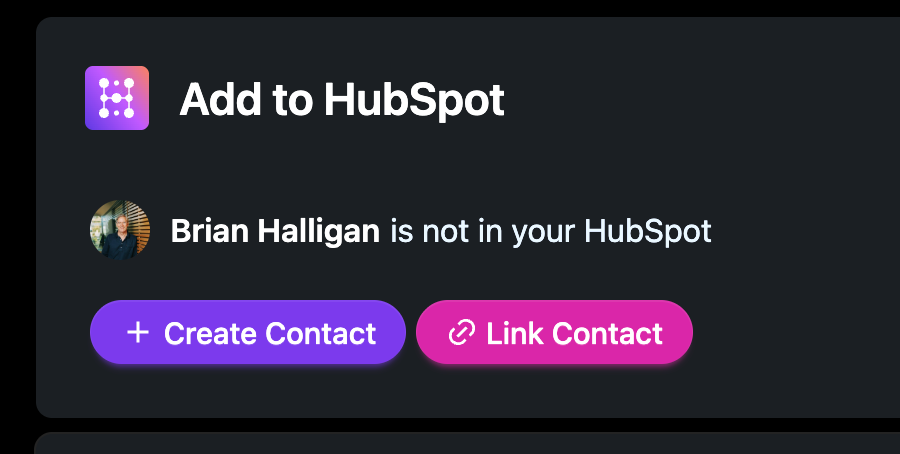
Mix LinkedIn with email and calls, and you’ll see a night-and-day difference in your pipeline.
How to automate your sales process in HubSpot
The above will get you started, but if you ask me, it’s much better to automate some of this.
Once you get the hang of it, do you really need to manually send a five-email series to each lead? Not in HubSpot. My favorite automation features are:
- Sequences
- Workflows
How to automate with Sequences
Sequences are the HubSpot CRM’s automation tool designed to send emails, create tasks, and more for each prospect you enroll.
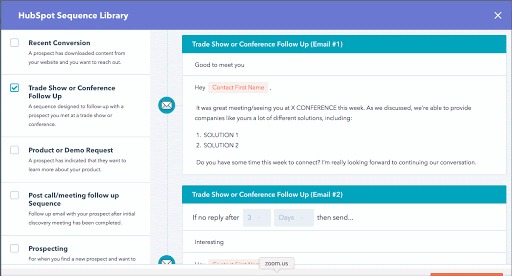
Sequences allow you to drip a series of personalized emails to sales-qualified leads or cold prospects over time, automating your outreach at scale.
Access to HubSpot Sequences is available to users with a Sales Hub Professional, Service Hub Professional, or Enterprise subscription with a connected personal inbox.
I like to use Sequences to:
- Nurture a cold prospect and warm them up for a conversation
- Follow-up post-demo
- Upsell an existing customer
- Re-engage an old lead
Check out my 10 favorite Sequences to run in HubSpot for some inspiration!
How to automate with Workflows
HubSpot Workflows are an automation tool that allows you to send a series of emails or create tasks. Wait… is that different from Sequences?
For starters, Workflows come with Marketing Hub while Sequences come with Sales Hub. Workflows are also much more advanced: you can trigger them based on contact behavior, set up branching logic to route contacts through your funnel, and even create custom actions.
I like to use Workflows for the following:
- Sending a sequence of educational content to new leads, gradually moving them toward readiness for a sales conversation.
- Guide customers through onboarding, delivering essential resources and guides.
- Automating communications based on user actions (e.g., form submission, page view) to provide relevant content at each interaction stage.
Pipeline management basics for HubSpot
HubSpot’s tools for pipeline management give you a bird’s-eye view of your sales funnel and process. That means knowing how many active opportunities you have and where they are in the sales process.
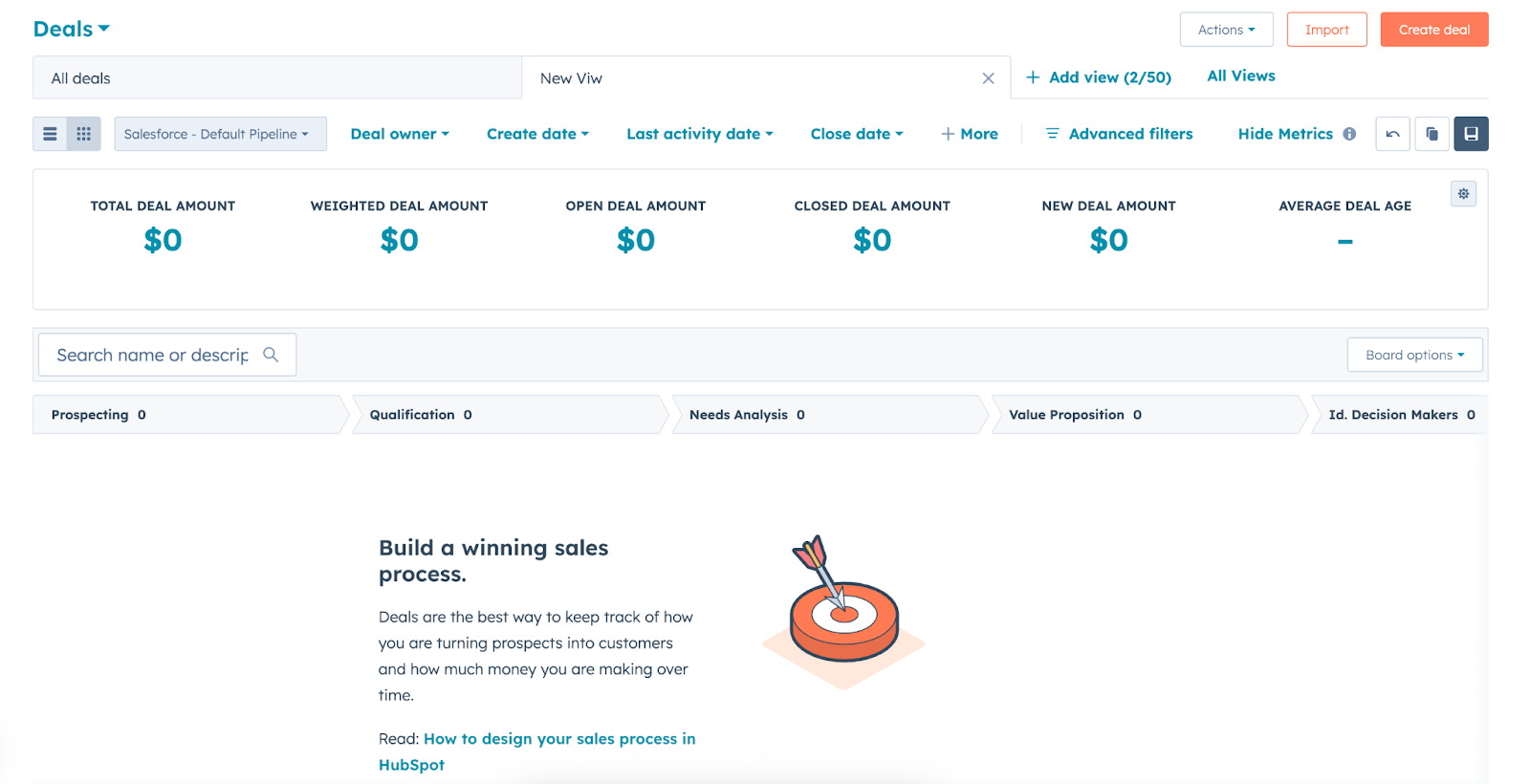
Before you start worrying that I’m about to give you homework, don’t. HubSpot makes pipeline management incredibly simple to get started, thanks to a ton of baked-in functionality and default stages.
When logging into HubSpot’s deal view, you’ll have a default pipeline set up with the following stages:
- Appointment Scheduled
- Qualified to Buy
- Presentation Scheduled
- Decision Maker Bought-in
- Contract Sent
- Closed Won
- Closed Lost
HubSpot gives you a ton of other valuable properties, like:
- Deal scores
- Deal types
- Closed won/lost reasons
- Forecast probability
- Next activity date
Seriously, it’s that easy. The fun part begins when you start customizing this to YOUR sales process, though. You could get pretty far with the default HubSpot pipeline setup, but it’s a one-size-fits-all solution that you’ll need to tailor to your sales process and customers.
HubSpot makes this super easy, though, by allowing you to…
- Define custom stages: These should map to your exact sales process. Take a step back to examine the flow you take each prospect through from discovery to contract signing, and make sure that is reflected in HubSpot.
- Set probabilities and milestones: This isn’t a matter of guesswork as much as it is looking back at your deal history to judge the likelihood of closing based on where a prospect sits in your funnel. Ideally, the further along a prospect is, the more likely they are to close.
- Configure your reports to track progress: Track things like calls made, LinkedIn invitations sent, deals created, and deal duration. I’ll share my favorite reports and dashboards a bit later on in this article.
Check out my guide to HubSpot pipeline management for a full walkthrough.
How to manage your sales process with Tasks
Tasks are a HubSpot feature for creating and scheduling to-dos in your CRM. Tasks can be associated with a contact, company, or deal record, making them a great way to schedule and plan out work to hold yourself accountable.
There are three main types of tasks you can create in HubSpot:
- Call
- To-Do (which technically can be anything)
And if you have the Sales Navigator integration:
- Send an InMail
- Connection request
You can create tasks manually from a contact record, a view, or the HubSpot Chrome extension, and create tasks automatically with Workflows. I like to manually create tasks as part of admin work to stay ahead of prospects and map out my game plan for each one. I also use automated Tasks when a contact takes a certain action that requires me to reach out to them.
For example, if a contact accepts my LinkedIn connection request or visits our pricing page.
How to use HubSpot’s AI-powered sales tools
You could manage all of the above on your own… or leverage HubSpot’s built-in AI tools to shoulder some of the load.
When you mention “AI in sales,” it feels like everyone jumps to using ChatGPT to write sales scripts or make cold calls for them. That’s a great way to send untargeted messages to unqualified prospects and waste everyone’s time.
Here are my favorite ways to use HubSpot’s data-backed AI tools:
- Buyer intent: Buyer Intent uses the HubSpot tracking code on your website to identify the known IP addresses associated with companies. From experience, the data is reliable and accurate, even if it’s not perfect (and for what it’s worth, none of these tools are perfect).
- Intent signals: When you track a company, HubSpot will monitor for various "signals," such as news about funding or when it begins researching a topic you care about. These signals are listed as events on the company's activity timelines or in associated contact records. These signals can be used to trigger workflows, create lists/audiences, and contribute to lead scoring.
- Breeze intelligence: Breeze AI is HubSpot’s unified AI system that enhances every aspect of your CRM, from automation to data intelligence. Instead of relying on multiple third-party AI tools, Breeze AI centralizes automation and insights directly within HubSpot, giving teams a smarter, faster way to work.
- Lead scoring: Lead scoring ranks leads based on their likelihood of converting into paying customers, ensuring your efforts are targeted where they matter most. You can either set up your own score or let HubSpot’s AI-powered lead scoring model take charge.
By bringing in the right blend of AI and data, you can prioritize prospects and time your outreach to maximize your sales strategy.
How to report on sales performance in HubSpot
While HubSpot’s reporting tools can be intimidating, it’s incredibly easy to create a dashboard.
Where most teams get overwhelmed is the number of options for reports (both pre-built and custom).
Here are my 12 favorite sales dashboards in HubSpot:
- High-level sales performance
- Sales activities
- Deal performance
- For sales reps
- For sales managers
- Target accounts overview
- LinkedIn performance and insights
- Sales conversion rate
- Sales pipeline performance
- Customer retention
- Revenue attribution
- Team performance
Check out my favorite HubSpot sales dashboards here for some inspiration.
Tips for an effective sales strategy
I’ll be honest: everything I shared so far in this article is a complete waste of time if you don’t approach your messaging and outreach strategically.
I see too many instances of sales reps eager to hit quota, so they pull a big list of leads from Apollo or Clay and blast a generic sales pitch out to them. But to make matters worse, they give up when those prospects inevitably ignore them.
You’ll find more success in sales by being strategic and intentional, and by focusing more on starting conversations than closing deals off the bat. Before closing this article, here are some tips to get you started:
- Make it relevant: Your message needs to matter right now. Tie outreach to timely triggers: funding rounds, leadership changes, seasonal demands. If you can't articulate why this prospect should care this week, you're just noise.
- Automate as much as you can: Let HubSpot's Sequences and Workflows handle scheduling and follow-ups so you can focus on hooks and angles in your messaging. When automating, though, make sure your messaging is as human as possible so your prospects’ inboxes aren’t spammed with noise.
- Mix up channels: On its own, email is a great way to appear to be doing a lot of work while going nowhere. Layer in LinkedIn, calls, video messages, and even direct mail. Your job is to stand out and get a response, not close with one message.
Master outbound with the HubSpot Outbound Handbook
Success in outbound is less about a single magical template, striking lightning in a bottle, or having the ultimate AI tool. It’s more about orchestrating messages and touchpoints.
Identify your top prospects, choose your channels, and coordinate your touchpoints to get their attention.
If you really want to level up your sales process in HubSpot, download the free HubSpot Outbound Handbook, our guide to building a scalable and effective outbound process in HubSpot. In this guide, we cover:
- The channels to use
- How to get the attention of your prospects
- The tools you should use to speed up sales
And more! Click the button below to get it for free and start scaling your outbound process in HubSpot.
Ready to fix your outbound process?
Frequently Asked Questions
Which HubSpot tiers get access to sequences?
Sequences are only available to Sales/Service Hub Pro and Enterprise. If you have a Free or Starter account, you will not be able to access them.
Can I sync LinkedIn DMs to HubSpot?
The best way is to use Hublead! Hublead syncs DMs and InMails from LinkedIn to HubSpot, giving you a complete record of all your prospecting activity on LinkedIn.
How much does Sales Hub Cost?
If you pay annually, Sales Starter is $9/month, Pro is $90/month, and Enterprise is $150/month. This is just for Sales, though; bundling Hubs will increase the price.
.avif)
