

How to use HubSpot’s Smart CRM Sync for LinkedIn Sales Navigator
Need Sales Navigator data to show up in HubSpot? Learn how to sync LinkedIn Sales Navigator with HubSpot using the CRM Sync integration.
Does your manager see all the hard work you do prospecting on LinkedIn?
If all they care about is what’s in HubSpot, then they probably won’t. Unless every connection request or DM is copied over.
No one has time to manually copy and paste data from LinkedIn back into HubSpot (maybe marketers do), but fortunately, you don’t have to. With HubSpot’s Smart CRM Sync integration, you can sync Sales Navigator back to HubSpot, ensuring all your hard work gets tracked. Read on for the complete setup guide below.
What the HubSpot Smart CRM for LinkedIn integration does
The HubSpot CRM Sync integration is a two-way sync between HubSpot and LinkedIn. That means the activity you log in Sales Navigator (InMails sent, connection requests, notes) can flow into HubSpot, and HubSpot data can inform what you see in Sales Navigator.
More specifically, though, the CRM Sync integration can…
- Capture InMails and connection requests in HubSpot
- Sync contact and account data from LinkedIn back to HubSpot
- Report on LinkedIn activity and ROI
Pretty great, right? It would be, but see some of the limitations and setup requirements next before you get too excited.
What you need to use the Smart CRM integration
The HubSpot CRM Sync integration would be great… if you didn’t need HubSpot Pro/Enterprise and LinkedIn Sales Navigator Advanced Plus to use it.
There’s no workaround on the native side. If you’re on HubSpot Starter or a lower Sales Navigator tier, you’re out of luck if you want a native integration. Sales Navigator Advanced Plus alone costs well above the standard Sales Navigator plan, and it’s usually sold through a sales conversation rather than a self-serve checkout. Add HubSpot Pro or Enterprise on top, and that’s a meaningful investment.
One other thing that trips up sales teams: it’s not enough for one manager to have Sales Navigator Advanced Plus while the rest of the team is on a lower tier. Every rep who wants the integration active on their own contact records needs an Advanced Plus seat and a HubSpot login with the right permissions.
I’ll share some alternatives to the CRM Sync integration later, but first, let’s cover how to use it.

Ready to fix your outbound process?
How to use the HubSpot Smart CRM Sales Navigator Integration
If you’re fortunate to have a Sales Navigator Advanced Plus integration, then LinkedIn CRM Sync can do a lot for you. Let’s walk through some of the top ways to use it for Sales Navigator.
Read Sales Navigator signals on the HubSpot contact record
Once it’s connected, a synced contact’s HubSpot record shows their LinkedIn profile, connection status, and recent activity without you having to open a new tab.
Yep, no tab switching. Log into HubSpot, and you’ll get a full digest of what changed on LinkedIn. Say a prospect’s record shows they changed jobs three weeks ago. That’s your opener right there. The same goes for a shared connection that Sales Navigator surfaces.
Sending InMails without leaving HubSpot
You can send InMails directly from a contact or company record, and for reps managing high volume, that alone saves real time. No more switching apps mid-sequence to send one message and losing your place.
If you’re a HubSpot power user, this is a great way to maximize LinkedIn as an outreach channel without leaving your CRM.
Keep deal stages and contact data up-to-date
CRM Sync usually gets pitched as a manager visibility feature, something leadership wanted so they could see rep activity. Don’t sleep on what it does for you directly. Every InMail and connection request logged automatically is one less thing you have to remember to enter manually at the end of a long prospecting day.
That’s also the closest thing to “automating” Sales Navigator that HubSpot’s native tools offer. What if you don’t have Sales Navigator Advanced Plus? I’ll share the best alternative to CRM Sync that you can use for any HubSpot or Sales Navigator tier.
The best alternative to the HubSpot Smart CRM integration for Sales Navigator
What if you don’t have a Sales Navigator Advanced Plus subscription? Or what if you’d rather spend more time on LinkedIn and less time on HubSpot?
The Sales Navigator CRM Sync integration can’t help you there, but there’s a simple and effective tool that allows you to sync every lead, DM, and connection request from LinkedIn to HubSpot. That tool is Hublead.
Hublead does the same things the Smart CRM integration promises, with the added benefit of working with any tier of Sales Navigator and regular LinkedIn, as well as any tier of HubSpot. And it takes no more than 30 seconds to set up. See how you can use it below.
Import leads from LinkedIn and Sales Navigator
With Hublead installed and connected to your portal, head to any LinkedIn profile you want to save in your CRM. If the contact hasn't been synced to HubSpot, you’ll see a CTA in the new Hublead section of their profile to create a new contact.
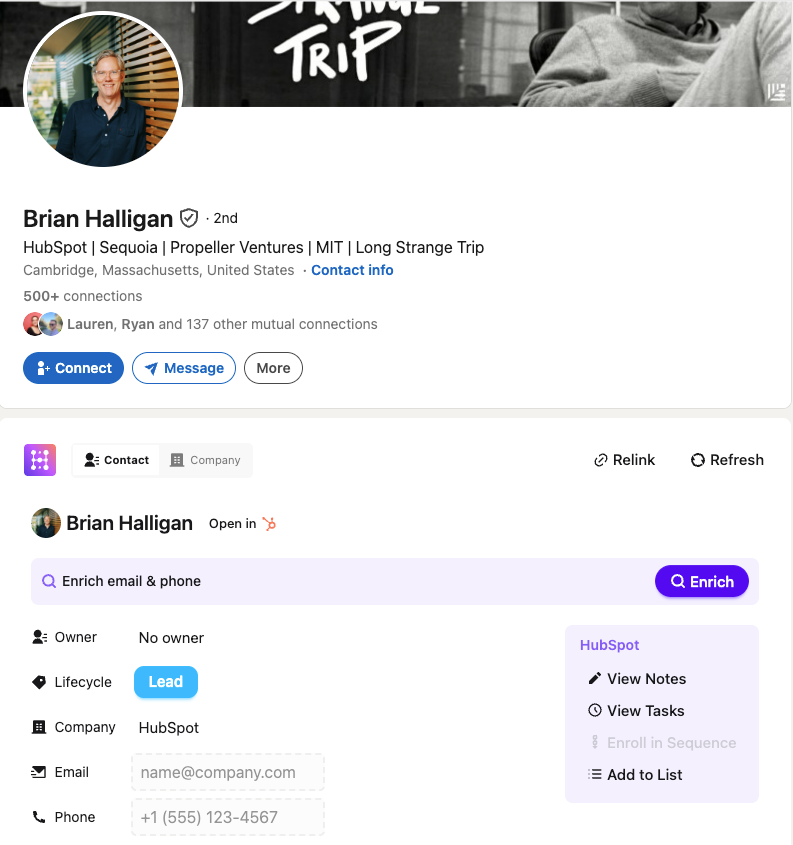
With one click, Hublead automatically creates a contact in your HubSpot portal and links it to their LinkedIn profile. Hublead also deduplicates contacts, so you don’t need to worry about your CRM being filled with bad data.
Oh, and you can also do the following:
- Sync company/account data
- View and create notes for a contact
- View and create tasks for a contact
- Enroll a lead in a sequence
And you can do all that without leaving LinkedIn.
This is just as easy with Sales Navigator. Head to any lead’s profile in Sales Navigator, and you’ll see the same prompts to create new contacts and sync them to your portal. Hublead will either connect their LinkedIn profile to an existing contact or create a new one for you.
Sync DMs and InMails
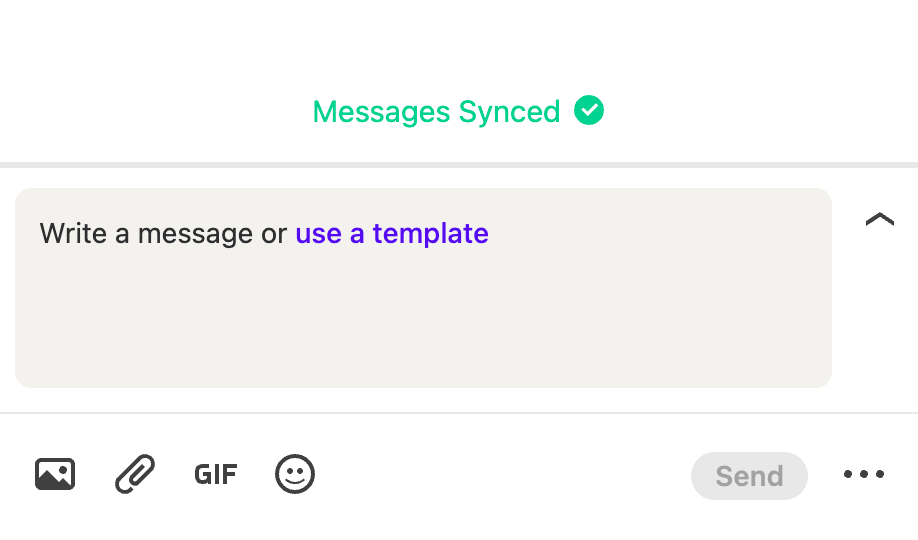
Sync every conversation you’re having on LinkedIn back to HubSpot with Hublead. All you need to do is open a chat you’re having with a prospect and click the “Sync” button to sync the full message history back to your CRM.
Enrich your leads and start prospecting
If you need an email address or phone number for your prospect, Hublead can find that, too. Just click the “Enrich” button for accurate contact information.
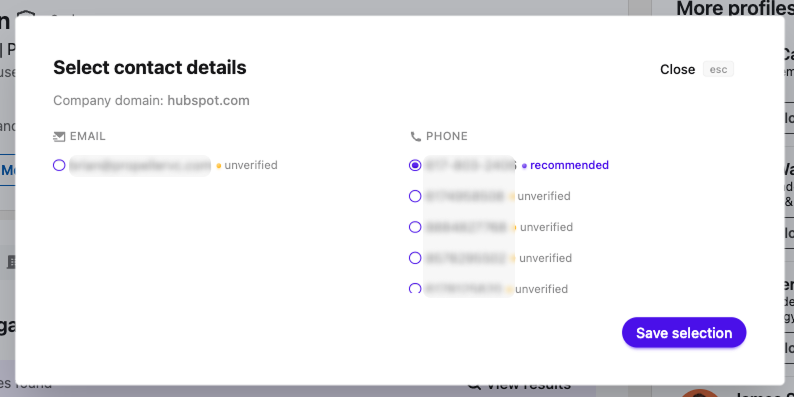
You can also enrich any HubSpot list in bulk from the Hublead web app. Prospect all day on LinkedIn, enrich a list of hundreds of contacts in seconds, and fill your pipeline without ever opening HubSpot.
Try Hublead, the best alternative to HubSpot’s Smart CRM Sync for LinkedIn
LinkedIn is one of the most powerful prospecting tools for sales reps today, but if your hard work on LinkedIn doesn’t show up in HubSpot, it might as well never have happened. If only HubSpot’s Smart CRM integration worked for every HubSpot and LinkedIn Sales Navigator tier!
Fortunately, you have a tool like Hublead to sync every touchpoint from LinkedIn back to HubSpot, making it simpler than ever. Every invitation, DM, or InMail you send is synced back to each HubSpot contact record, giving you and your team visibility into every touchpoint on LinkedIn.
Sales reps save 2 hours each week thanks to Hublead by not having to copy and paste everything into their CRMs. Try Hublead for free and see how much time you can save.
Ready to fix your outbound process?
Frequently asked questions
Does HubSpot actually integrate with LinkedIn Sales Navigator?
Yes, natively, through two separate features: the original LinkedIn integration and the newer CRM Sync. Both require HubSpot Pro or Enterprise and Sales Navigator Advanced Plus.
What plans do I need to use HubSpot CRM Sync?
HubSpot Pro or Enterprise, plus LinkedIn Sales Navigator Advanced Plus. Lower tiers of either product won’t show the integration option.
What’s the best alternative to HubSpot CRM Sync for LinkedIn?
Without a doubt, Hublead. Hublead syncs contacts, DMs, InMails, and connection requests to HubSpot and allows you to view/edit HubSpot properties on LinkedIn. Hublead also works with every HubSpot tier, the free version of LinkedIn, and every Sales Navigator tier.