
How to Import LinkedIn Contacts into Attio
Five ways to get LinkedIn profiles into Attio as People and Companies, the key each one matches on, and where duplicates come from.
 Bastien PaulNovember 19, 20265 min read
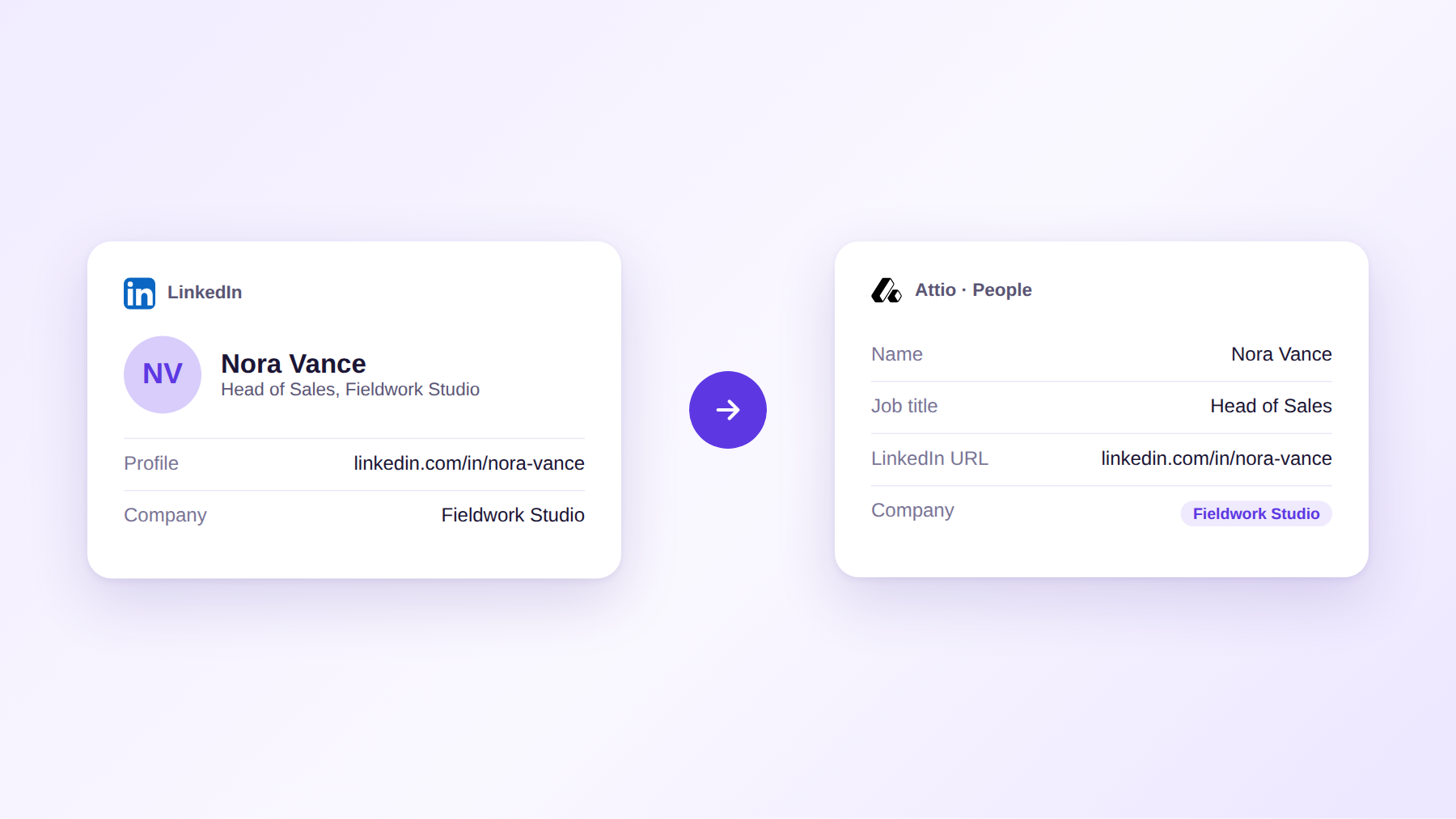
To import LinkedIn contacts into Attio, you turn profiles into People records and their employers into Companies records. The one route Attio's help center documents end to end is the CSV import, where you map columns and pick a unique attribute. Each record also has a plain text LinkedIn attribute for the profile URL.
The catch is matching. In a CSV import, Attio de-duplicates People on Email addresses and Companies on Domains. A LinkedIn profile URL is neither, so a re-import can duplicate rows.
The short answer: the CSV import is on every Attio plan and fine for a one-off. For profiles you save while browsing LinkedIn, this guide covers Attio's own extension, an independent extension and Hublead, and they differ in how they match. If you want the Hublead route first, read how Hublead saves LinkedIn profiles to Attio.
5 ways to import LinkedIn contacts into Attio, and the key each one matches on
Same goal, five different matching keys. The key decides whether saving the same person twice gives you one record or two.
| Way | What lands in Attio | Matching key | Main catch | Choose this if |
|---|---|---|---|---|
| Paste the URL by hand | Whatever you type, in the LinkedIn attribute | None. LinkedIn is a Text attribute, not unique | One profile at a time. Enrichment needs an email (person) or a domain (company) | You have one profile to file right now |
| CSV import of a LinkedIn export | People, and Companies from work email domains or a domain column | Email addresses (People), Domains (Companies) | Rows without them are imported but not checked for duplicates. LinkedIn only exports emails for connections who allowed it | You have an export with emails and import it once |
| Attio's Chrome extension | Per a 2023 changelog, LinkedIn profiles (people and companies) as data-enriched records | Not documented | The current help article never mentions LinkedIn | You already run Attio's extension in Gmail |
| AddToCRM (independent app) | People found on LinkedIn, with a checked work email, per its own page | Email or LinkedIn URL, per its own page. A name-only match is shown as a question | Not made by Attio. Finding an email uses its credits | You want a tool that looks in Attio before it adds someone |
| Hublead | The person and the company, 10 mapped fields | LinkedIn ID | Each teammate signs in with their own Attio account | You want the LinkedIn ID, not an email, to be the key |
Import a LinkedIn export with Attio's CSV import
The export lists your connections, so prospects you are not connected to are not in it.
- Request the archive. On LinkedIn: Me icon, Settings & Privacy, Data privacy, Get a copy of your data, then the larger archive including connections. A download link arrives at your primary email (LinkedIn Help).
- Open the connections file. LinkedIn does not list its columns or document a company domain, so check what you got. Attio creates Companies from work email domains (not gmail.com or outlook.com). For rows without one, add a domain column yourself.
- Expect missing emails. LinkedIn: "You will only see email addresses for connections who have allowed their connections to see or download their email address." Those rows have no matching key in Attio. Finding email addresses on LinkedIn covers filling them.
- Check the limits. CSV only, a header row, up to 100,000 rows, 100 columns and 100mb. Admins can import, and so can members with access to the object (Attio help).
- Map the columns and a unique attribute. Use Email addresses for People, Domains for Companies. Map the profile URL to the LinkedIn attribute: per Attio, "The URL must start with linkedin.com/in." Company URLs must start with linkedin.com/company (formatting guide).
- Link people to companies by domain, not name. Attio links a record only through a unique attribute, so map Person > Company > Domains (or Record ID), not Person > Company.
- Preview, then run. The preview count is an estimate of how many records will be created. Blank cells leave existing values untouched.
Now the arithmetic, which is our inference from Attio's rule, not a measured figure. Attio says records without an email or domain "can still be imported but won’t be enriched or checked for duplicates." Say your export has 1,000 rows and 600 have no email. Import it twice and the 400 rows with an email match the first run. The 600 without one are new rows both times, so you end with 1,600 People. Rows that share an email inside one file are merged into one record.
Use Attio's Chrome extension on LinkedIn
In April 2023 Attio wrote that its updated Chrome extension "allows you to turn LinkedIn profiles (people and companies) into data-enriched records with a single click." Later changelogs add a Sales Navigator button (September 2024) and a populated Location (December 2024).
But the current help article covers Gmail and other websites and never says LinkedIn. We could not find which fields it writes or how it avoids duplicates.
Use an independent extension that checks Attio first
AddToCRM is an independent app listed in Attio's directory. It says that before adding someone it looks for them in Attio, and that a match on their email or LinkedIn URL shows as "In Attio". A record that shares only the name is shown as a question until you confirm. Those are its claims, from its own page.
Save LinkedIn profiles to Attio with Hublead
When a member saves a LinkedIn profile, Hublead creates or updates the matching person and company in your Attio workspace. Records are matched on the LinkedIn ID, so a profile that is already in Attio is updated and never duplicated.
The 10 fields it maps:
- People: Name, Job title, LinkedIn URL, LinkedIn ID, Email, Phone, Company
- Companies: Domain, Name, Description
Optionally, Hublead sets the member who saves a profile as its owner, in a People attribute. To start, use "Install on your Attio workspace" on the Hublead sign-in page. Teammates then sign in with their own Attio account.
One thing is not documented: how the LinkedIn ID lines up with a person you already created by CSV. Test it on one profile first.
Test these 3 things before a big import
- Does Attio's extension duplicate? Save the same LinkedIn profile twice and compare the records.
- Is LinkedIn auto-enriched on People? One Attio help page lists LinkedIn among enriched attributes, another lists only Facebook and Twitter. Create a person with a work email only and watch the LinkedIn attribute.
- Can a LinkedIn URL be a matching key? Attio marks only email and domain as unique in the standard objects. Import the same CSV twice with no email column and count the rows.
The next chapter covers tracking LinkedIn conversations in Attio. Back to the Attio LinkedIn guide.
Save the profile you have open to Attio
Hublead creates or updates the person and their company in your Attio workspace from the LinkedIn profile you save. Set up Hublead on your Attio workspace.
Before you set it up
Can Attio import LinkedIn contacts directly?
We found no direct LinkedIn connection in Attio's help center. It documents a CSV import, and a 2023 changelog says its Chrome extension turns LinkedIn profiles into records, but the current help article on the extension never mentions LinkedIn.
Does Attio de-duplicate LinkedIn contacts?
In a CSV import, only on Email addresses for People and Domains for Companies. Per Attio, records without them are imported but not checked for duplicates, so a LinkedIn export with missing emails can create duplicate People on a second import.
Do I need an email to import into Attio?
No, rows without one still import. But they are not enriched or checked for duplicates, and LinkedIn only exports emails for connections who allowed it. Add emails before importing if you can.
Does Hublead create duplicates in Attio?
Records are matched on the LinkedIn ID, so a profile that is already in Attio is updated and never duplicated. How that ID lines up with a person you already imported by CSV is not documented, so check one profile first.
Save the profile you have
open to Attio.
Install Hublead on your Attio workspace from the Hublead sign-in page, then save a LinkedIn profile to Attio.
Free to start, no card needed.