
Attio LinkedIn Guide: Contacts and Conversations
Two how-to guides for Attio users who prospect on LinkedIn: import LinkedIn contacts into Attio, and track LinkedIn conversations on the record.
The guide in 2 chapters
Attio keeps People and Companies. LinkedIn is where you find them and where you talk to them. Attio’s help center describes no LinkedIn message sync, and its article on the Chrome extension does not mention LinkedIn, so the choice is between a CSV, a browser extension and a tool.
These guides compare the options step by step and say what each one writes to Attio, including what the docs leave open.
Import LinkedIn contacts into Attio
CSV import, Attio’s Chrome extension, an independent extension or Hublead: which key each one matches on, and how to avoid duplicate people.
Track LinkedIn conversations in Attio
Attio notes are where LinkedIn messages land. Copy-paste, a workflow, an inbox tool or Hublead: what each one writes on the record.
Where Hublead fits
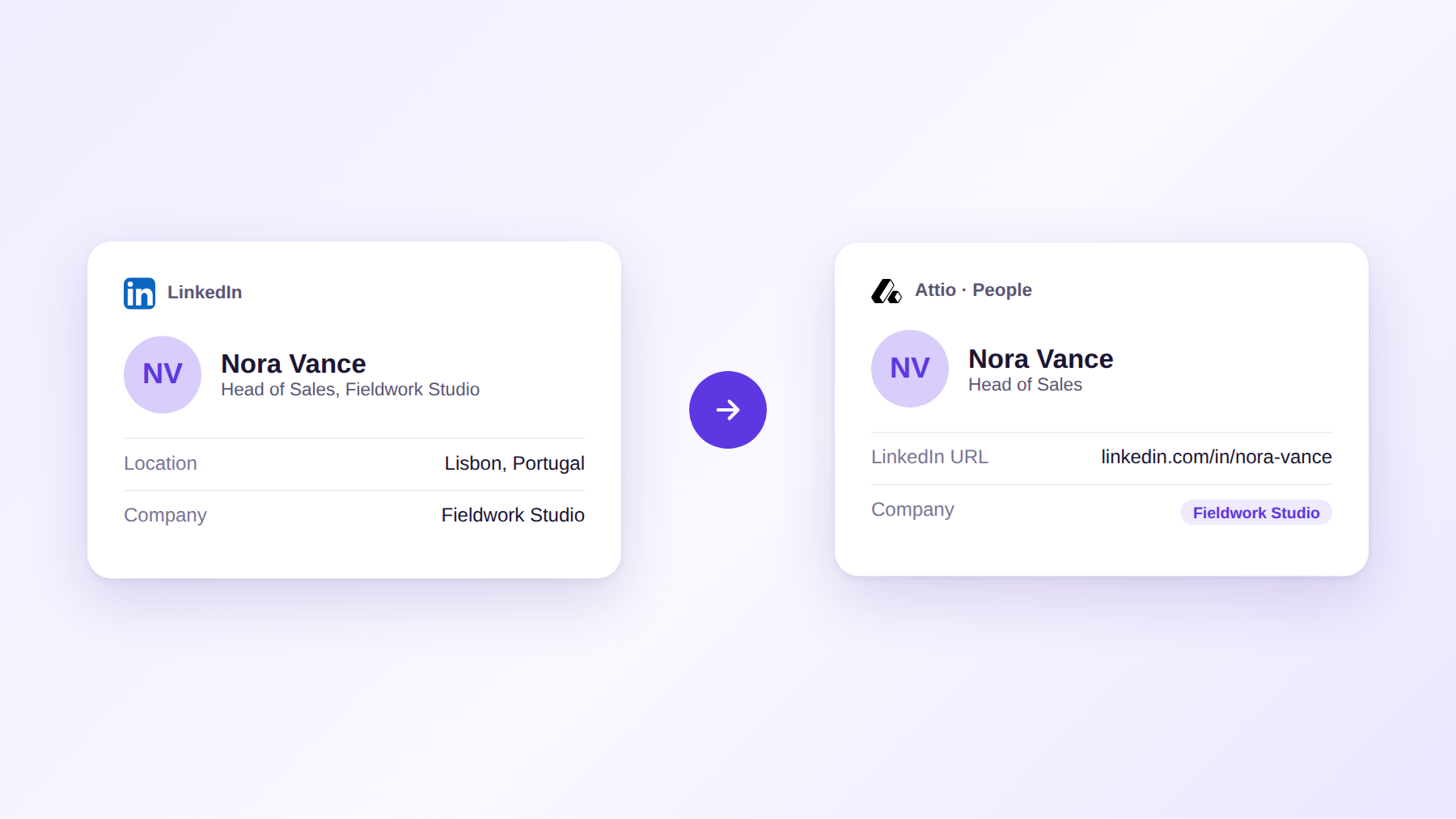
Hublead saves a LinkedIn profile to Attio as a person and a company, matched on the LinkedIn ID so a profile already in Attio is updated, not duplicated. It also logs LinkedIn messages as notes on the record. You install it from the Hublead sign-in page, and your teammates sign in with their own Attio account.
Save the profile you have
open to Attio.
Install Hublead on your Attio workspace from the Hublead sign-in page, then save a LinkedIn profile to Attio.
Free to start, no card needed.