
How to Track LinkedIn Conversations in Attio
Attio's help center describes no LinkedIn message capture, so a conversation reaches a record as a note. Four ways to get it there, what each one writes, and when to pick it.
 Bastien PaulNovember 19, 20265 min read
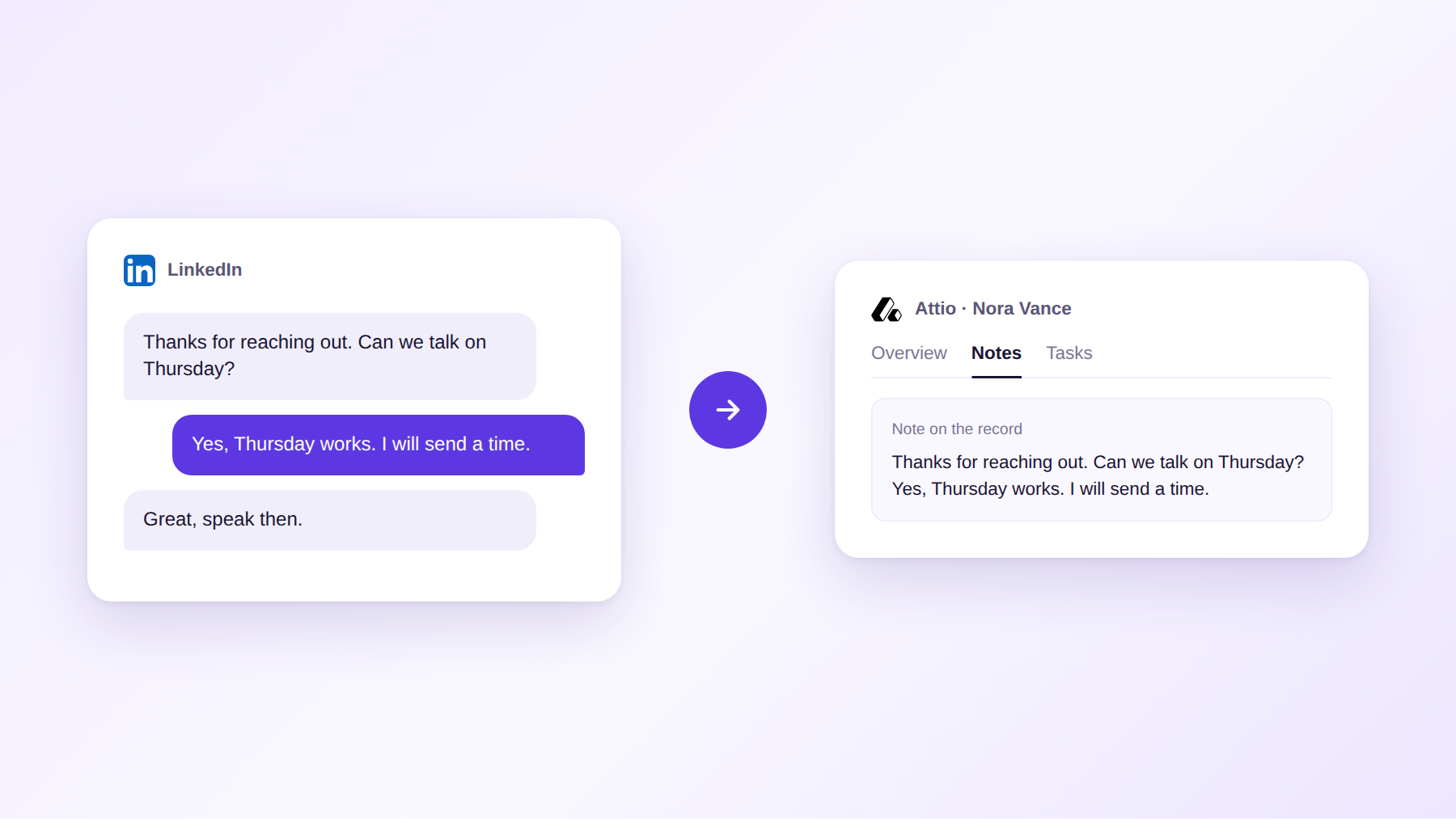
To track LinkedIn conversations in Attio, you put them in notes: Attio's help center describes no feature that captures LinkedIn messages. The note is one you write, one a workflow writes, or one a tool writes. Per Attio's API docs, a note is a rich text document attached to a single parent record, so your team reads the thread on that person or company, in the Notes tab, as text.
This chapter of the Attio LinkedIn guide covers the four ways to do it and what each one lands. If you also want the profiles themselves in Attio, start with how to import LinkedIn contacts into Attio. The full picture of Hublead and Attio sits on the Hublead for Attio page.
How to track LinkedIn conversations in Attio: 4 ways
All four end the same way: text in a note on one record. They differ on who writes it, when, and how much of the thread arrives.
| Way | Who writes the note | What lands | The catch | Choose it if |
|---|---|---|---|---|
| Copy and paste | You | Whatever you paste, dated the day you create the note | Only as good as your discipline, and the date is today's, not the conversation's | You have a handful of conversations that matter |
| Workflow (Zapier, Make) | The workflow | Whatever text you feed it | Neither tool lists a LinkedIn message trigger, so something else must supply the text | Another tool already produces the text |
| LinkedIn messaging tool (Kondo, HeyReach, SuperLinkIn) | The tool, through Attio | One note per chat or lead, by each vendor's own account | Another subscription, and each tool has its own rules | You already run one of them for outreach or DMs |
| Hublead | Hublead | LinkedIn messages logged as notes on the record, plus the person and company from the profile, matched on the LinkedIn ID | It is installed on the whole Attio workspace first, then each teammate signs in with their own Attio account | You want each saved profile to create or update both the person and the company |
Copy a conversation into an Attio note
Pasting works, and an Attio community thread shows where it stops: a founder whose prospect and customer talk happens largely in LinkedIn messages copies it into notes and asks for something easier. Here is how:
- Open the person's record in Attio.
- Open the Notes tab and click Create note. Pressing n anywhere in Attio does the same, per Attio's notes page.
- Paste the conversation. Type @ and the company name to add a link to its record page.
- Put the conversation date in the note title. By default a note is stamped with its creation date, so a June conversation pasted today shows today's date.
Remember the single parent rule: a group thread with two people from the same account needs two notes, one per person. Attio's API docs say "A note's parent record cannot be changed." Once saved, the note is shared with your team on the record page.
One specific for scripted imports: Attio's API lets the caller set the note's creation date, so a backfilled conversation can carry its real date. That is an API option, and the notes page does not describe a way to change the date in the app.
Zapier and Make have no LinkedIn message trigger
Zapier can write into Attio with a Create Note action. The gap is the other side: Zapier's LinkedIn app lists no triggers, only two actions that post updates, and Make's LinkedIn app lists one trigger, Watch Company Posts.
So a Zap or a Make scenario can save text into an Attio note, but the text has to come from somewhere else, like a webhook from a LinkedIn tool or a form you fill in. At that point the tool does the real work and the workflow is plumbing.
Kondo, HeyReach, SuperLinkIn: what each one writes
Three tools list themselves on Attio's app pages and say they write conversations as notes. Read each page before you buy, because the details differ.
- Kondo lists "Sync DMs to the People activity feed as notes." Its docs say each chat is one note holding the entire chat history, updated when you open the chat in Kondo. Contacts are matched on the profile URL, and messages sync only if you switch on Sync messages. There are three modes: labeled chats, all chats, or a manual Sync chat history button.
- HeyReach writes one markdown note on the person when a lead replies, with both sides of the thread, and updates only the note it created.
- SuperLinkIn saves available messages as a note on the person, with sender names and timestamps, after a manual sync or an auto-sync once a conversation is opened. Group conversations are not supported.
The real difference is when the note is written: Kondo when you open the chat in Kondo, HeyReach when the lead replies, SuperLinkIn after you open the conversation or click Sync to Attio. Test with a three-message conversation before you roll one out to a team.
Log LinkedIn messages as notes with Hublead
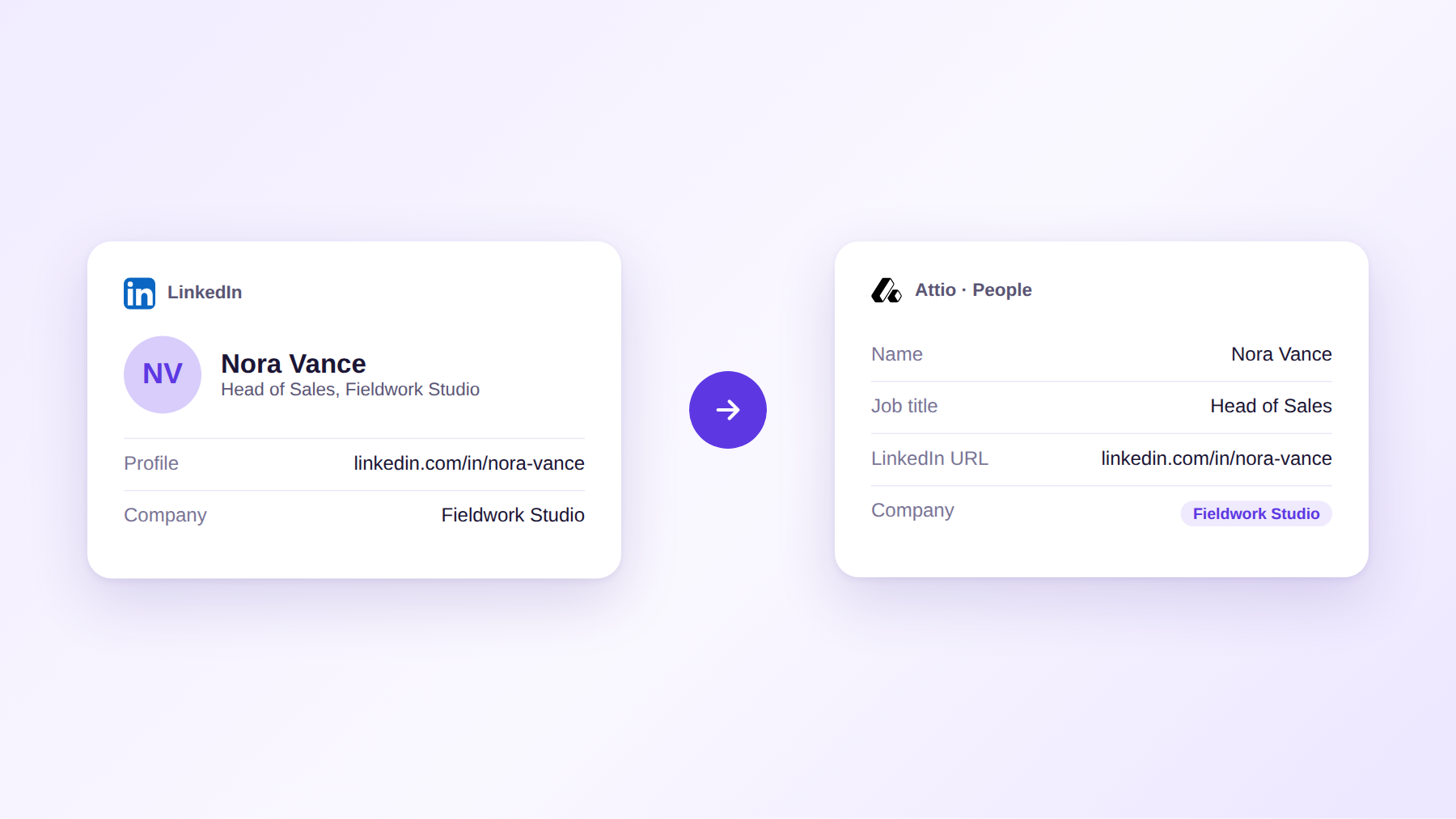
Hublead saves people and companies to Attio and logs LinkedIn messages as notes. When you save a LinkedIn profile, Hublead creates or updates the matching person and company. Records are matched on the LinkedIn ID, so a profile already in Attio is updated and never duplicated.
To set it up:
- On the Hublead sign-in page, choose Install on your Attio workspace.
- Sign in with Attio. Once Hublead is installed on the workspace, your teammates sign in with their own Attio account.
For Hublead, two things are not documented yet: how much of a thread goes into the note, and how often it updates. Run the same three-message test you would run on any tool, and read the note it writes in Attio.
Where Attio's own pages disagree
Attio's setup page says "Attio integrates natively with: Gmail/Outlook (email + calendar sync), Slack, Granola, Typeform, LinkedIn, and more." It does not say what that covers. Its Chrome extension page never mentions LinkedIn, although a 2023 changelog says the extension turns LinkedIn profiles into records.
Two quick checks settle it for your workspace. Look in Attio's settings for a LinkedIn connection. Then trade a LinkedIn message with a colleague and open their person record in Attio.
See how Hublead works with Attio
Save a LinkedIn profile and Hublead creates or updates the person and the company in Attio, matched on the LinkedIn ID, and logs your LinkedIn messages as notes. Read the Hublead for Attio page.
Before you set it up
Does Attio sync LinkedIn messages natively?
No help article describes it, and the Chrome extension page does not mention LinkedIn. Attio's setup page lists LinkedIn among native integrations without saying what it syncs. The two checks above settle it for your workspace.
Where do LinkedIn messages show up in Attio?
As notes on a record. Every method here writes a note, and a note belongs to a single parent record, usually the person. You find it in the Notes tab of the record page.
Can I search LinkedIn conversations in Attio?
Yes, once it is in a note. Attio's notes page says Ask Attio can search notes by date, author, linked record or content, and summarize them.
Does Hublead log LinkedIn messages in Attio?
Yes. Hublead saves people and companies to Attio and logs LinkedIn messages as notes on the record.
Save the profile you have
open to Attio.
Install Hublead on your Attio workspace from the Hublead sign-in page, then save a LinkedIn profile to Attio.
Free to start, no card needed.