
How to Connect Salesforce to LinkedIn Sales Navigator
How the LinkedIn Sales Navigator and Salesforce integration really works. Embedded Profile vs CRM Sync, the Advanced Plus price wall, the real per-seat math, and the one-click alternative.
 Bastien PaulJuly 1, 20269 min read

Can Salesforce connect to LinkedIn Sales Navigator easily?
You have a few options, but finding the best one can be tricky. For instance, Salesforce offers an official CRM sync integration, but it only works with Sales Navigator Advanced Plus. Then there are third-party tools, but not all of them work with Salesforce.
In this guide, we’ll break down the best ways to connect LinkedIn Sales Navigator and Salesforce. We’ll cover the official integration in depth and share some of the best third-party tools that work for every tier of Sales Navigator.
Hublead's Salesforce LinkedIn integration puts LinkedIn contacts, messages and activity into Salesforce in one click.
Why connect Sales Navigator to Salesforce?
Salesforce is a fantastic CRM, but any CRM is only as good as the data inside it.
Salesforce logs emails and calls by default, but LinkedIn messages are missing from your logged prospecting activities. That means limited pipeline visibility for your manager and an incomplete activity record for the sales rep.
The missing activities on LinkedIn can have a downstream impact on the rest of your team:
- Pipeline reviews and forecasting lean on recent activity. A deal with no logged touch for weeks gets discounted or pushed, even when the rep traded ten LinkedIn messages with the buyer yesterday.
- A manager cannot coach a conversation they cannot see. The most important objection handling of the quarter could be sitting in a DM thread no one in leadership can read.
- When a deal moves from SDR to AE, or a rep leaves, the LinkedIn history walks out with them. The next person opens a Contact with no context and has to restart the relationship.
Syncing leads, DMs, and InMails saves time, gives you and your team better data, and makes handoffs easier. Okay, you're sold. See how you can sync all of your Sales Navigator data into Salesforce next.
Two native options to connect Sales Navigator to Salesforce
Salesforce offers two “native” ways to integrate Sales Navigator to Salesforce:
- Embedded profile widget in Salesforce
- CRM Sync (for Advanced Plus)
Salesforce embedded profile widget
On any lead, contact, account, or opportunity record in Salesforce, you can embed a relevant profile to show LinkedIn data. This includes a profile photo, current role, recent job changes, shared connections, and "Get Introduced" paths, all without leaving the Salesforce tab.
It’s worth noting that you’ll only get data available freely on LinkedIn, but no extra enrichment data like email addresses or phone numbers. In contrast, a tool like Hublead that syncs leads from LinkedIn to Salesforce (more on this later) can also enrich your CRM with accurate contact information.
That’s all fine… if you spend all of your time in Salesforce. But the embedded profile widget is read-only and gives you the same data you’d get on LinkedIn anyway. It’s not exactly a sync because it doesn’t transfer any data from LinkedIn to your CRM. It’s more akin to a window from Salesforce to LinkedIn.
You can install the embedded widget for free from the Salesforce AppExchange.
Sales Navigator CRM sync for Salesforce
The CRM sync lets you sync prospect data from Sales Navigator to Salesforce.
The official CRM sync integration is a two-way sync between Salesforce and Sales Navigator. It auto-saves your pipeline (open Opportunities, your Accounts and Contacts) into Salesforce, giving you a complete record of your prospecting activities in your CRM.
Great, right? There’s a catch.
The CRM sync integration is only available for Sales Navigator Advanced Plus subscriptions, which will cost $1,600/seat per year. That’s a significant investment for something as simple as syncing leads so you don’t have to type their information yourself.
The CRM sync also won’t enrich leads. If you want to contact the leads in your pipeline, you'll need to do a fair bit of legwork to export a list, enrich it with a third-party tool, then import it into Salesforce.
The best third-party tool to connect Sales Navigator to Salesforce
If only there were a tool that synced leads from LinkedIn and Sales Navigator straight to Salesforce and enriched them with accurate contact information.
There is. Hublead is a Chrome extension that seamlessly syncs LinkedIn with Salesforce.
Whether you have LinkedIn Free or Sales Navigator Advanced Plus, you can import contacts from LinkedIn to Salesforce with one click, enrich them, and even view Salesforce data for every lead on their LinkedIn profile.

You can also sync connection requests, DMs, and InMails, and edit CRM records directly on a lead’s LinkedIn profile.
No CSVs. No manual data entry. And no duplicate data messing up your CRM. Just a seamless experience for you, and more time to prospect on LinkedIn.
Hublead also allows you to view and create notes and tasks for each Salesforce record, as well as edit contact properties directly on LinkedIn.
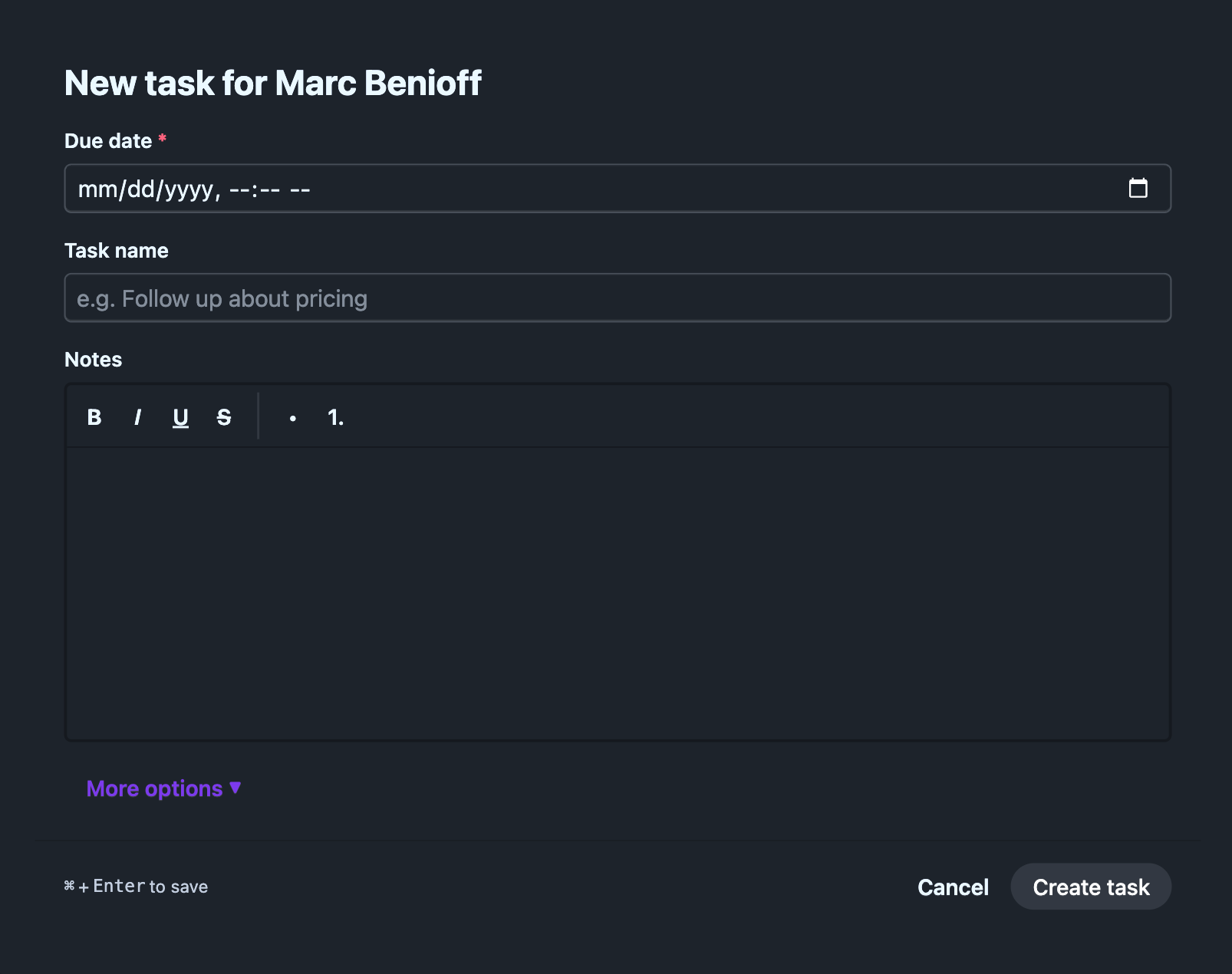
You can try Hublead for free and decide later if you want to continue using it. Every tier includes Salesforce sync and contact enrichment.
Import leads, enrich records, and sync DMs: See what Hublead can do
What does “syncing LinkedIn with Salesforce” really mean? For Hublead, it means importing leads with one click, automatically syncing DMs and InMails (in select tiers), and even letting you view and edit Salesforce data right on LinkedIn.
Here’s a quick tour of what you can do with Hublead below.
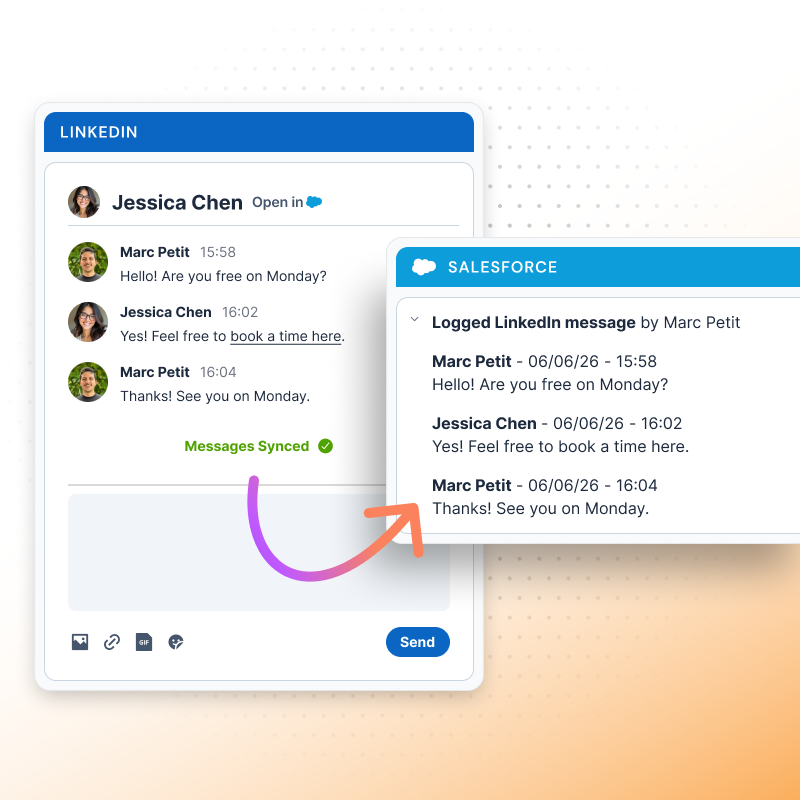
By syncing messages alone, Hublead can already cut hours of busywork from your week. But syncing DMs and InMails aren’t the only things Hublead can do. Here’s why sales teams trust Hublead to sync their data and move faster than ever.
Import and enrich leads with one click
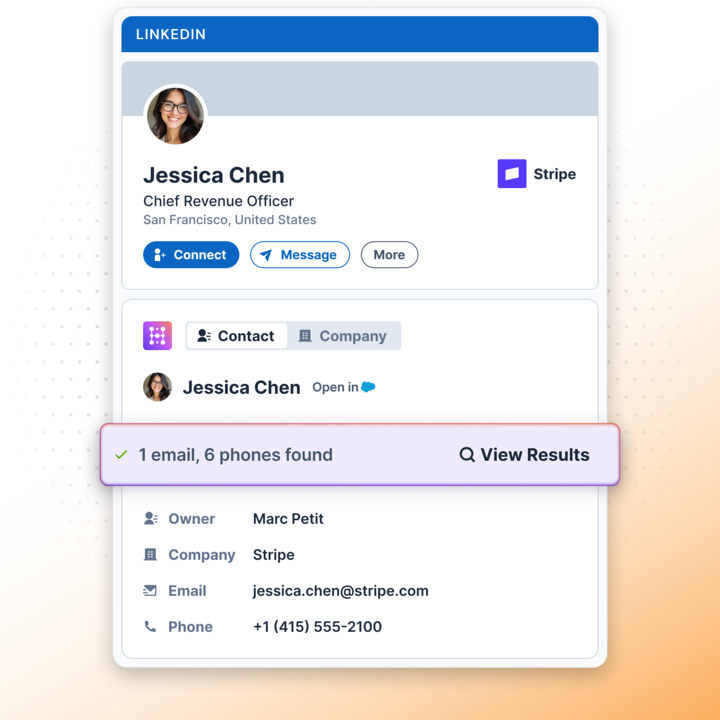
Hublead does more than sync LinkedIn messages: you can import LinkedIn profiles directly into Salesforce as well. With Hublead's data enrichment capabilities, you can also find email addresses and phone numbers, giving your CRM up-to-date data for every prospect.
Edit Salesforce data in LinkedIn
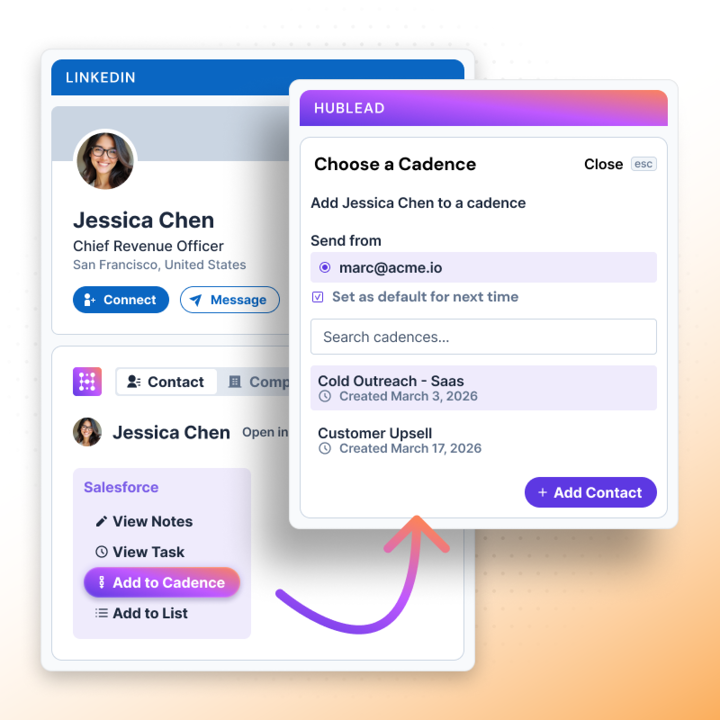
Hublead doesn’t just sync LinkedIn to Salesforce; it also syncs Salesforce data to your prospect’s LinkedIn profile. You can edit contact properties, create notes and tasks in Salesforce, and even enroll a lead in a Salesforce cadence without leaving your prospect’s profile. It’s like having your CRM built directly into LinkedIn!
Bulk enrich a list of leads
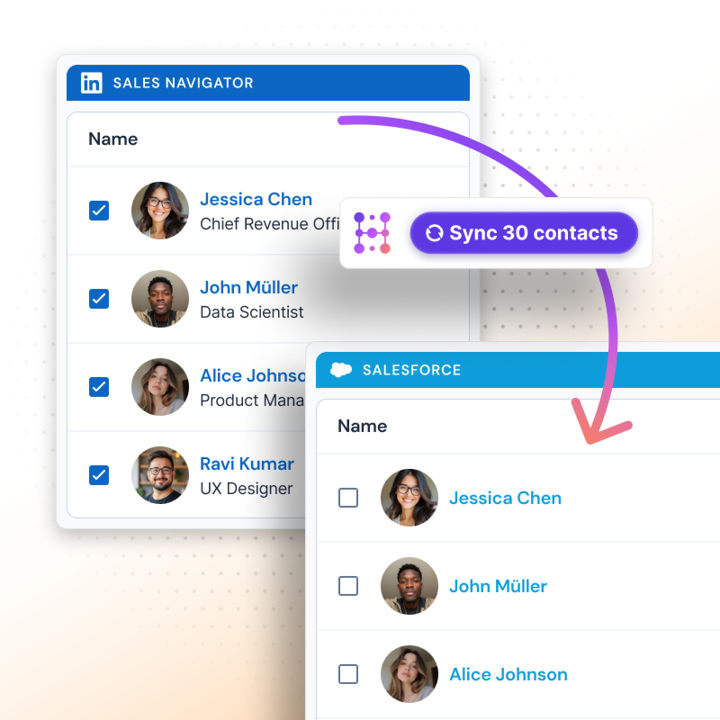
You can enrich leads one by one if you want, but you can save even more time by enriching an entire list of leads in the Hublead web app. Prospect on LinkedIn, import leads, save them to your list, then enrich every lead with one click.
And the best part is Hublead does this for every tier of LinkedIn and Sales Navigator. No extra subscriptions needed or gated access. Just add Hublead to Chrome, and you are all set to sync.
Which one should you pick?
You have three options to sync LinkedIn Sales Navigator and Salesforce: embedded profiles, the official CRM sync integration, and Hublead. Which is best?
It honestly depends on your goals and use case. Here’s a helpful way to compare the tools:
| Embedded profiles | Sales Navigator CRM Sync | Hublead | |
|---|---|---|---|
| See LinkedIn data in your CRM | ✅ | ❌ | ❌ |
| Sync profile data for Sales Navigator | ❌ | ✅ Only works for Advanced Plus | ✅ Works for all tiers |
| Phone and email enrichment | ❌ | ❌ | ✅ |
| Sync both LinkedIn Sales Navigator and LinkedIn Free | ❌ | ❌ | ✅ |
| Cost | 💰 | 💰💰💰 | 💰 |
| Ease of use | 😀 | 🙁 | 😀 |
We’re a bit biased, but there’s a reason over 8,000 sales teams trust Hublead to sync LinkedIn to their CRM: you can set Hublead up in minutes and cut over eight hours from your week by not having to copy and paste anything from LinkedIn into Salesforce.
How to sync leads and DMS to Salesforce from LinkedIn Sales Navigator with Hublead in 3 steps
In just a few minutes, you can set up Hublead to sync leads, connection requests, and DMs to Salesforce.
Here’s a quick overview of the main steps.
- Install the Hublead Chrome extension and connect your Salesforce org.
- Open the LinkedIn or Sales Navigator profile you want to add.
- Click the button to sync, and Hublead will add the lead to your CRM or map them to an existing record. Hublead will also find their verified work email and phone number.
Check out our full Salesforce onboarding guide for a detailed walkthrough.
That’s it. In less time than it takes to grab a cup of coffee, you’ll have a sidekick that keeps your CRM clean and up to date while enriching every lead you find on LinkedIn.
Try Hublead for free and see how much time you can save
Your CRM is only as effective as the data inside it.
The problem is that a sales rep’s job is to prospect, not manage their CRM. If you don’t sync your activities back to your CRM, though, you won’t get credit for all your hard work, and your team won’t have full visibility into LinkedIn as an outbound channel.
If you’re spending hours every week manually entering data into your CRM, it’s time to try Hublead. Hublead imports leads from LinkedIn to Salesforce, deduplicates them if records already exist, and syncs DMs and InMails straight to the contact record.
Hublead does the hard work so that you can focus on prospecting. Try Hublead for free and see how much time you can save this week.
Get enriched LinkedIn contacts into Salesforce, in one click
Skip the Advanced Plus wall. Hublead pushes any LinkedIn profile into Salesforce with the email and phone already enriched and deduped.
Before you set it up
Can I get LinkedIn contacts into Salesforce without Sales Navigator?
Yes. Hublead pushes the profile into Salesforce in one click, with enriched email and phone, using a free LinkedIn account. No Sales Navigator seat needed. See the step-by-step in our import LinkedIn contacts to Salesforce guide.
Why does Sales Navigator never show me an email address?
LinkedIn does not expose member emails or phone numbers through Sales Navigator or its CRM Sync. The native integration shows you the person and the relationship, not their contact details. To get a verified work email into Salesforce, you need an enrichment tool that finds and writes it at the point of capture.
Does the native integration sync LinkedIn messages to Salesforce?
Only partially, and only on Advanced Plus. Writeback is admin-configured and centered on InMails. To log every LinkedIn conversation as a Salesforce activity on the matching record, most teams use an extension, covered in our sync LinkedIn messages to Salesforce guide.
What Salesforce editions support the integration?
CRM Sync needs Salesforce API access, which is included in Enterprise, Unlimited, and Performance editions but not in Starter or Professional by default. Check your edition before budgeting for Advanced Plus, because a Salesforce upgrade may be part of the cost.
Keep reading on LinkedIn and HubSpot
 Data & CRM
The best Salesforce LinkedIn integrations for sales reps (2026)
Tired of copying LinkedIn leads into Salesforce by hand? We review the best integrations for syncing leads, DMs, and contact data without the busywork.
Data & CRM
The best Salesforce LinkedIn integrations for sales reps (2026)
Tired of copying LinkedIn leads into Salesforce by hand? We review the best integrations for syncing leads, DMs, and contact data without the busywork.
 Data & CRM
How to use HubSpot’s Smart CRM Sync for LinkedIn Sales Navigator
Need Sales Navigator data to show up in HubSpot? Learn how to sync LinkedIn Sales Navigator with HubSpot using the CRM Sync integration.
Data & CRM
How to use HubSpot’s Smart CRM Sync for LinkedIn Sales Navigator
Need Sales Navigator data to show up in HubSpot? Learn how to sync LinkedIn Sales Navigator with HubSpot using the CRM Sync integration.
 Data & CRM
The best alternative to LinkedIn CRM Sync for HubSpot
HubSpot’s LinkedIn CRM Sync integration is terrible, so what’s the best alternative? Find out in this guide.
Data & CRM
The best alternative to LinkedIn CRM Sync for HubSpot
HubSpot’s LinkedIn CRM Sync integration is terrible, so what’s the best alternative? Find out in this guide.
Salesforce LinkedIn guide
Salesforce LinkedIn guide →See your CRM on
every LinkedIn profile.
Install the extension, connect HubSpot or Salesforce, open a profile. You see right away whether the person is in your CRM.
Free to start, no card needed.