
How to Import LinkedIn Contacts to Salesforce
Three ways to import LinkedIn contacts into Salesforce: CSV, Sales Navigator, and one-click enrichment. The pros, the real limits of each, the duplicate trap, and which one gives you a contactable list.
 Bastien PaulJuly 1, 20268 min read
You’ve already spent an afternoon prospecting on LinkedIn: finding leads, connecting with them, and testing out a dozen openers to get their attention. Do you really want to spend another hour this evening copying that data into Salesforce?
We didn’t think so. Fortunately, it’s 2026, and the world has moved far beyond manually typing the names and email addresses of leads into a CRM. Some solutions below even let you import a lead from LinkedIn to Salesforce with a single click.
Read on below for your options, along with tips to ensure you’re not creating duplicate data.

Hublead's Salesforce LinkedIn integration puts LinkedIn contacts, messages and activity into Salesforce in one click.
3 ways to import contacts from LinkedIn to Salesforce
You have three options for syncing leads from LinkedIn to Salesforce. They are:
- Manually export via a CSV
- Through Sales Navigator sync
- One-click import and enrichment with Hublead
Each comes with its own trade-off between setup time, cost, and how safely it scales. For example, exporting or scraping too many LinkedIn profiles at once is one of the fastest ways to get your account flagged. Here's how the three compare, followed by step-by-step instructions for each.
Have a look at the table below to compare your options quickly :
| Manually import with a CSV | Use Sales Navigator CRM Sync | Use Hublead | |
|---|---|---|---|
| Easiness | ❌ | ✅ | ✅ |
| Price | 💰 (Free) | 💰💰💰 | 💰💰 |
| Import from LinkedIn | ✅ | ❌ | ✅ |
| Import from Sales Navigator | ✅ | ✅ | ✅ |
| Time saved | 0 hours/week | 10 hours/week | 10 hours/week |
1. Manual CSV export and import
Manually exporting and importing leads is the age-old fallback. And it’s free. The obvious downside is that it is much more tedious than the other two options we cover below.
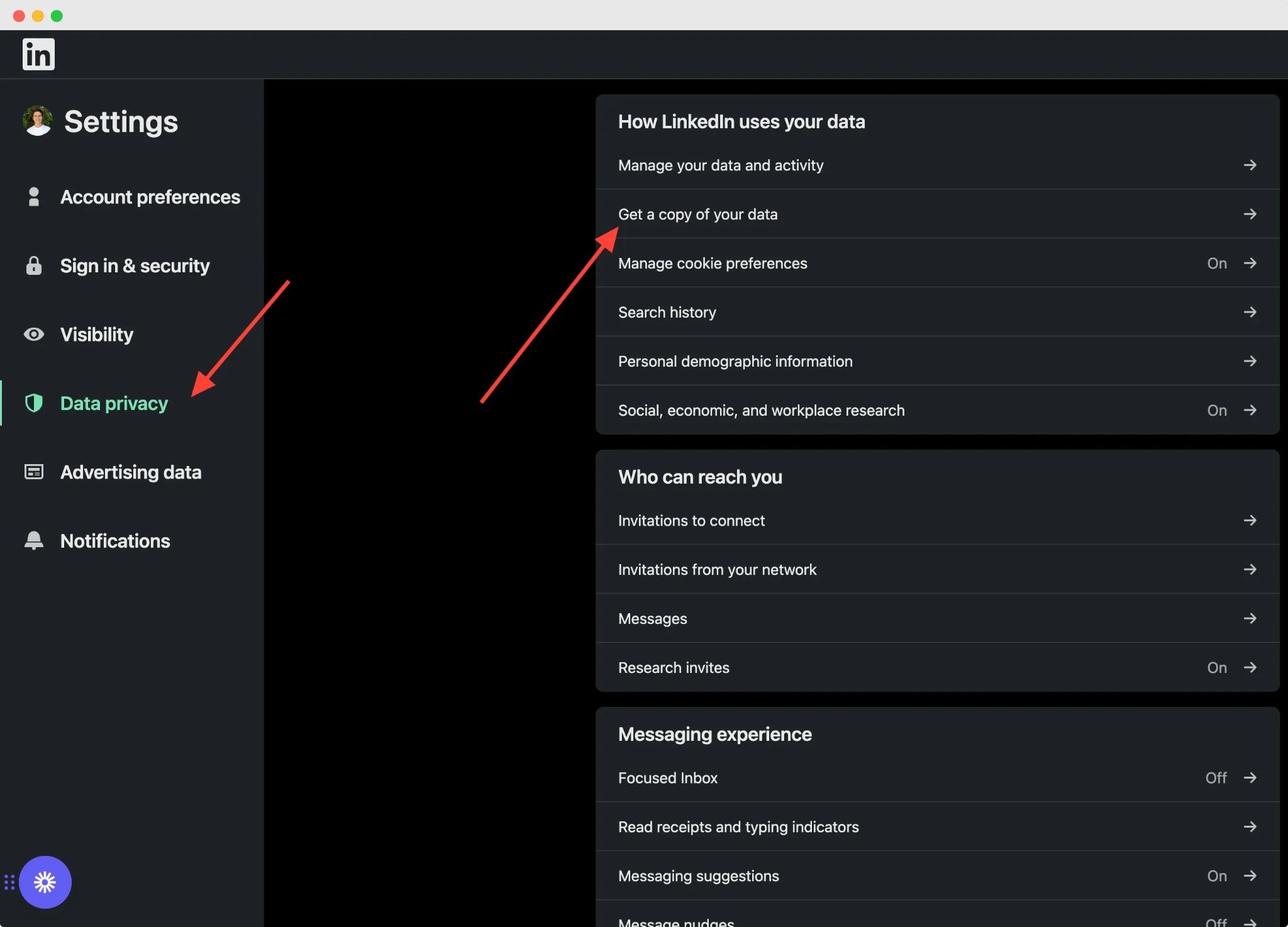
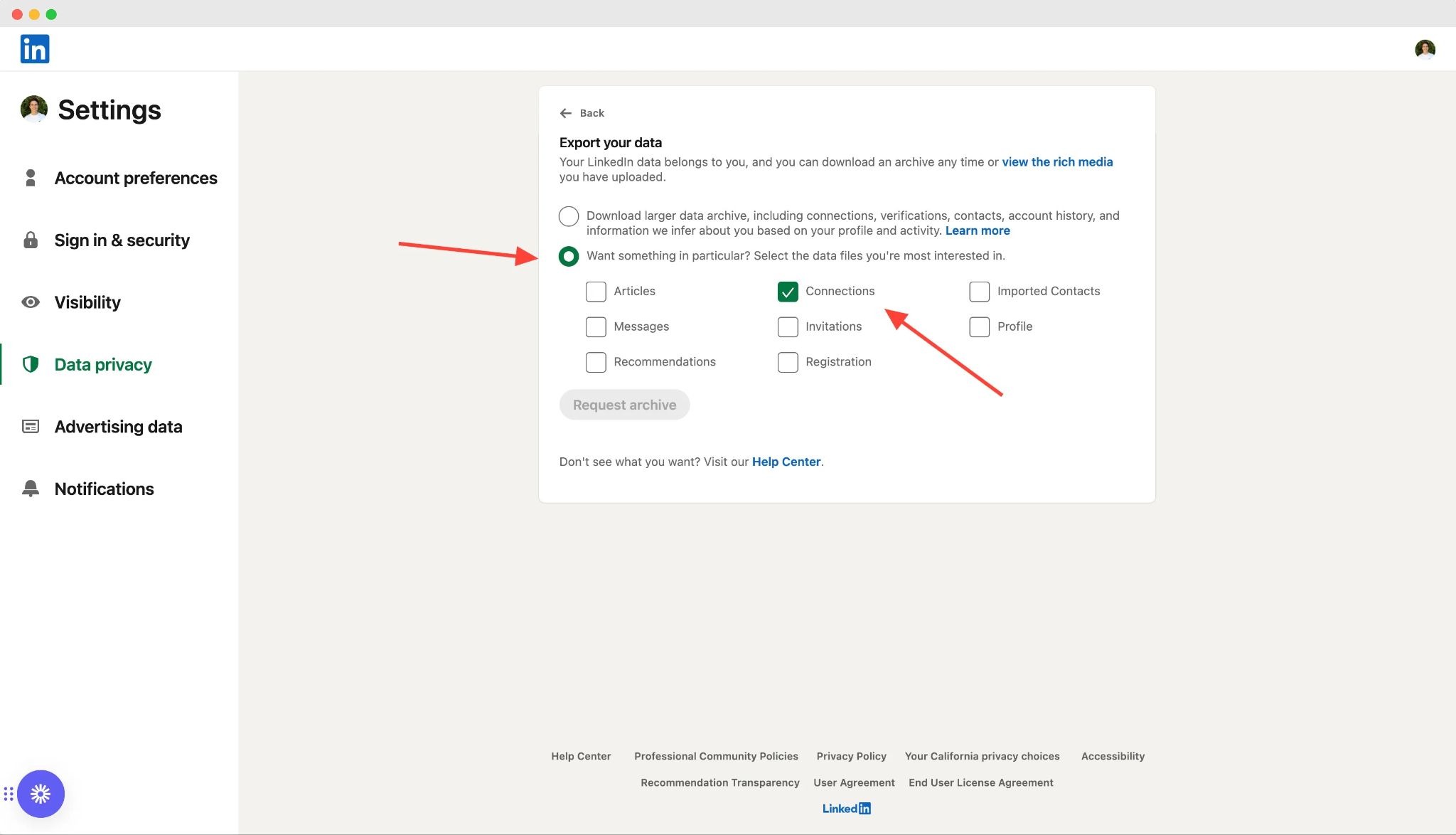
If you go the manual route, either enter lead information into a spreadsheet or request a copy of connection data from LinkedIn. That’s the catch: you can only export data for people you are connected to, which means all the prospects you’ve sent a connection request to but have not accepted will not be included.
The LinkedIn export will include basic contact information from their profile, like their name, company, and job title, along with the date you connected.
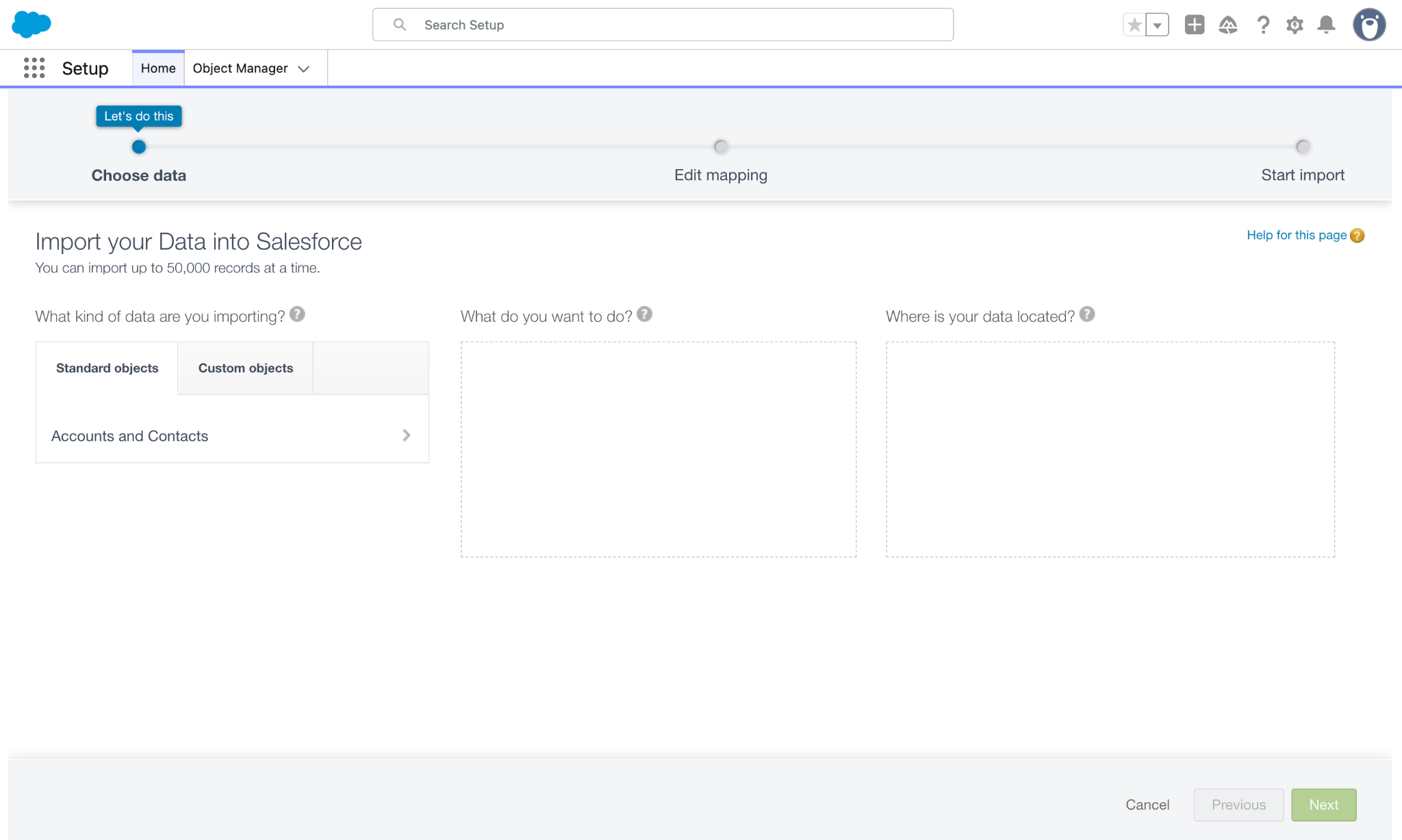
Then use the Salesforce Data Import Wizard, which can handle up to 50,000 records at a time, to import contacts, leads, and accounts, map the columns to your CRM fields, and import.
The problem here is that you won’t get their contact information, just basic profile data. Let’s say that export is 2,000 names long; that’s 2,000 names with companies and titles and at most a few dozen email addresses. It’s a ghost list: records that look full in a report and are useless the moment you try to actually contact someone. So you’ll need a third-party enrichment tool like Clay to fill in the gaps, which means more uploading, exporting, and importing to get good data into your CRM.
Fortunately, there are better options.
2. Sales Navigator CRM sync
If you have the Advanced Plus tier of Sales Navigator, you can run a CRM sync directly to Salesforce.
That’s much better than manually importing leads, right? It is, but this comes with a pretty steep price. That sync will run $1,600/seat/year, making it a significant investment for something as simple as syncing leads so you don’t have to type their information yourself.
Not to mention, this sync won’t enrich your leads, meaning you’ll still have a fair bit of legwork to do to find their contact information. That means you’ll still need to export a list, enrich it with a third-party tool, then import it into Salesforce.
3. One-click import with enrichment with Hublead
If only there were a tool that synced leads from LinkedIn and Sales Navigator straight to Salesforce and enriched them with accurate contact information.
There is. Hublead is a Chrome extension that seamlessly syncs LinkedIn with Salesforce.
Whether you have LinkedIn Free or Sales Navigator Advanced Plus, you can import contacts from LinkedIn to Salesforce with one click, enrich them, and even view Salesforce data for every lead on their LinkedIn profile.

You can also sync connection requests, DMs, and InMails, and edit CRM records directly on a lead’s profile on LinkedIn.

No CSVs. No manual data entry. And no duplicate data messing up your CRM. Just a seamless experience for you, and more time to prospect on LinkedIn.
Hublead also allows you to view and create notes and tasks for each Salesforce record, as well as edit contact properties directly on LinkedIn.
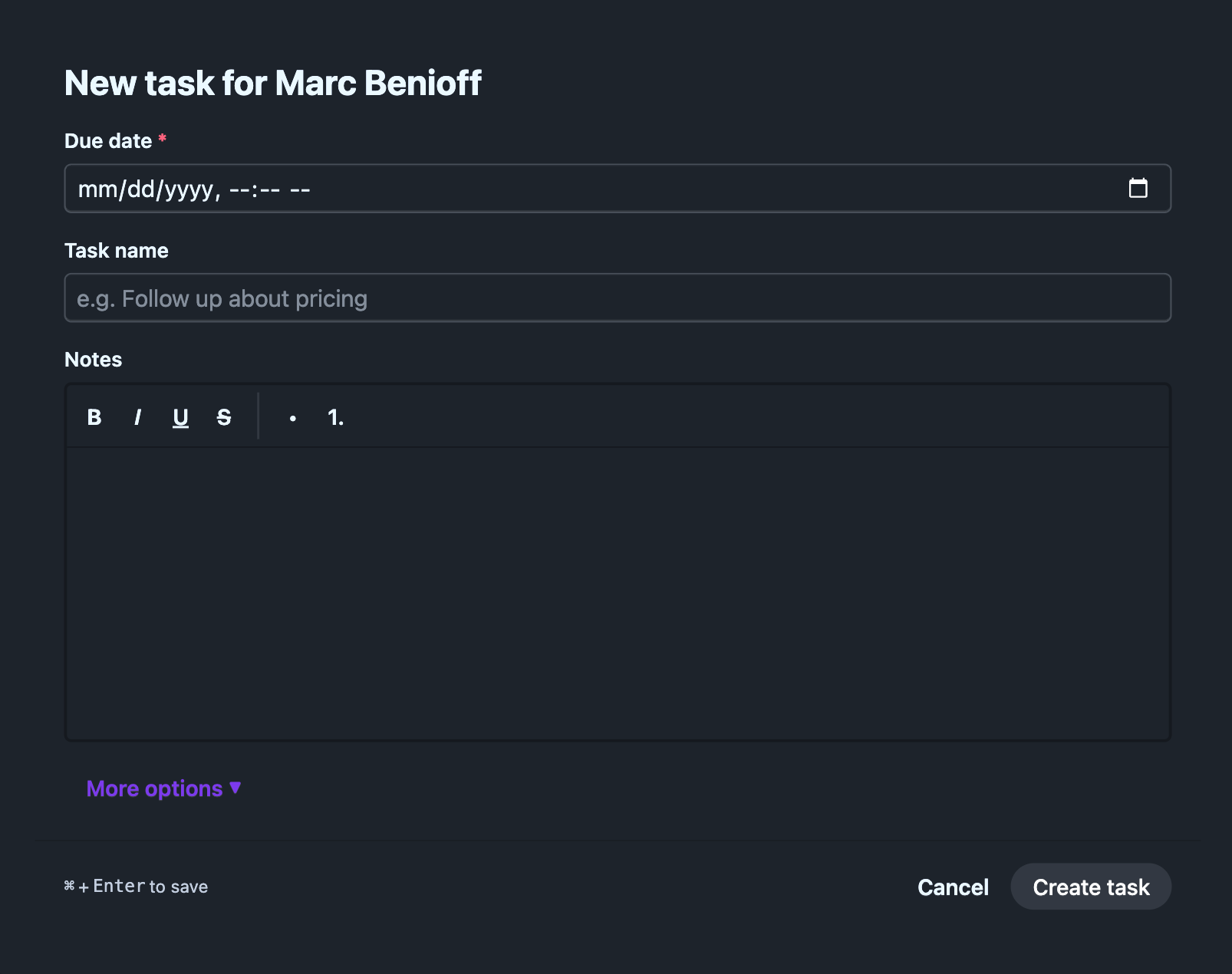
You can try Hublead for free and continue using it for $32/month per seat; every tier includes Salesforce sync and contact enrichment.
Which method is best for importing leads from LinkedIn to Salesforce?
You have three options here, ranging from free but labor-intensive to expensive but semi-automated.
Which should you choose?
| Use case | Which tool is best? | Why? |
|---|---|---|
| I want a 100% free solution | Manual exporting and importing | Of your three options, manually exporting and importing into Salesforce is the only option guaranteed to be free (aside from a Hublead trial) |
| I want to sync Sales Navigator to Salesforce | Sales Navigator sync or Hublead | Either will do the trick for Sales Navigator, though you need Sales Navigator Advanced Plus to access the CRM Sync. Hublead works with every Sales Navigator tier. |
| I want to sync both LinkedIn free and Sales Navigator to Salesforce | Hublead | Of the three options, Hublead is the only one that lets you seamlessly sync LinkedIn Free and Sales Navigator to Salesforce. |
| I want to sync and enrich leads from LinkedIn to Salesforce | Hublead | Hublead syncs and enriches leads with accurate phone numbers and email addresses straight to Salesforce. You can also bulk enrich a list of leads from the Hublead web app. |
Hublead was designed for sales and GTM teams that want to spend more time connecting with prospects and less time managing their tech stack.
By seamlessly blending Salesforce with LinkedIn, you can edit lead data on the fly without ever opening your CRM and ensure every touchpoint and DM is logged in your CRM.
There’s a reason over 8,000 sales teams trust Hublead to sync LinkedIn with their CRM; here’s what Aidan, a happy Hublead user, had to say on G2:
“Hublead makes LinkedIn prospecting much easier and more efficient. I especially like how quickly I can find and capture accurate contact information without having to switch between multiple tools. It saves me a lot of time and makes my lead generation process much more streamlined. The value is excellent compared with the cost. Hublead saves a significant amount of time on prospecting and contact research, which makes it well worth the investment.”
What are the best tools and extensions to import LinkedIn contacts to Salesforce?
Plenty of tools claim they seamlessly sync LinkedIn contact information to Salesforce, so which will you choose?
Some of the most popular options are:
You'll also come across broader platforms like PhantomBuster, Reply.io, or Zapier, but none of them were built specifically for this job. PhantomBuster has no native two-way Salesforce sync, so you'll need extra middleware to get your data across. Reply.io is a full multichannel outreach platform, not a lightweight importer. And Zapier can't connect directly to LinkedIn's personal profile data.
But only Hublead does all of the following:
- Checks your Salesforce CRM against LinkedIn URL, name, job title, company, and domain so you don't end up with duplicate contacts or companies.
- Imports from LinkedIn and Sales Navigator with the click of a button.
- Syncs messages and connection activity, including connection requests, DMs, and InMails.
- Enriches contact data with accurate email addresses and phone numbers.
- Creates matching company records for every contact with an email or associated domain.
Just connect Hublead to Salesforce, and you're all set. Try Hublead for free here, or check out our paid plans to supercharge your prospecting workflow.
How to sync contacts and leads to Salesforce from LinkedIn with Hublead in 3 steps
In just a few minutes, you can set up Hublead to sync leads to Salesforce along with connection requests and DMs.
Just follow these three steps:
- Install the Hublead Chrome extension and connect your Salesforce org.
- Open the LinkedIn or Sales Navigator profile you want to add.
- Click the button to sync, and Hublead will add the lead to your CRM or map them to an existing record. Hublead will also find their verified work email and phone number.
That’s it. In less time than it takes to grab a cup of coffee, you’ll have a sidekick that keeps your CRM clean and up to date while enriching every lead you find on LinkedIn.
How to avoid duplicate data when syncing to Salesforce
The second you import duplicate data into Salesforce, your CRM stops being a system of record and becomes a painful weekend cleaning project.
Bulk CSV imports are the worst offender, because the wizard only catches a duplicate if your matching rules are set up correctly and the CSV email matches the existing record exactly, which, as we just saw, often has no email to match on. This happens in other CRMs like HubSpot, too (check out our CRM duplicate contact guide for more info).
That’s where tools like Hublead are so useful when importing straight from LinkedIn.
Before creating anything, Hublead checks your existing Contacts and Leads, flags a match when it finds one, and lets you update the existing record instead of creating a duplicate.
You just need to map your fields once, and every import after follows the same rules.
Need to sync leads from LinkedIn to Salesforce? Try Hublead for free
Your CRM is only as effective as the data inside it.
The problem is that a sales rep’s job is to prospect, not manage their CRM. If you don’t sync your activities back to your CRM, though, you won’t get credit for all your hard work, and your team won’t have full visibility into LinkedIn as an outbound channel.
If you’re spending hours every week manually entering data into your CRM, it’s time to try Hublead. Hublead imports leads from LinkedIn to Salesforce, deduplicates them if records already exist, and syncs DMs and InMails straight to the contact record.
Hublead does the hard work, so you can focus on prospecting. Try Hublead for free and see how much time you can save this week.
Import LinkedIn contacts into Salesforce, already enriched
Stop copy-pasting names and chasing emails. Hublead adds any LinkedIn profile to Salesforce in one click, with a verified email and phone, deduped against your org.
Before you set it up
What about free CRM sync tools like LinkPort?
Free tools like LinkPort (made by Klenty) will import a LinkedIn contact into Salesforce at no cost, which is great if all you need is the name, title, and company. These tools won’t enrich contacts, though, meaning you’ll still need a third-party enrichment tool.
What is the fastest way to get a LinkedIn contact into Salesforce?
A one-click Chrome extension like Hublead. Open the profile, click once, and the contact lands in Salesforce with enriched and deduped email and phone, against your existing records, in a couple of seconds.
How many records can the Salesforce Data Import Wizard handle?
You can import up to 50,000 records at a time for Leads, Contacts, and Accounts. At that volume, though, you need to make sure you can enrich contacts before importing them; otherwise, you’ll have a lot of records to enrich and reconcile through another tool.
Do I need Sales Navigator to import contacts into Salesforce?
No. A one-click extension works on a free LinkedIn account. Sales Navigator only matters for its native CRM Sync, which sits on the Advanced Plus tier and still doesn't enrich. See the Sales Navigator integration guide for the details.
How do I stop LinkedIn imports from creating duplicate records in Salesforce?
Use a tool that checks your existing Contacts and Leads before it creates a record. Hublead flags a match and lets you update the existing record instead of adding a second one. A verified email also gives your Salesforce matching rules a reliable key, which a stripped CSV does not provide.
Keep reading on LinkedIn and HubSpot
 Data & CRM
The best Salesforce LinkedIn integrations for sales reps (2026)
Tired of copying LinkedIn leads into Salesforce by hand? We review the best integrations for syncing leads, DMs, and contact data without the busywork.
Data & CRM
The best Salesforce LinkedIn integrations for sales reps (2026)
Tired of copying LinkedIn leads into Salesforce by hand? We review the best integrations for syncing leads, DMs, and contact data without the busywork.
 Data & CRM
How to use HubSpot’s Smart CRM Sync for LinkedIn Sales Navigator
Need Sales Navigator data to show up in HubSpot? Learn how to sync LinkedIn Sales Navigator with HubSpot using the CRM Sync integration.
Data & CRM
How to use HubSpot’s Smart CRM Sync for LinkedIn Sales Navigator
Need Sales Navigator data to show up in HubSpot? Learn how to sync LinkedIn Sales Navigator with HubSpot using the CRM Sync integration.
 Data & CRM
The best alternative to LinkedIn CRM Sync for HubSpot
HubSpot’s LinkedIn CRM Sync integration is terrible, so what’s the best alternative? Find out in this guide.
Data & CRM
The best alternative to LinkedIn CRM Sync for HubSpot
HubSpot’s LinkedIn CRM Sync integration is terrible, so what’s the best alternative? Find out in this guide.
Salesforce LinkedIn guide
Salesforce LinkedIn guide →See your CRM on
every LinkedIn profile.
Install the extension, connect HubSpot or Salesforce, open a profile. You see right away whether the person is in your CRM.
Free to start, no card needed.