How to build a sales process in HubSpot
HubSpot won't fix a broken sales process on its own. Here's how to build the pipeline stages, outbound channels, and automation your team actually needs.
Let me take a guess: You’re here because your sales team has been onboarded to HubSpot, but they’re no more effective than when they were using Google Sheets.
HubSpot is a fantastic CRM. But it’s just a CRM. At the end of the day, your success with HubSpot will depend on two things:
- The process your sales team follows
- How consistent they are
In this guide, I’ll walk you through how to design a sales process in HubSpot, how to follow it, and how to measure it.
HubSpot alone won’t solve your sales problems
The biggest mistake I see sales teams make is thinking that a single tool can fix all their issues.
HubSpot is a great tool that will help your team sell, but it can’t fix:
- Poor lead targeting
- Undefined sales stages
- Inconsistent prospecting
- A lack of focus and attention to what is working
I’ll cover tools that can help with all of those and more, but setting up an effective sales process in HubSpot requires a bit of strategic thinking and upfront work on your part before we get to setting up individual tools.
That means having a defined process for things like:
- Lead qualification
- Stages you will take prospects through
- What data do you track, and how should it be surfaced to leadership
- Alignment between sales and marketing on when leads are sales-ready and how to handle the hand-off
HubSpot can’t help you if these foundational aspects of your sales process are not ironed out first. If you’ve got these down pat, continue on to the next section.
The essential building blocks of a good sales process
A sales process is a repeatable sequence of steps your sales team follows to convert prospects into customers.
Success in sales comes down to timing, consistency, and volume. Some of those are in your control, but not everything will be. That’s where an effective sales process is so important: it allows your reps to focus on execution every single day, which, over time, will turn into a full pipeline.
What goes into an outbound sales process?
Before we get to building automations and sequences in HubSpot, let’s walk through some essential building blocks of an outbound sales strategy:
- Your ICP: Who are you trying to reach? Go deeper than “Founders at $1M SaaS companies in the United States.” I recommend focusing on triggers, pain points, and other decision-making factors, not just demographic data.
- Your channels: What channels will your team need for outbound? You’ve got your pick these days between email, SMS, phone, and LinkedIn.
- Your cadences: Do you have a defined cadence of channels and messaging that works? If not, start building that ASAP and use HubSpot’s tools to automate and measure it.
- Data and KPIs: What will you judge your reps by? HubSpot allows you to track things like calls made, emails sent, tasks completed, replies received, and with a tool like Hublead, you can even track LinkedIn connections and DMs.
Even if your CRM is a Google Sheet, you should have most, if not all, of this set up. If you don’t, I strongly suggest taking time to review these with your team to define them as you build your sales process in HubSpot.

Ready to fix your outbound process?
HubSpot’s tools to build your sales process
HubSpot offers a few core tools that you will need to build, implement, and manage your sales process:
- Contact and company records: These are where you will spend most of your time collecting and logging data as you work with contacts and nurture them to a sale.
- Deals: Deal records let you manage active deals with contacts and track them through stages.
- Pipelines: You can create a pipeline to manage deals according to the stages of your sales funnel.
- Custom stages: HubSpot provides default stages, but you can create custom deal stages to match your sales process.
- Tasks: HubSpot tasks keep your sales team focused and organized by managing next steps and to-dos for each prospect and deal.
Most sales processes follow a recognizable structure, though the exact stages vary by business model. The standard framework looks like this:
- Source leads: Source leads with Apollo, Clay, or LinkedIn Sales Navigator.
- Qualify leads: Qualify leads based on ICP match, need, timing, or budget.
- Demo: This is where you present your product/service and pricing to your prospect.
- Proposal: Post-demo, send a proposal, and follow up until the prospect makes a decision.
- Closed Won/Closed Lost: Ideally, you’ll get an answer from the prospect on moving forward or deciding it’s not a good fit.
- Post-sale: It’s important to outline what happens after the sale and where Customer Success gets involved in the hand-off for your new customer.
Next, I’ll show you how to map your specific process into HubSpot and configure it to match how your team actually sells.
How to set your sales funnel stages in HubSpot
If you have the process mapped out in theory, your first step is to build your sales funnel stages in HubSpot to match it.
Follow these steps:
- Identify your deal stages
- Configure pipeline settings
- Customize your sales funnel labels
Identify your deal stages
Start by auditing how your team actually sells today.
List every major milestone from first contact to closed deal, focusing on actions that require the deal to pause until moving forward. Here are two examples by business type:
- B2B software: Demo scheduled > Demo completed > Trial started > Proposal sent > Contract negotiation > Closed won
- Professional services: Initial consultation > Needs assessment > Scope definition > Proposal review > Agreement signed > Closed won
Each stage should represent a meaningful progression requiring specific actions.
Configure pipeline settings
Once you've identified your stages, create the pipeline in HubSpot by heading to your settings and selecting Deals under Data Management. In here, you’ll see any existing pipelines you have and the option to create a new one by clicking the Create pipeline button.
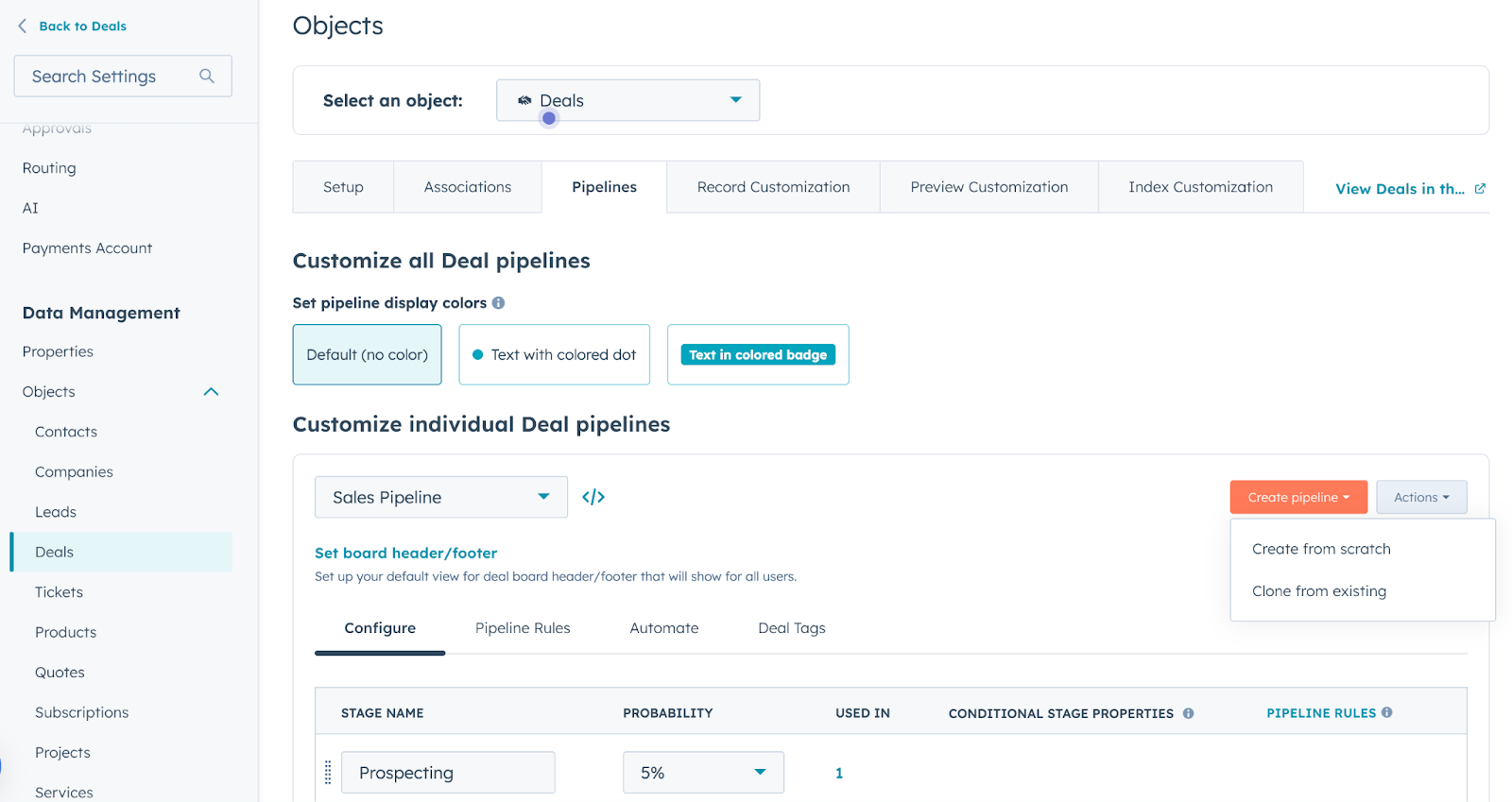
From here:
- Name the pipeline clearly (e.g., "Standard Sales Pipeline" or "Enterprise Sales Pipeline")
- Create multiple pipelines if you have different sales motions.
- Set win probability percentages for each stage, which HubSpot uses for revenue forecasting
Customize your sales funnel labels
I recommend customizing your sales pipeline in HubSpot to match your terminology and sales process.
Rename stages to match the language your reps already use: head to the Pipeline edit in your settings, click a stage name, and rename it. If your team calls it "Scoping" instead of "Discovery," use Scoping. While this is a fairly basic step, it can help improve adoption and increase use among your reps, making things much easier for your team in the long run.
Forecasting and deal probability
Now, you can do all of the above with a spreadsheet, though with a bit more manual effort.
When you get to forecasting and goal management, that's where HubSpot really stands out. Once your pipeline reflects reality, you can start doing what most leadership teams dream of: forecasting with real confidence.
In HubSpot, you can track:
- Conversion rates by stage
- Deal velocity (time in stage)
- Close probability based on historic data
- Sales KPIs like deal size, win rate, and rep performance
And because all of this is tied to clearly defined pipeline stages and structured deal records, your sales process will go from a series of uneducated guesses to strategic decisions.
Now that you have all the pieces in place to oversee a sales process in HubSpot, let’s get tactical and implement one.
Set up your outbound channels
HubSpot supports the following channels natively for outbound messaging:
- Calls
Technically, HubSpot offers native support for SMS and LinkedIn, but the features for sales are lackluster, so I’ll share the top integrations for each.
How to send cold emails in HubSpot
HubSpot makes it super easy to send cold emails at scale.
You can send them straight from the contact record:
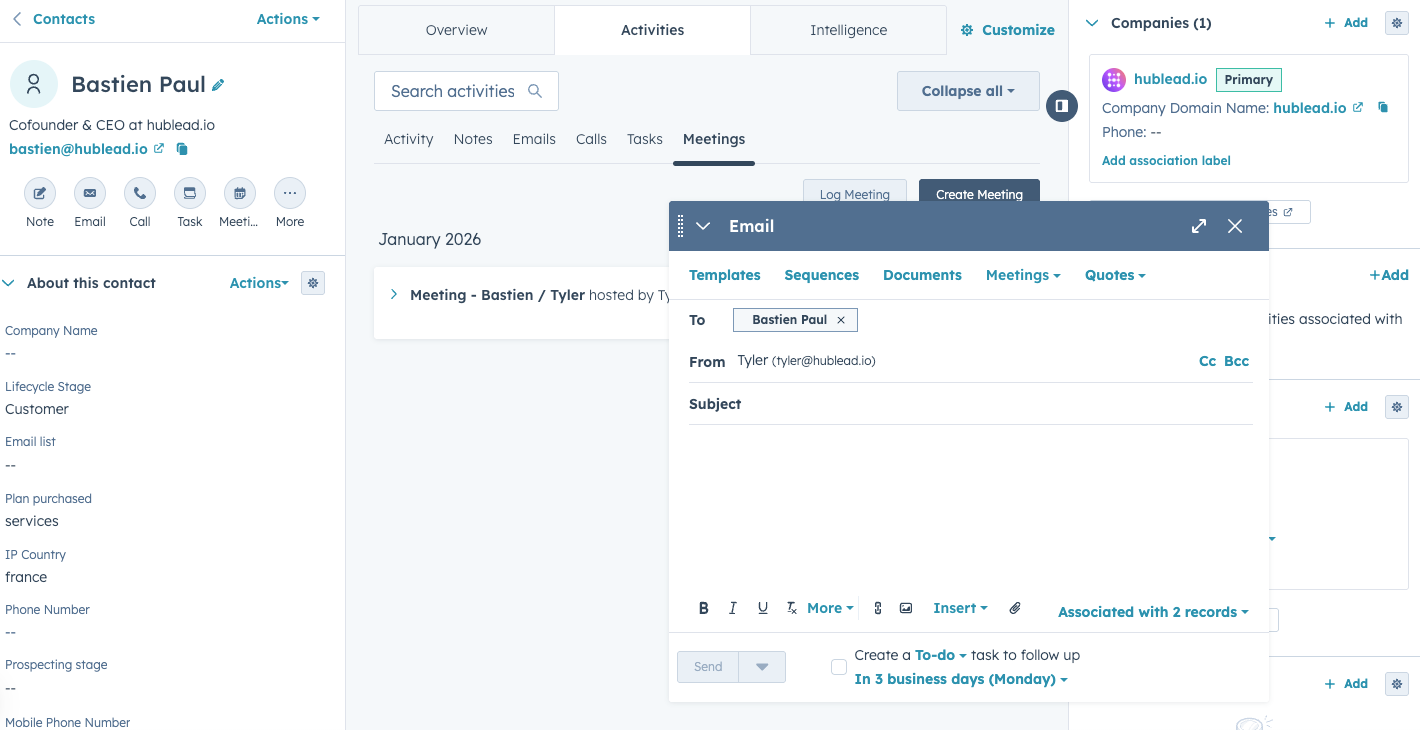
You can also queue them up in a Sequence (more on these later) or write your scripts in advance and save them as templates.
Here’s the secret to success in cold email: email is most effective when you mix it with other channels. Unless you’re incredibly lucky, chances are your first, second, or even third email will go unanswered. But when you mix email with the channels I share below, you will stay top of mind, and your response rates will skyrocket.
I usually send cold emails from my inbox (while logging and tracking with the HubSpot Chrome extension). Most of the time, I’ll create a template for this and either send it manually or enroll a contact in a Sequence to begin nurturing them.
I include a sample cold email template in my guide to HubSpot sales templates here.
How to make cold calls in HubSpot
Cold calling is alive and well, and it works. But only if you arm yourself with the right data, and pay attention to what your prospects are telling you.
You have a few options for making calls through HubSpot:
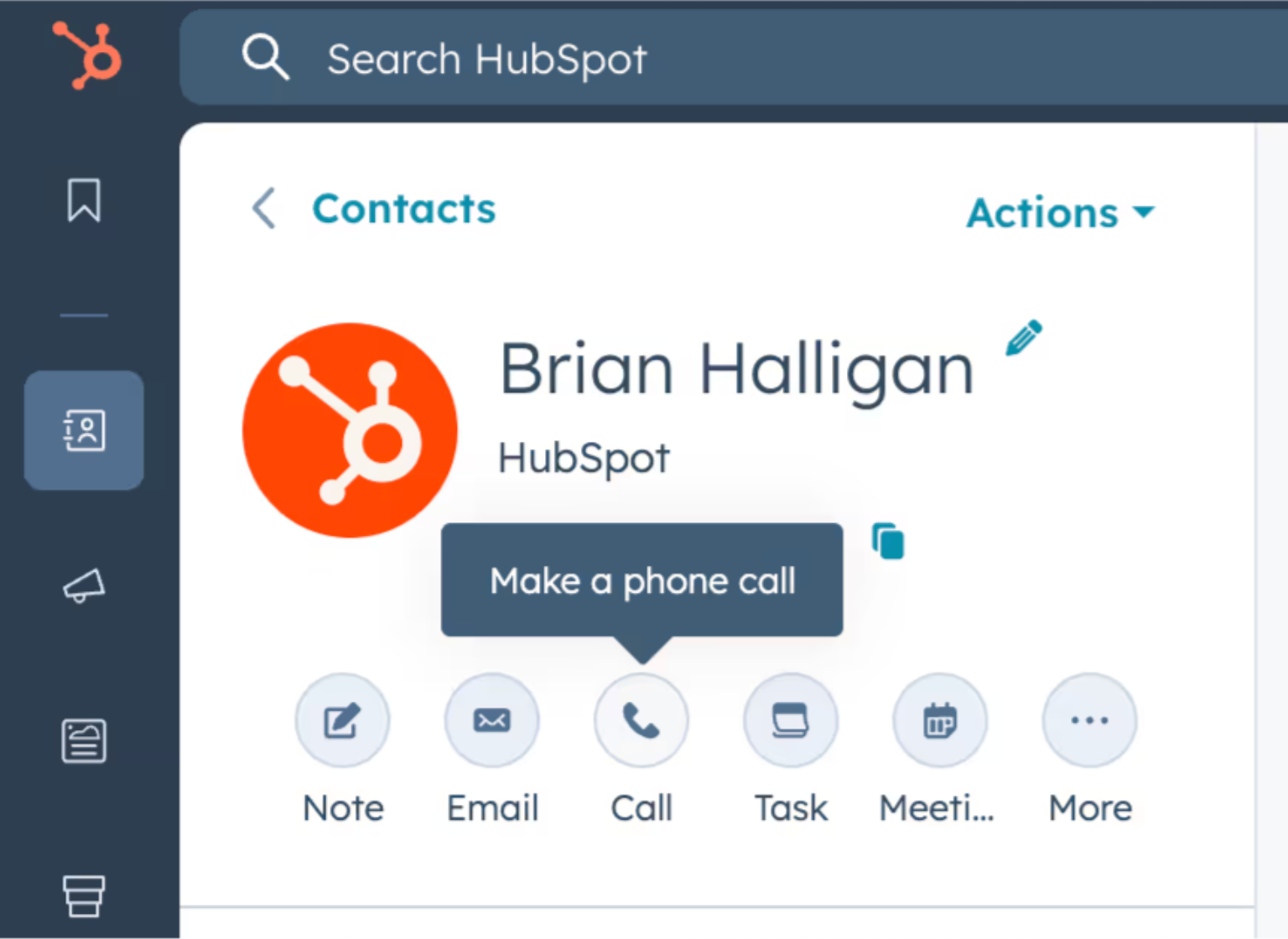
- Make a call from your computer: You can either make a call from a view/list in HubSpot or from a contact record. In any view/list, find the phone number column and click the phone number you have saved. If the phone number is properly formatted and validated, you can call that contact, or tap the phone icon next to their name to call it.
- Make a call through the HubSpot app: When using the HubSpot mobile app, you have two options for making calls. You can make them either through your mobile phone carrier or the HubSpot calling feature. Note that if you use your mobile phone carrier for calls, you cannot record them.
Here’s another tip to make your team’s calls even more effective: set custom call outcomes. In Settings, go to Call Setup, then Edit Options next to the call outcome setting. HubSpot will give you some default options:
- Busy
- Connected
- Left live message
- Left voicemail
- No answer
- Wrong number
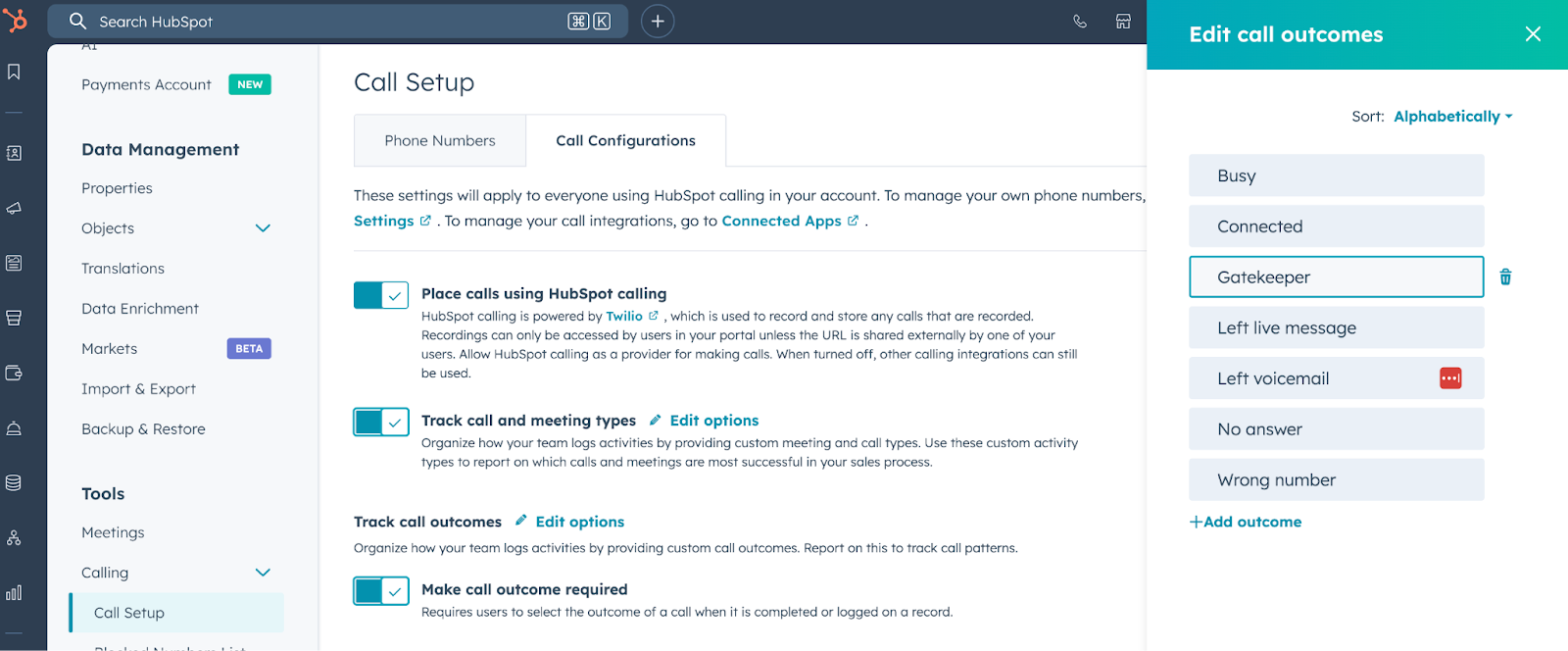
I like to add custom ones, like hitting a gatekeeper, to track my calls. If I’m hitting gatekeepers often, I may be getting bad data on my prospects and should try different sources to find their cell phone numbers.
Check out my guide to using HubSpot calling for a deeper dive!
How to send SMS in HubSpot
If I want a record of the texts I send to prospects in my CRM (which should be the case every time), I log it in HubSpot. The problem is, HubSpot’s native SMS integration is built for marketing, and its WhatsApp integration is… not great.
I prefer the following for linking SMS to HubSpot:
- Salesmsg
- Heymarket
- Sakari SMS
- TrueDialog
- Aircall
Browse my reviews for these HubSpot SMS integrations here.
How to prospect on LinkedIn from HubSpot
LinkedIn is hands-down my favorite channel for sales. And I’m not saying that because we built a tool that syncs LinkedIn with HubSpot.
If you’re ignoring LinkedIn in your outreach strategy, then you are missing out on the ability to:
- Demonstrate social proof to buyers
- Demonstrate expertise and authority
- Engage meaningfully with prospects
- Identify triggers that could lead to a conversation or sale
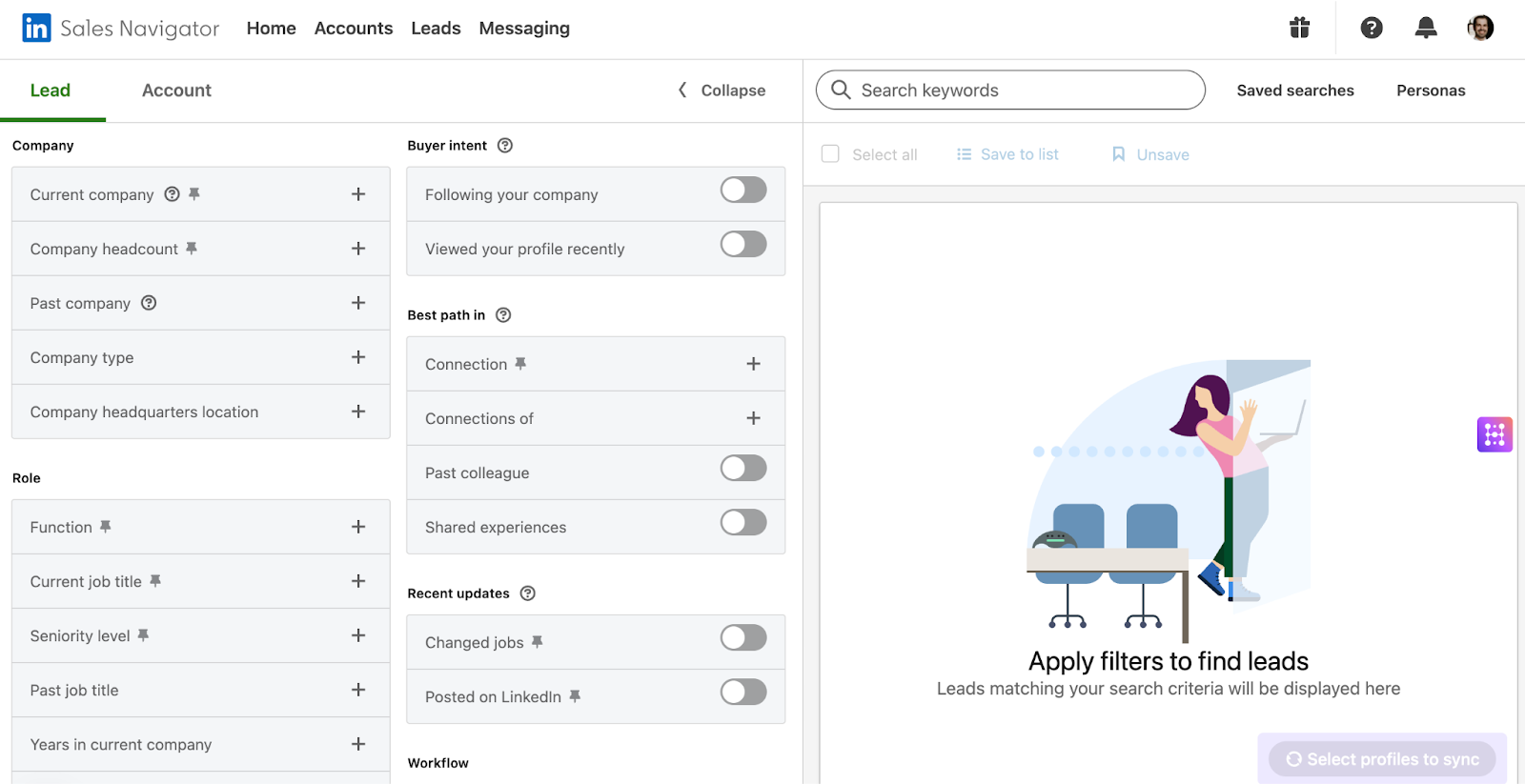
I like to use LinkedIn in a few ways in my sales strategy:
- Find prospects: Sales Navigator lets you filter for contacts who exactly match your ICP, making it easy to identify and connect with them.
- Engage and build familiarity: Connecting, liking, commenting, and DMing are all effective ways to get on your prospects’ radar. Emails can easily be ignored, but putting a face (and work experience) to your outreach can help it land.
- Watch for signals: Use Sales Navigator lead lists to review your prospects' posts. The second they complain about a pain point or mention they’ve started their buying journey, you can time your outreach.
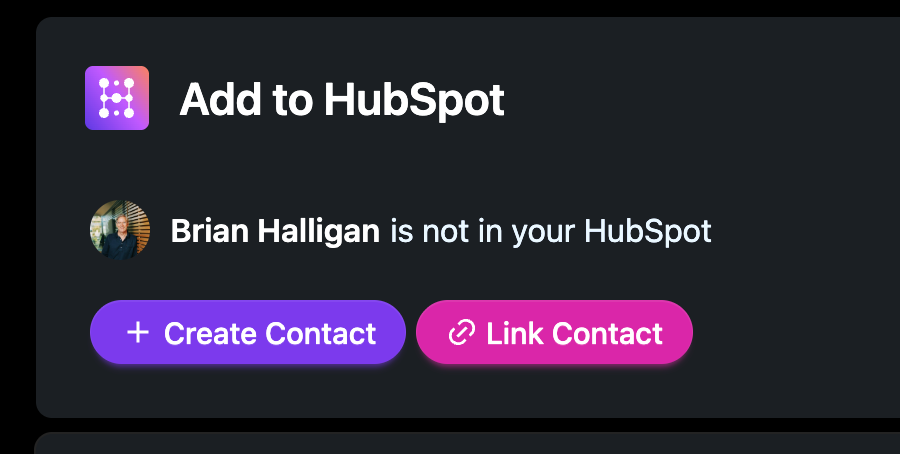
Copying and pasting all that data from LinkedIn into HubSpot can take hours of time out of your reps’ week, unless you use Hublead.
Hublead is the Chrome extension we built to seamlessly sync HubSpot and LinkedIn. Hublead allows you to import contacts with one click, sync DMs and InMails, track connection requests, and trigger Workflows in HubSpot.
Sales reps can save up to two hours each week, all thanks to Hublead. Here’s what one sales rep has to say on G2:
“I really appreciate how Hublead offers an amazingly simple one-click solution to import contacts. It saves a lot of time and manual work, minimizes back and forth, and helps me maintain my sanity.”
Try Hublead for free and see how much time you can save this week!
Set up your prospecting workspace
As you can probably see, this is a ton of work.
There are so many tabs, knobs, dials, and buttons in HubSpot that it can quickly become overwhelming. When I’m selling, I don’t want to spend half my day navigating a tool or entering data; I want to sell.
That’s why I love HubSpot’s new prospecting workspace. HubSpot’s prospecting workspace is a dedicated dashboard for your sales reps that gives them a personalized view of all the leads they are working on, in-progress deals, and tasks to complete that day.
Once your sales process is set up, this is the most important place for your reps to be in HubSpot.
To get there, head to the Sales section in the left-hand navigation, select Sales Workspace, then select Prospecting on the resulting page.
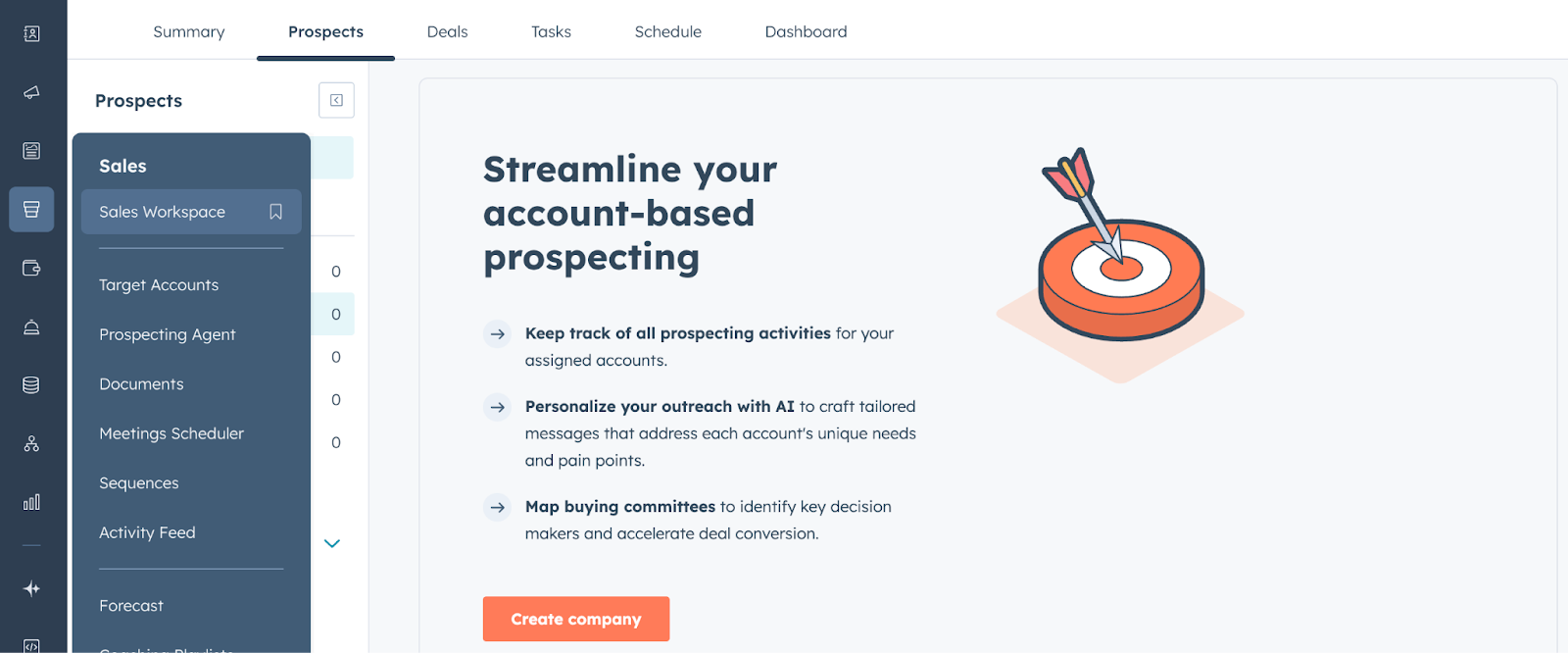
As you add leads and tasks, this workspace will give you a rich overview of every prospect you are working with, and exactly what you need to be doing every day. You can track things like:
- Upcoming tasks
- Overdue tasks
- Sequences that are running
- Newly assigned contacts
Check out my guide to the HubSpot prospecting workspace and other prospecting tools for more info.
How to speed up your sales process with automation and AI
Once you get the hang of it, do you really need to manually send a five-email series to each lead? Not in HubSpot. My favorite automation features are:
- Sequences
- Workflows
- Breeze AI
How to automate with Sequences
Sequences are the HubSpot CRM’s automation tool designed to send emails, create tasks, and more for each prospect you enroll.
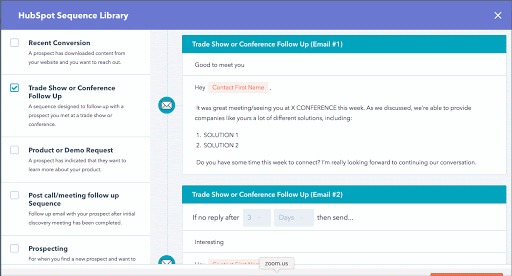
Sequences allow you to drip a series of personalized emails to sales-qualified leads or cold prospects over time, automating your outreach at scale.
Access to HubSpot Sequences is available to users with a Sales Hub Professional, Service Hub Professional, or Enterprise subscription with a connected personal inbox.
I like to use Sequences to:
- Nurture a cold prospect and warm them up for a conversation
- Follow-up post-demo
- Upsell an existing customer
- Re-engage an old lead
Check out my 10 favorite Sequences to run in HubSpot for some inspiration!
How to automate with Workflows
HubSpot Workflows are an automation tool that allows you to send a series of emails or create tasks. Wait, is that different from Sequences?
For starters, Workflows come with Marketing Hub while Sequences come with Sales Hub. Workflows are also much more advanced: you can trigger them based on contact behavior, set up branching logic to route contacts through your funnel, and even create custom actions.
I like to use Workflows for the following:
- Sending a sequence of educational content to new leads, gradually moving them toward readiness for a sales conversation.
- Guide customers through onboarding, delivering essential resources and guides.
- Automating communications based on user actions (e.g., form submission, page view) to provide relevant content at each interaction stage.
How to automate with Breeze AI
HubSpot also offers a ton of AI-powered features to take work off your plate.
The HubSpot prospecting agent is an AI-powered sales automation tool built into HubSpot's CRM that can help you with research, drafting messages, and sending messages to prospects. It’s part of the Breeze AI suite, HubSpot’s collection of AI-powered marketing and sales tools that automate tasks and generate content.
You can use the prospecting agent to:
- Gather company and contact information from HubSpot CRM data, public sources like LinkedIn profiles, company websites, news articles, and funding announcements to build a comprehensive picture of each prospect.
- Create custom outreach messages based on prospect data, your selling profile, and the specific pain points and value propositions you define.
- Schedule and send follow-up emails automatically based on engagement patterns, maintaining momentum without requiring manual intervention from your sales reps.
- Identify when prospects respond and adjust the outreach sequence accordingly, stopping automated follow-ups and flagging the conversation for a rep to take over.
Check out our guide to HubSpot’s prospecting agent for a full walkthrough.
How to report on your sales process in HubSpot
You have your pipeline, deal stages, forecasting, and channels set up.
That’s it, right? If so, you’re missing out on one of HubSpot’s most powerful features: reporting. There are endless ways to report on your sales process in HubSpot (I wrote a separate guide to my favorite HubSpot sales reporting dashboards), so I’ll frame reporting in the context of the following:
- Daily huddles
- Weekly pipeline reviews
- Monthly process reviews
Daily huddles
Review these reports with your reps every day to keep them on track and accountable. Success in sales requires daily movement and activity, so work with your reps to track the following:
- Pipeline additions and movements
- Deals closing today
- Urgent follow-ups required
Weekly pipeline reviews
Getting a response from a prospect may feel like luck, but usually it hinges on moving the ball forward every single week. Sit down with your reps in regular pipeline reviews to go over the following:
- Stage-by-stage deal progression
- Stalled deals requiring attention
- Upcoming close date commitments
- Individual rep pipeline health
Monthly/quarterly process reviews
Every so often, I like to take a step back to assess whether the current process is working. Whether you do this monthly or quarterly, I recommend taking a high-level look at your sales process and drilling down into things like:
- Conversion rate analysis by stage
- Average time in each stage
- Win/loss rate trends
- Deal source effectiveness
Common challenges to watch out for in HubSpot Sales
I know, this guide makes it all sound so easy. It won’t be.
It’s not that HubSpot is that hard to set up, but you will encounter the following areas of friction when building and implementing your sales funnel:
- Data hygiene: Your reps are only as effective as the data they have at their fingertips. As time goes on, make sure reps take care to enter data correctly and keep contacts, company, and deal records up to date.
- Sales rep adoption: Your best sales reps are good at one thing: selling. But not always using a CRM. Expect resistance when implementing HubSpot because reps will view it as a distraction. The smart reps will learn how to use the system to their advantage to get even better.
- Overwhelm: HubSpot is a BIG tool. There is a ton you can do in it, so if you get overwhelmed, I recommend checking out the HubSpot Academy or our HubSpot tutorials on YouTube.
Watch out for these, and you’ll do yourself, your team, and your pipeline a big favor.
Master outbound with the HubSpot Outbound Handbook
Success in outbound is less about a single magical template, striking lightning in a bottle, or having the ultimate AI tool. It’s more about orchestrating messages and touchpoints.
Identify your top prospects, choose your channels, and coordinate your touchpoints to get their attention.
If you really want to level up your sales process in HubSpot, download the free HubSpot Outbound Handbook, our guide to building a scalable and effective outbound process in HubSpot. In this guide, we cover:
- The channels to use
- How to get the attention of your prospects
- The tools you should use to speed up sales
And more! Click the button below to get it for free and start scaling your outbound process in HubSpot.
Ready to fix your outbound process?
Frequently asked questions
What if my sales process doesn't fit standard HubSpot stages?
HubSpot allows complete customization of pipeline stages, so you can rename, add, or remove stages to match your exact sales process rather than using default labels.
How do I keep my sales process personal when using automation in HubSpot?
Use automation for administrative tasks such as data entry, reminders, and notifications, and lean into AI for outreach. We recommend leaving the personal touch for when it matters most to build relationships with prospects.
Can I have multiple pipelines in one HubSpot account?
Yes, HubSpot allows multiple pipelines within a single account, which is useful for different product lines, sales motions, or business units. Each pipeline can have unique stages, required fields, and workflows for that specific sales process.
How long does it take to build a sales process in HubSpot?
A basic pipeline with stages and required fields can be set up in 1–2 hours, while a comprehensive implementation including automation, reporting, and team training typically takes 2–4 weeks. The timeline depends on process complexity, data migration needs, and the number of integrations required.
How does Hublead work with a HubSpot sales process?
Hublead connects LinkedIn directly to HubSpot, automatically logging LinkedIn messages, connection requests, and profile activity as CRM activity on the relevant contact or deal record. For teams that do significant outreach and prospecting on LinkedIn, this removes the need for manual logging entirely.