
How to Automate Outbound With HubSpot and LinkedIn
Learn how to use Lemlist and Hublead to automate outreach, sync LinkedIn messages, and track leads in HubSpot for better productivity and sales.
 Bastien PaulAugust 24, 20263 min read
The short answer
HubSpot cannot send LinkedIn messages or connection requests automatically. The safer setup: send on LinkedIn yourself, add manual LinkedIn task steps to your HubSpot sequences, and use Hublead to sync the connection requests and conversations back to the contact record.
Key takeaways
Short on time? Here's the gist:
- You can automate most of your HubSpot + LinkedIn outbound workflow without risky browser automation tools.
- The best stack combines LinkedIn (or Sales Navigator) for prospecting, HubSpot for sequences, and a sync tool like Hublead to keep everything connected.
- Multi-channel outreach (LinkedIn + email + calls) dramatically outperforms single-channel campaigns.
- The real bottleneck isn't sending messages. It's keeping your CRM data clean and your activities tracked.
If you have about 10 minutes, keep reading for the full breakdown.
Hublead's HubSpot LinkedIn integration puts LinkedIn contacts, messages and activity into HubSpot in one click.
The problem with HubSpot and LinkedIn outbound (and why most teams get it wrong)
Here's a scenario I see all the time: a sales team uses HubSpot as their CRM, prospects on LinkedIn, and somehow expects the two to magically talk to each other.
They don't.
HubSpot is incredible for email sequences, pipeline management, and reporting. LinkedIn is where your buyers actually hang out. But out of the box, there's no native way to sync LinkedIn conversations, track connection requests, or log outreach activities back into HubSpot.
So what happens? Reps end up copy-pasting LinkedIn messages into HubSpot notes. They forget to log connection requests. Half the team's LinkedIn activity is invisible to managers. And your CRM data slowly becomes unreliable. If you need a refresher on multichannel outbound or better lead management strategies, those are worth reading first.
Sound familiar? Let's fix it.
You can even make LinkedIn count in HubSpot for contact activity tracking, so reps who prospect on LinkedIn don't look idle in the CRM.
What "HubSpot LinkedIn automation" actually means in 2026
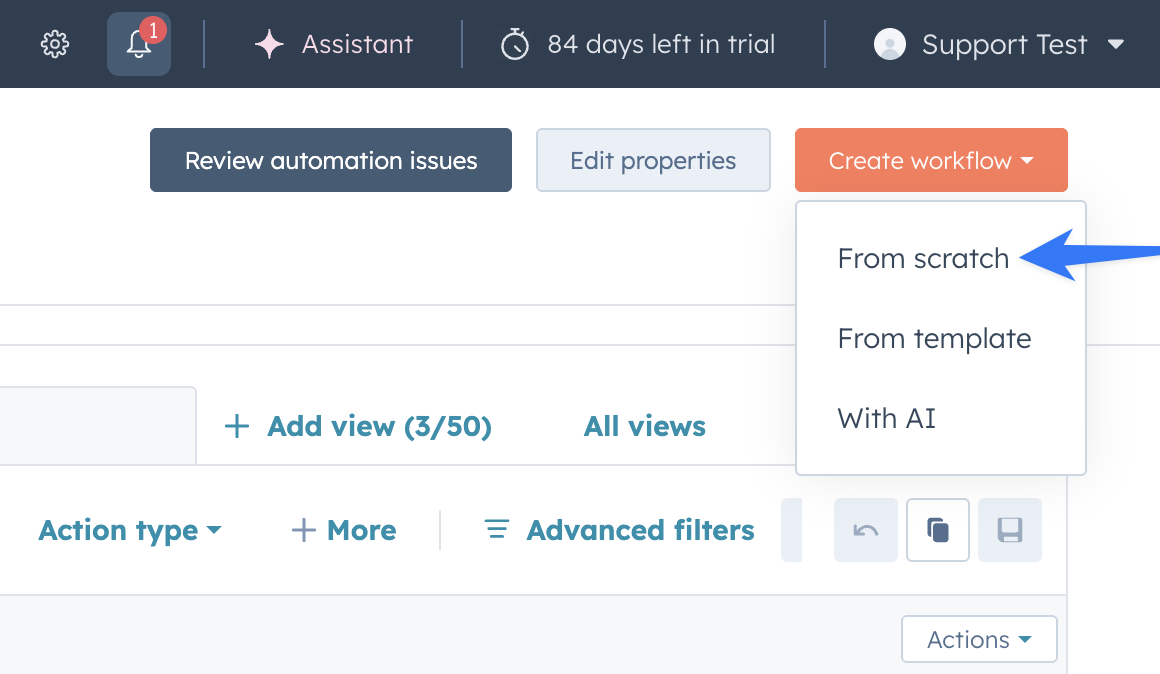
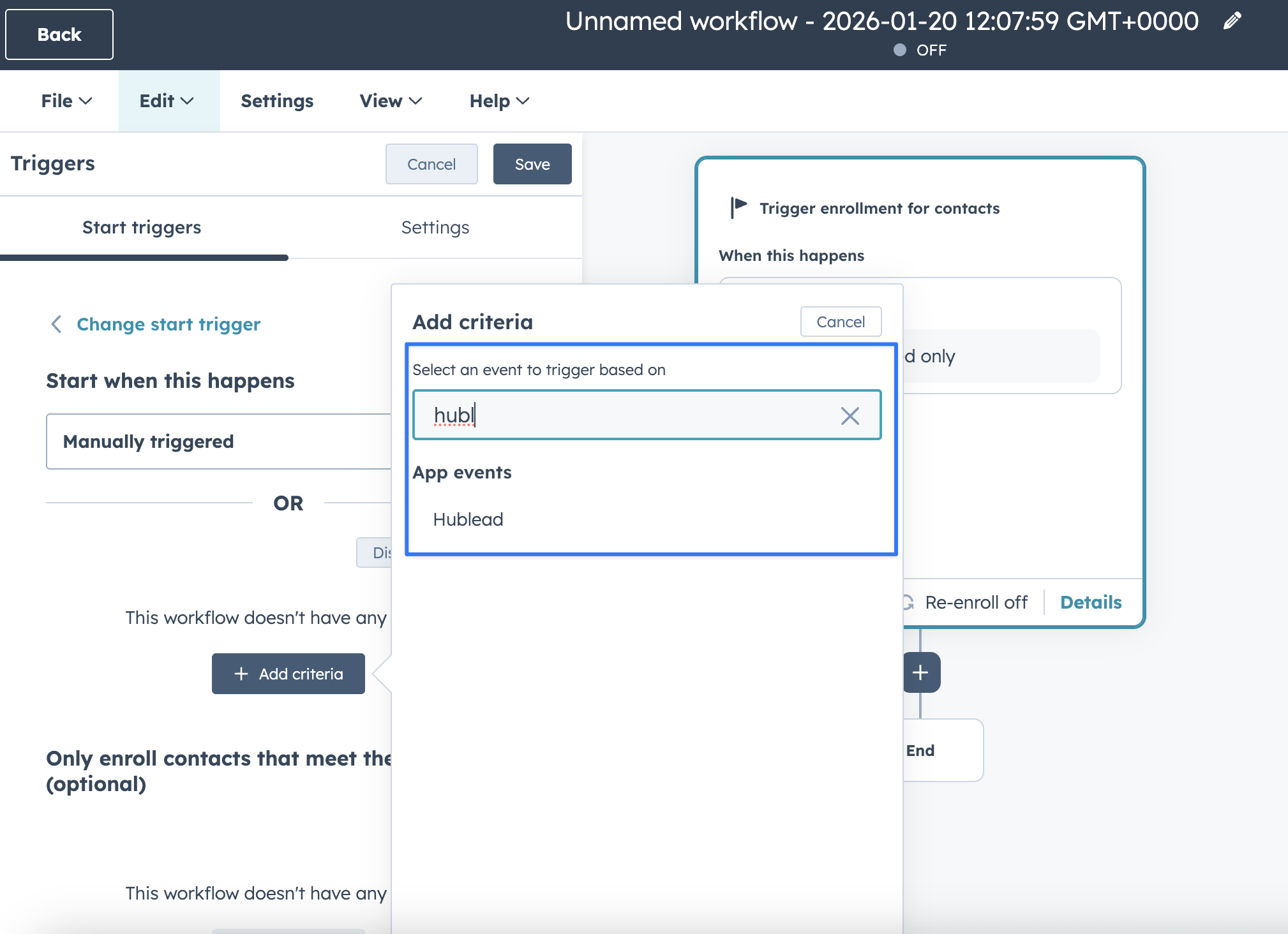
LinkedIn workflow triggers in HubSpot
Before we go further, let's clear up a common misconception.
When people search for "HubSpot LinkedIn automation," they usually mean one of three things:
- Automating LinkedIn outreach (sending connection requests and messages at scale)
- Syncing LinkedIn data to HubSpot (contacts, conversations, company info)
- Building multi-channel sequences that combine LinkedIn touches with email and calls inside HubSpot
Each of these has different tools, different risks, and different best practices. If you want a deeper dive into HubSpot sales automation in general, I've written a full guide on that too. I'll cover all three approaches here.
A word on LinkedIn automation risks
LinkedIn actively cracks down on automation tools that simulate human behavior in your browser. Tools that auto-send connection requests or messages can get your account restricted or even banned.
I've seen it happen to entire sales teams. Not fun.
The safer approach? Use LinkedIn manually for the actual sending (or through LinkedIn's own APIs like Sales Navigator), and automate the data sync and CRM tracking side. That way you get the efficiency without the risk.
Free guide
Start More Conversations With These 15 LinkedIn Openers
Get a response from prospects with these proven LinkedIn openers.
The tools you actually need (and the ones you don't)
You don't need 10 tools to run an effective HubSpot + LinkedIn outbound motion. Here's what I recommend:
Must-haves
- HubSpot Sales Hub (Professional or Enterprise): For sequences, pipeline management, and reporting. This is your command center. The HubSpot Chrome extension is also essential for working from LinkedIn.
- LinkedIn Sales Navigator: For advanced prospecting, lead lists, and account-based targeting. The native HubSpot integration lets you view Sales Navigator insights directly in HubSpot contact records.
- Hublead: A Chrome extension that syncs LinkedIn activities to HubSpot automatically. Connection requests, messages, profile data, all logged to the right contact record without any manual work. I use it daily, and it saves our team hours every week.
Nice-to-haves
- A data enrichment tool (like Clay, Apollo, or Cognism): To find verified emails and phone numbers for your LinkedIn prospects so you can reach them on multiple channels. If you're on HubSpot, check out ABM tools that work well alongside these. You might also want to look into the LinkedIn Ads integration if you're running paid alongside outbound.
- Slack: For real-time notifications when prospects accept your connection requests or reply to messages.
Tools to be careful with
- LinkedIn browser automation tools (Dux-Soup, Waalaxy, Expandi, etc.): These can work, but they carry real risk. LinkedIn's detection has gotten much better. If you use them, keep volumes low and don't automate anything that looks unnatural.
Step-by-step: how to set up your HubSpot + LinkedIn automation workflow
Here's the exact workflow I recommend for sales teams that want to combine LinkedIn and HubSpot without risking their accounts.
Step 1: Build your targeted prospect list
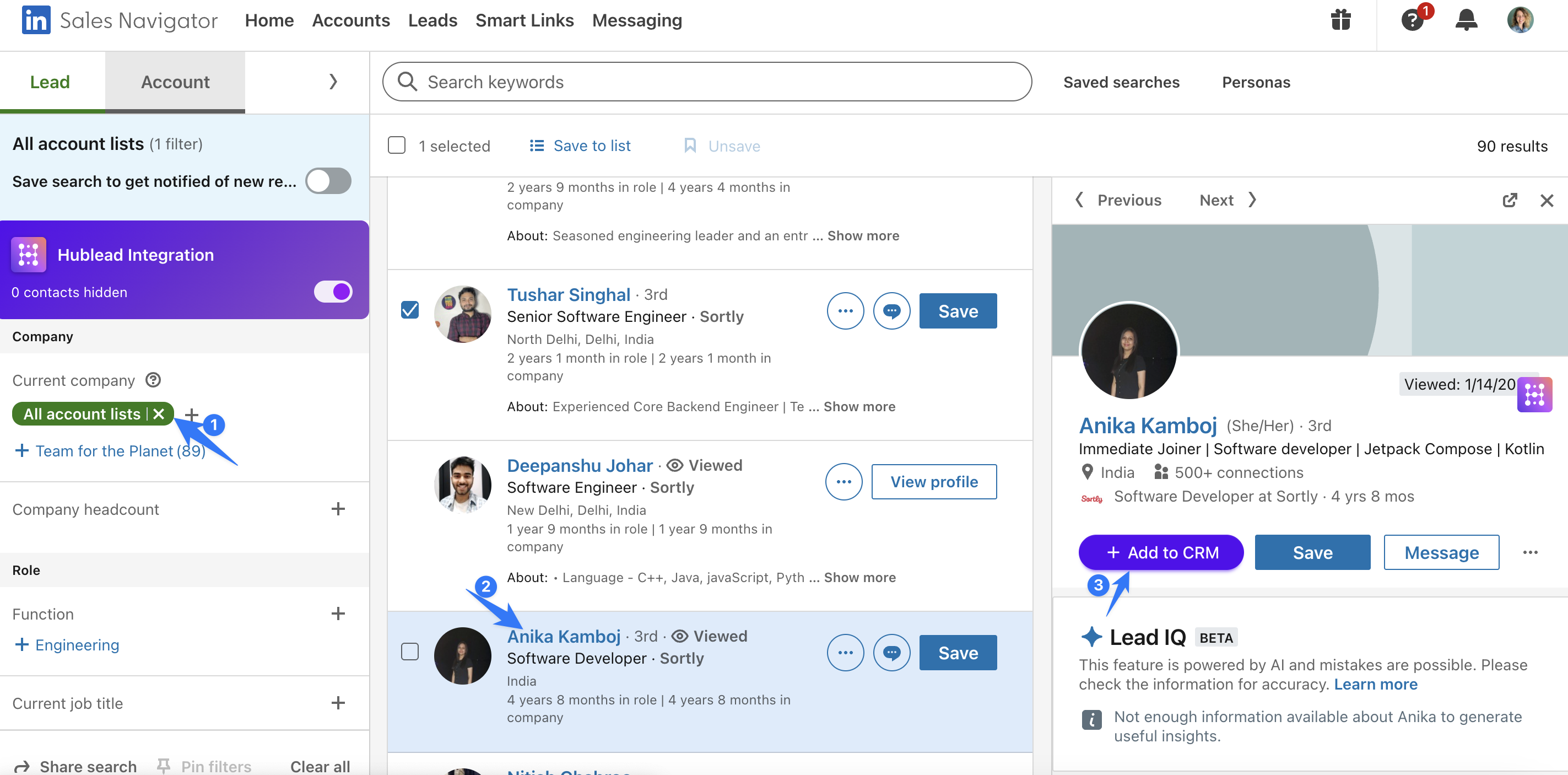
Step 1: Build your targeted prospect list
Start with LinkedIn Sales Navigator. Use the advanced filters to build a list based on your ICP:
- Job title and seniority level
- Company size and industry
- Geography
- Recent activity (posted in last 30 days, changed jobs recently)
Pro tip:
The "changed jobs in last 90 days" filter is gold. People who just started a new role are 3x more likely to evaluate new tools.
Save your search as a Lead List in Sales Navigator. This list will update dynamically as new people match your criteria. For tips on list segmentation best practices, check out our dedicated guide.
If you want the full playbook on going from Sales Navigator to HubSpot lists and sequences, we've built one step-by-step.
Step 2: Enrich contacts and import them into HubSpot
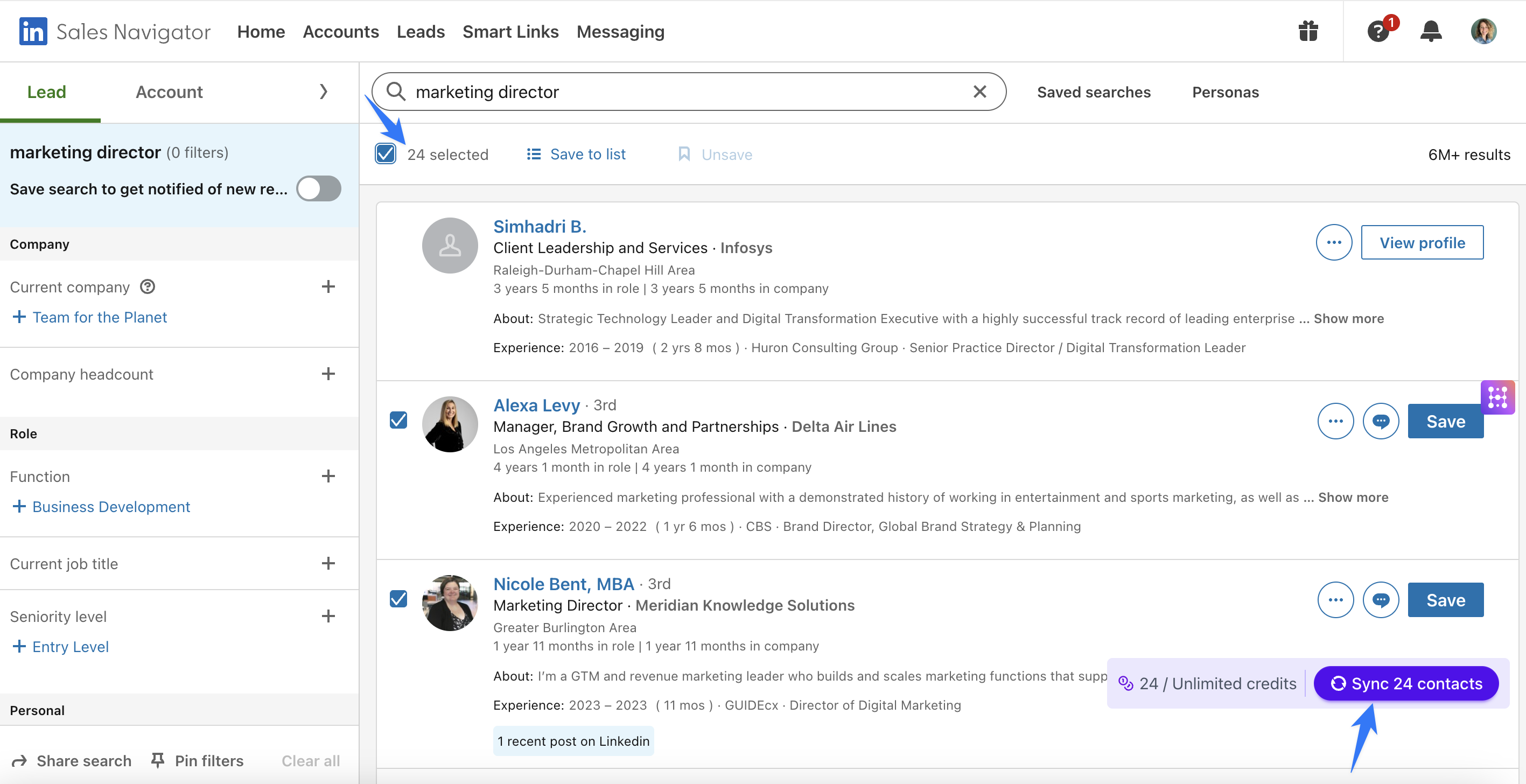
Step 2: Enrich contacts and import them into HubSpot
Once you have your prospect list, you need to get them into HubSpot with enough data to run multi-channel outreach.
If you're using Hublead, this is simple. Visit any LinkedIn profile or Sales Navigator lead, and Hublead lets you create or update a HubSpot contact in one click. It automatically maps LinkedIn data (name, title, company, LinkedIn URL) to the right contact properties.
For bulk imports, you can export your Sales Navigator list to CSV and import LinkedIn contacts to HubSpot. Make sure you include:
- First name and last name (remove emojis!)
- Email address (remove free email providers like Gmail or Yahoo)
- Company name
- LinkedIn profile URL (critical for tracking later)
- Job title
You can also use Breeze enrichment inside HubSpot to fill in missing data after import.
Step 3: Create multi-channel sequences in HubSpot
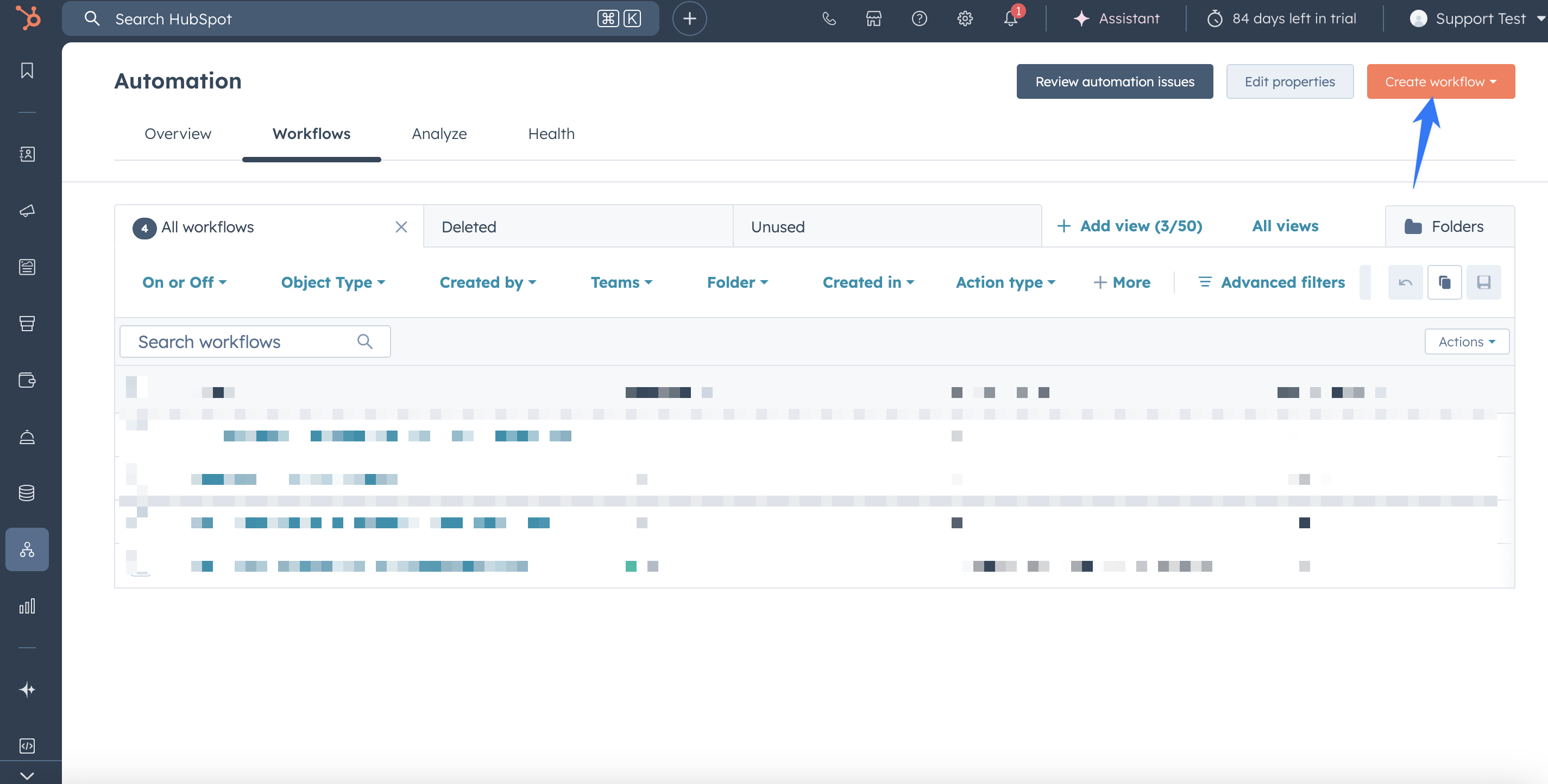
Step 3: Create multi-channel sequences in HubSpot
This is where the magic happens. Instead of just blasting LinkedIn messages OR just sending cold emails, you combine both channels in a single sequence. If you're not sure whether to use sequences vs workflows, the short answer is: sequences for 1-to-1 outreach, workflows for automated triggers.
Here's a sequence structure that works well:
Day 1: Send a LinkedIn connection request with a short, personalized note (do this manually or through Sales Navigator).
Day 2: Send the first cold email via HubSpot sequence. Keep it to 2-3 sentences. Reference something specific about their company or role.
Day 4: Follow up on LinkedIn. If they accepted your connection, send a brief message. If not, engage with one of their posts.
Day 7: Second email via HubSpot. Share a relevant resource, case study, or insight.
Day 10: Phone call (if you have their number). Leave a voicemail if needed.
Day 14: Final email. A short breakup message that's easy to reply to.
Good to know: HubSpot sequences support manual task steps, which are perfect for LinkedIn touches. Create a task step that says "Send LinkedIn message to {contact}" and it will show up in your daily task queue. For inspiration, browse these HubSpot sequence examples and workflow best practices.
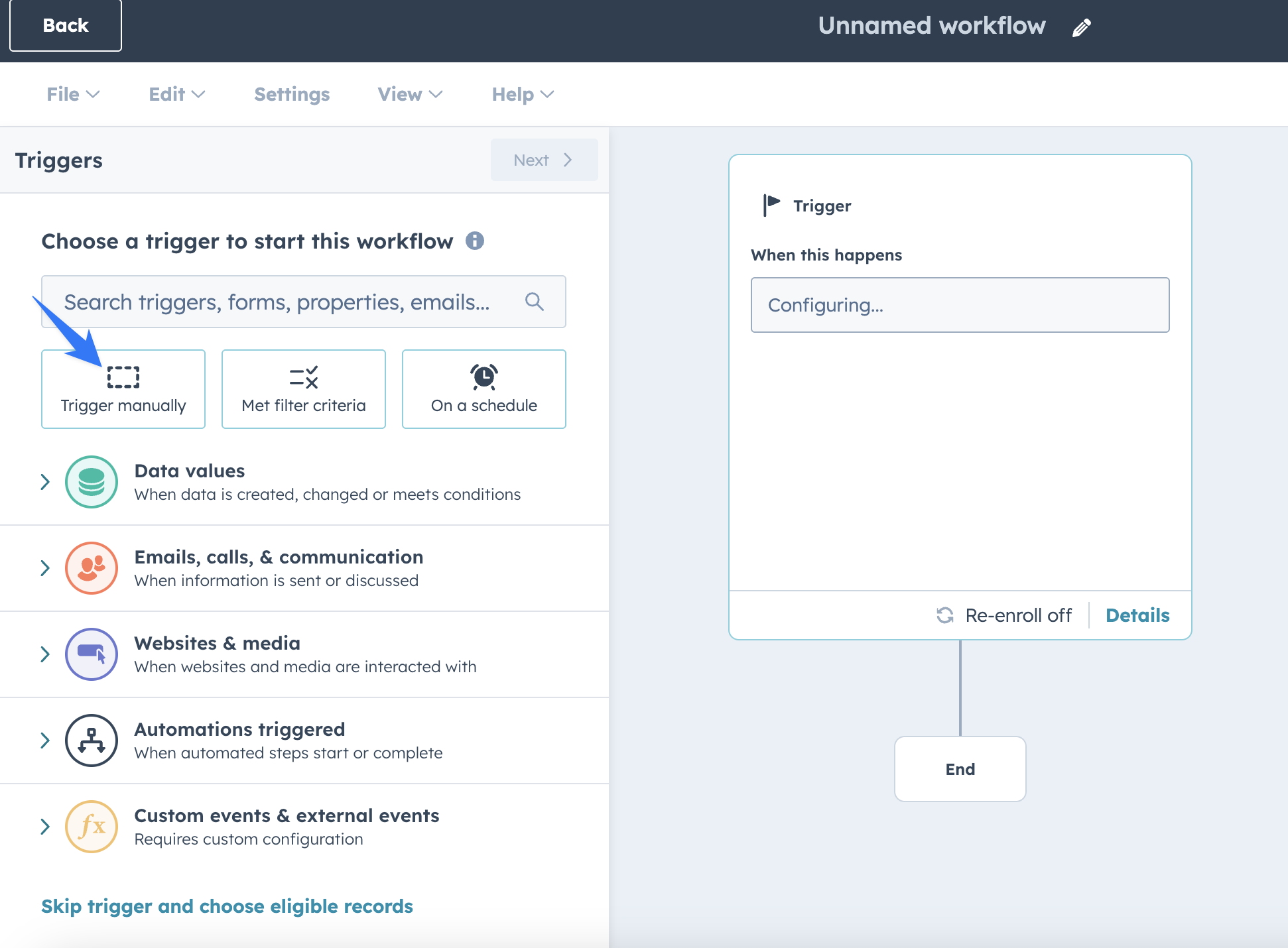
HubSpot sequence with LinkedIn action steps
You can even trigger sequences from LinkedIn engagement automatically, or auto-trigger a sequence when a LinkedIn invitation is accepted. Another useful automation: auto-create follow-up tasks when someone accepts your invite.
Step 4: Sync all LinkedIn activity back to HubSpot with Hublead
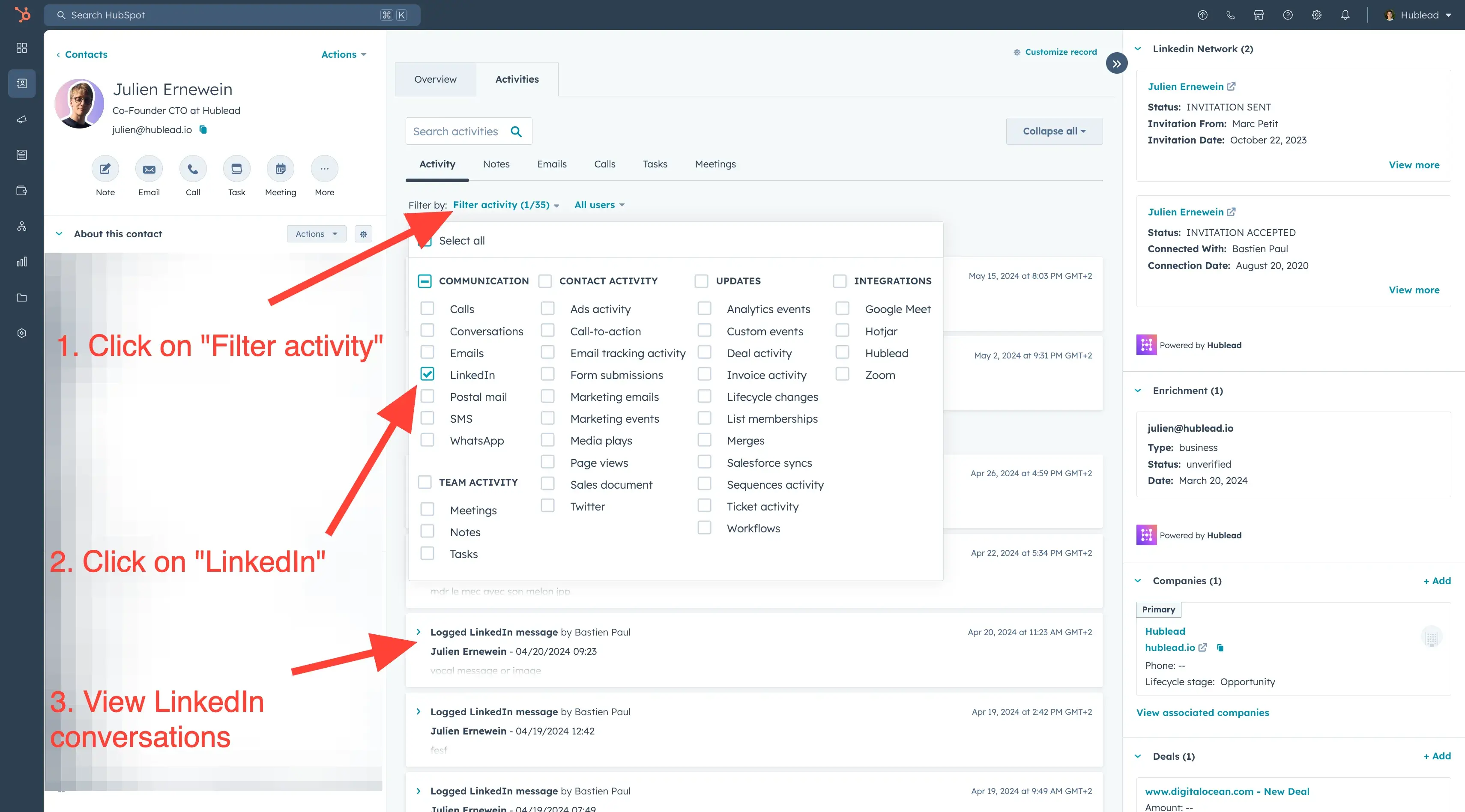
Step 4: Sync all LinkedIn activity back to HubSpot with Hublead
This is the step most teams skip, and it's the most important one.
Without syncing LinkedIn activity to HubSpot, you're flying blind. Your manager can't see what's happening. Your sequences can't account for LinkedIn responses. And your reporting is incomplete.
Hublead solves this by automatically syncing LinkedIn activities to HubSpot contact records:
- Connection requests: Every invitation you send or receive is logged in HubSpot. You can see who accepted, who's pending, and who declined.
- LinkedIn messages: Sync your DM conversations to HubSpot with a single click. No more copy-pasting.
- Profile enrichment: Hublead automatically updates HubSpot contact records with LinkedIn data like job title, company, and profile photo.
- Duplicate detection: When you visit a LinkedIn profile, Hublead checks if the contact already exists in HubSpot. No more duplicates.
The result? Your HubSpot timeline shows the complete picture: emails, calls, AND LinkedIn activity. All in one place.
From here, you can auto-create deals from LinkedIn replies or add LinkedIn activity to your last activity date so your engagement tracking stays accurate.
Step 5: Set up reporting and Slack notifications
Step 5: Set up reporting and Slack notifications
Once everything is synced, you can build HubSpot reports that actually reflect your multi-channel outbound efforts.
Some reports I like to track:
- LinkedIn connection acceptance rate by rep
- Response rate by channel (email vs. LinkedIn vs. phone)
- Average touches before booking a meeting
- Pipeline generated from LinkedIn-sourced leads
For inspiration, check out these dashboard examples for sales teams. You can also use LinkedIn data for lead scoring and track LinkedIn-driven revenue in your deal reports.
For real-time follow-ups, set up Slack notifications when a prospect accepts your LinkedIn connection request. This lets you send a personalized message while you're still top of mind. You can even visualize your LinkedIn pipeline as a Kanban board.
Getting the most out of the LinkedIn Sales Navigator + HubSpot integration
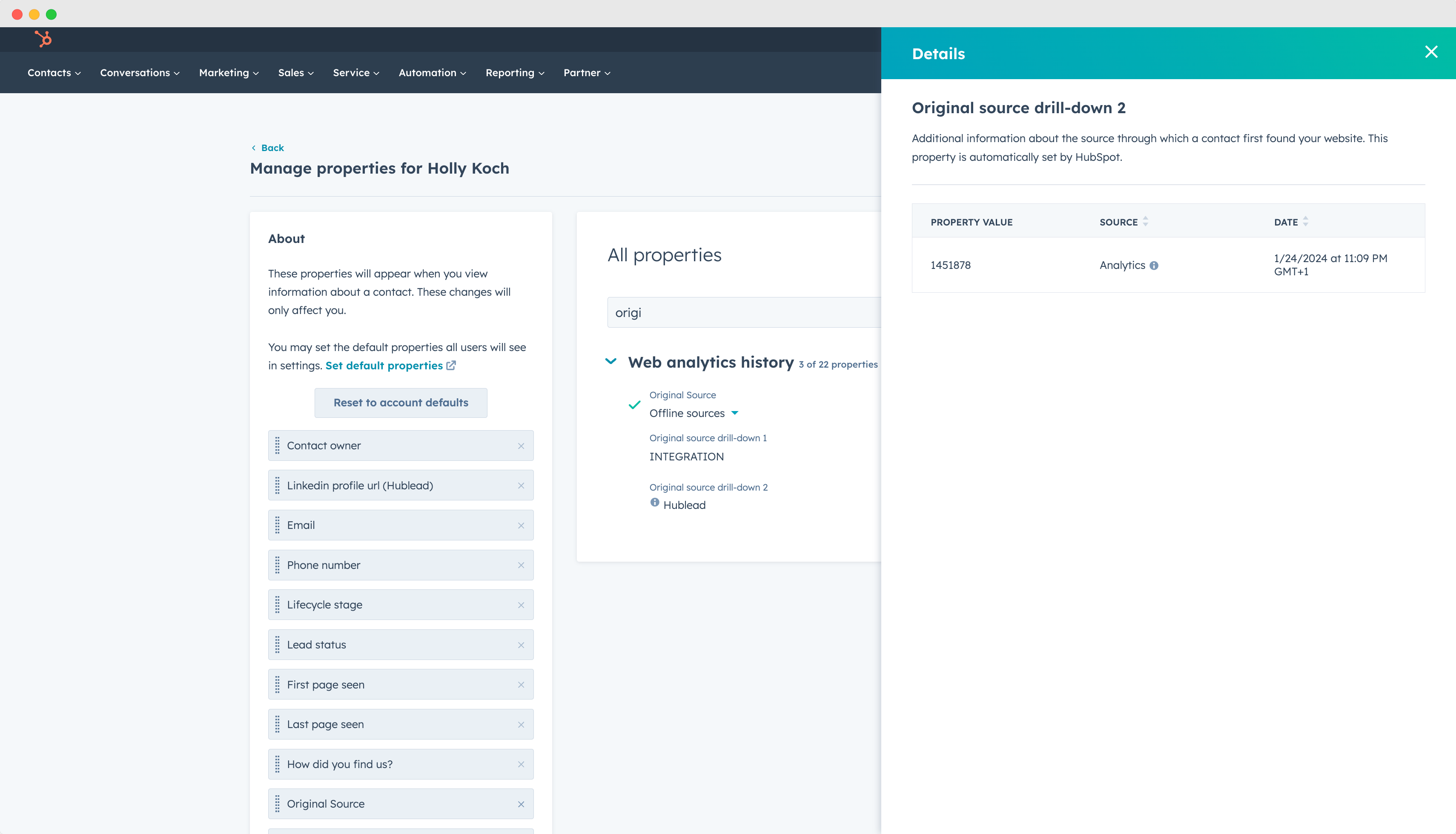
LinkedIn data in HubSpot contact properties
If you're on HubSpot Sales Hub Professional or Enterprise, you already have access to the native LinkedIn Sales Navigator integration. For the complete walkthrough, see our Sales Navigator integration guide. Here's what it does and how to use it well.
What the native integration does
- View Sales Navigator profile information directly inside HubSpot contact and company records
- See shared connections and mutual interests
- Send InMails from the HubSpot sidebar
- Get recommended leads based on your saved accounts
What it doesn't do
- It doesn't sync LinkedIn messages or conversations to HubSpot
- It doesn't log connection requests
- It doesn't automatically create contacts from LinkedIn profiles
- It doesn't track LinkedIn engagement (profile visits, post interactions)
That's why I recommend using the native integration alongside a tool like Hublead. Sales Navigator gives you the prospecting intelligence. Hublead gives you the activity sync. Together, they cover the full workflow.
7 best practices for HubSpot + LinkedIn outbound
After working with thousands of HubSpot users and running outbound campaigns ourselves, here are the practices that actually move the needle:
- Personalize at scale, but don't fake it. Use HubSpot tokens for basic personalization (name, company), but add a genuinely personal sentence for LinkedIn touches. Mention a recent post, a mutual connection, or something specific about their role.
- Keep LinkedIn messages short. Two to three sentences max. Nobody reads a five-paragraph essay in their LinkedIn DMs. Lead with value, not your pitch.
- Don't connect and pitch immediately. The "connect and immediately pitch" approach is the fastest way to get ignored on LinkedIn. Wait at least 24 hours after someone accepts your connection before sending a sales message.
- Use HubSpot task queues for LinkedIn touches. Add manual task steps in your sequences for LinkedIn activities. This keeps everything in one workflow and ensures nothing falls through the cracks.
- Track everything in HubSpot. If an activity isn't in your CRM, it didn't happen. Sync your LinkedIn conversations so your whole team has visibility.
- Respect LinkedIn's limits. Keep connection requests under 100 per week. Keep message volumes reasonable. LinkedIn will flag accounts that suddenly ramp up activity.
- Review and iterate weekly. Look at your response rates by channel, by message variant, and by persona. Double down on what's working. Kill what isn't.
Common mistakes to avoid
I've seen these kill outbound campaigns more times than I can count:
- Using risky LinkedIn automation tools on your main account. If your account gets banned, you lose your entire network. Not worth it. If you must automate, use tools that work through LinkedIn's official APIs.
- Running LinkedIn outreach in a silo. If your LinkedIn activity isn't synced to HubSpot, your team has no visibility and your reporting is useless.
- Sending the same generic message to everyone. "I came across your profile and was impressed" doesn't impress anyone. Be specific or don't bother.
- Ignoring the data. HubSpot gives you incredible reporting capabilities. Use them. A/B test your messaging. Track conversion rates by channel. Optimize continuously.
- Forgetting to clean your data. Remove bounced emails, update job titles, deduplicate contacts. Dirty CRM data leads to embarrassing mistakes and wasted effort.
Free guide
Start More Conversations With These 15 LinkedIn Openers
Get a response from prospects with these proven LinkedIn openers.
Start building your HubSpot + LinkedIn outbound machine
Can you automate LinkedIn messages from HubSpot?
Not directly. HubSpot doesn't have a native feature to send LinkedIn messages or connection requests automatically. The Sales Navigator integration lets you send InMails from the HubSpot sidebar, but that's a manual action. For a true multi-channel workflow, I recommend adding manual LinkedIn task steps in your HubSpot sequences and using Hublead to sync the resulting conversations back to your CRM.
Is the LinkedIn Sales Navigator integration worth it?
Yes, if you're doing any kind of outbound prospecting. The ability to see Sales Navigator data directly in HubSpot records saves a lot of context-switching. That said, it has limitations (no message sync, no contact creation). Pair it with a sync tool for the full picture.
Are LinkedIn automation tools safe to use?
It depends on the tool and how you use it. Tools that simulate browser activity (clicking buttons, typing messages) carry the highest risk. LinkedIn's detection is sophisticated and getting better. If you want to automate, keep volumes low, use tools with good reputations, and never automate on your primary LinkedIn account without accepting the risk.
What's the best tool to sync LinkedIn with HubSpot?
I'm biased, but Hublead is built specifically for this. It syncs connection requests, messages, and profile data from LinkedIn to HubSpot automatically. Other options exist (Surfe, for example), but Hublead is the one I trust and use daily with over 7,000 HubSpot customers.
How many LinkedIn connection requests can I send per week?
LinkedIn's official limit is around 100 connection requests per week, though this can vary based on your account age, network size, and acceptance rate. Stay well under this limit, especially if you're using any automation. Quality over quantity always wins.
The sales teams that win in 2026 aren't the ones sending the most messages. They're the ones running tight, multi-channel workflows where every touchpoint is tracked, every conversation is logged, and every rep knows exactly where each prospect stands.
HubSpot gives you the infrastructure. LinkedIn gives you the access. And a tool like Hublead ties it all together by making sure nothing falls through the cracks.
Keep reading on LinkedIn and HubSpot
 Lead Management
How to use HubSpot Sales: The ultimate guide for sales teams
HubSpot won't magically fill your pipeline, but using it right will. Learn how to set up Sales Hub, run multi-channel outbound campaigns, and automate your sales process.
Lead Management
How to use HubSpot Sales: The ultimate guide for sales teams
HubSpot won't magically fill your pipeline, but using it right will. Learn how to set up Sales Hub, run multi-channel outbound campaigns, and automate your sales process.
 Lead Management
How to use HubSpot for multichannel outbound: a guide for sales teams
Here’s your ultimate guide to building a multichannel outbound strategy in HubSpot, based on real tactics.
Lead Management
How to use HubSpot for multichannel outbound: a guide for sales teams
Here’s your ultimate guide to building a multichannel outbound strategy in HubSpot, based on real tactics.
 Lead Management
Mastering HubSpot Round Robin Lead Assignment Setup
Optimize your sales process with effective Round Robin lead assignment in HubSpot. Improve efficiency and boost team collaboration. Read more to learn how!
Lead Management
Mastering HubSpot Round Robin Lead Assignment Setup
Optimize your sales process with effective Round Robin lead assignment in HubSpot. Improve efficiency and boost team collaboration. Read more to learn how!
See your CRM on
every LinkedIn profile.
Install the extension, connect HubSpot or Salesforce, open a profile. You see right away whether the person is in your CRM.
Free to start, no card needed.